

Setup
अपनी Tradeways API key लें, ATAS में Tradeways module इंस्टॉल करें, indicator को chart में जोड़ें, और चुनें कि broker खाते कैसे route किए जाएं।
Setup
1. Tradeways से अपनी API key लें
Tradeways में, Trades जोड़ें (ऊपर दाईं ओर) → Auto sync → ATAS Indicator पर क्लिक करें। आपके लिए एक नई API key बनती है और सिर्फ़ एक बार दिखती है — इसे copy कर लें। आप इसे Settings → Integrations में मैन्युअल रूप से भी बना सकते हैं।
नई keys को डिफ़ॉल्ट रूप से आपके सभी trading खातों तक access मिलता है, इसलिए आपको कोई account ID copy करने की ज़रूरत नहीं है।
2. ATAS में Tradeways module इंस्टॉल करें
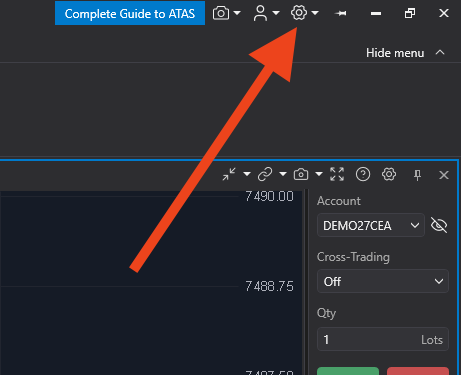
ऊपर वाले bar में gear icon के ज़रिए ATAS settings menu खोलें।
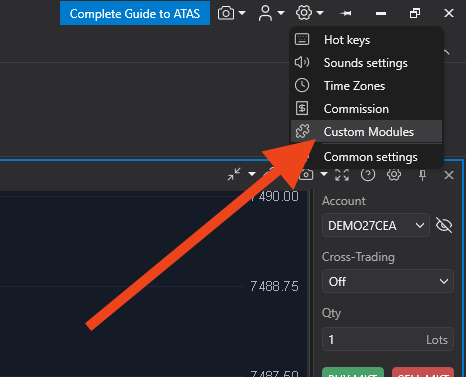
dropdown से Custom Modules चुनें।
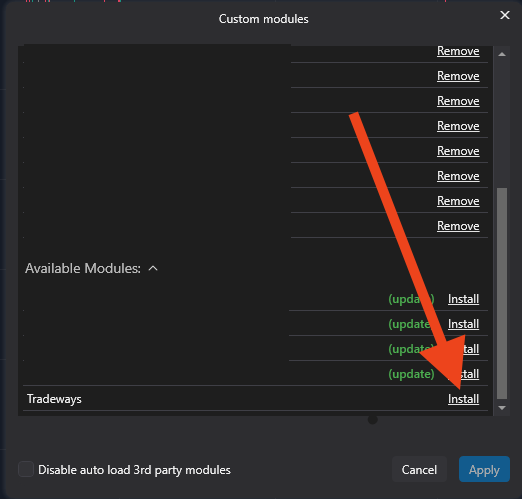
Available Modules सूची में, Tradeways के बगल में Install पर क्लिक करें।
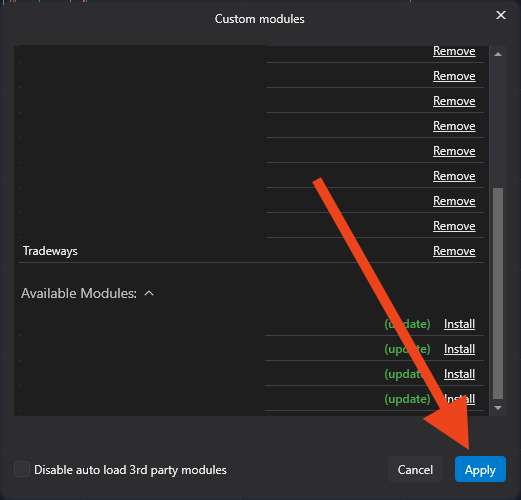
पुष्टि करने के लिए Apply पर क्लिक करें। ATAS module को इंस्टॉल कर देगा।
3. indicator को chart में जोड़ें
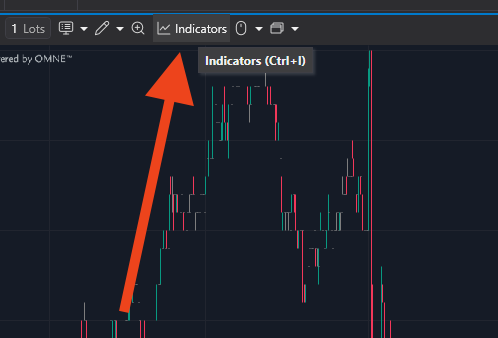
कोई भी chart खोलें और chart toolbar पर Indicators बटन पर क्लिक करें।
Tradeways खोजें, दाईं ओर API Key field में अपनी API key paste करें, फिर Add to chart पर क्लिक करें।
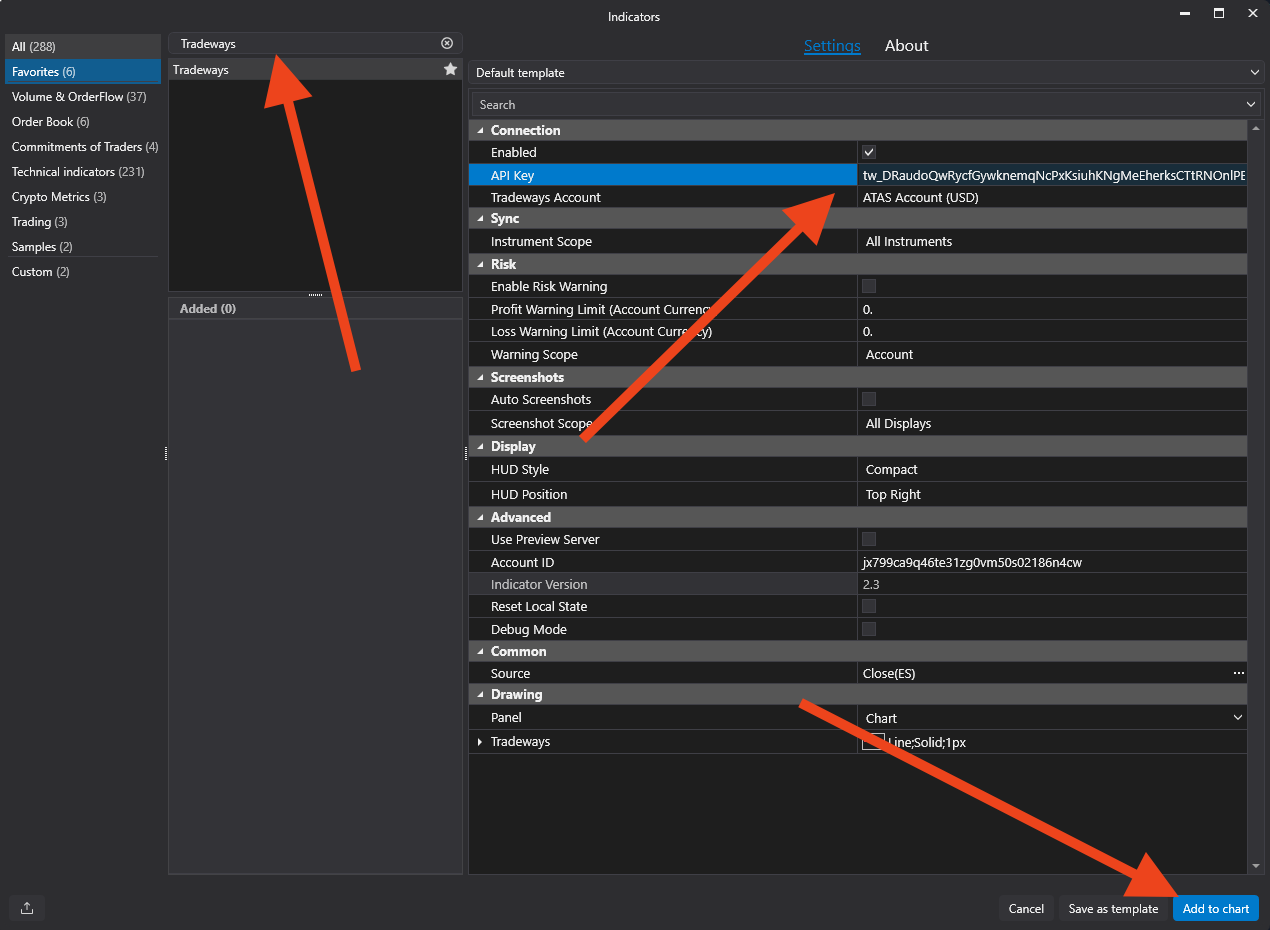
Tradeways Account dropdown आपकी API key से अपने आप भर जाता है।
4. चुनें कि trades कैसे route किए जाएं
Tradeways Account dropdown में दो तरह की entries होती हैं:
- कोई एक खास खाता — इस chart का हर fill उसी एक Tradeways खाते में journal होता है, चाहे वह किसी भी broker खाते से आया हो। यह तब सबसे अच्छा रहता है जब एक ATAS install एक ही Tradeways खाते से मैप होता है।
- Automatic — खाते के हिसाब से अलग करें — आप जिस भी broker खाते पर trade करते हैं, वह broker के account ID से मैच होकर अपने अलग Tradeways खाते में journal होता है। यह तब सबसे अच्छा रहता है जब आप एक ही ATAS install से कई prop या live खाते चलाते हैं। जब Tradeways को पहली बार कोई नया broker खाता दिखता है, तो वह एक destination खाता बना देता है और फिर उस mapping को याद रखता है।
Automatic पर, indicator connect होते ही और जब भी आप खाते बदलते हैं, आपके broker खातों की जानकारी Tradeways को भेज देता है — इसलिए पहला trade आने से पहले ही आप Settings → Integrations में तय कर सकते हैं कि हर खाता कहाँ जाएगा। देखें Connected broker accounts।
बस इतना ही — अब fills रियल टाइम में Tradeways के साथ sync होते हैं। हर option देखने के लिए, Settings देखें।
ओवरव्यू
ATAS के लिए Tradeways indicator trades, TP/SL levels और screenshots को real time में sync करता है, हर broker account को सही Tradeways खाते तक route करता है, और HUD में एक वैकल्पिक risk warning दिखाता है।
Settings
Tradeways ATAS indicator के हर option — connection, sync, risk warnings, screenshots, HUD display और advanced — साथ ही जिन broker accounts की यह रिपोर्ट करता है उनका प्रबंधन।