

Strategies
Organize your trading approaches with rules, compliance tracking, and notes — then link strategies to individual trades.
Strategies
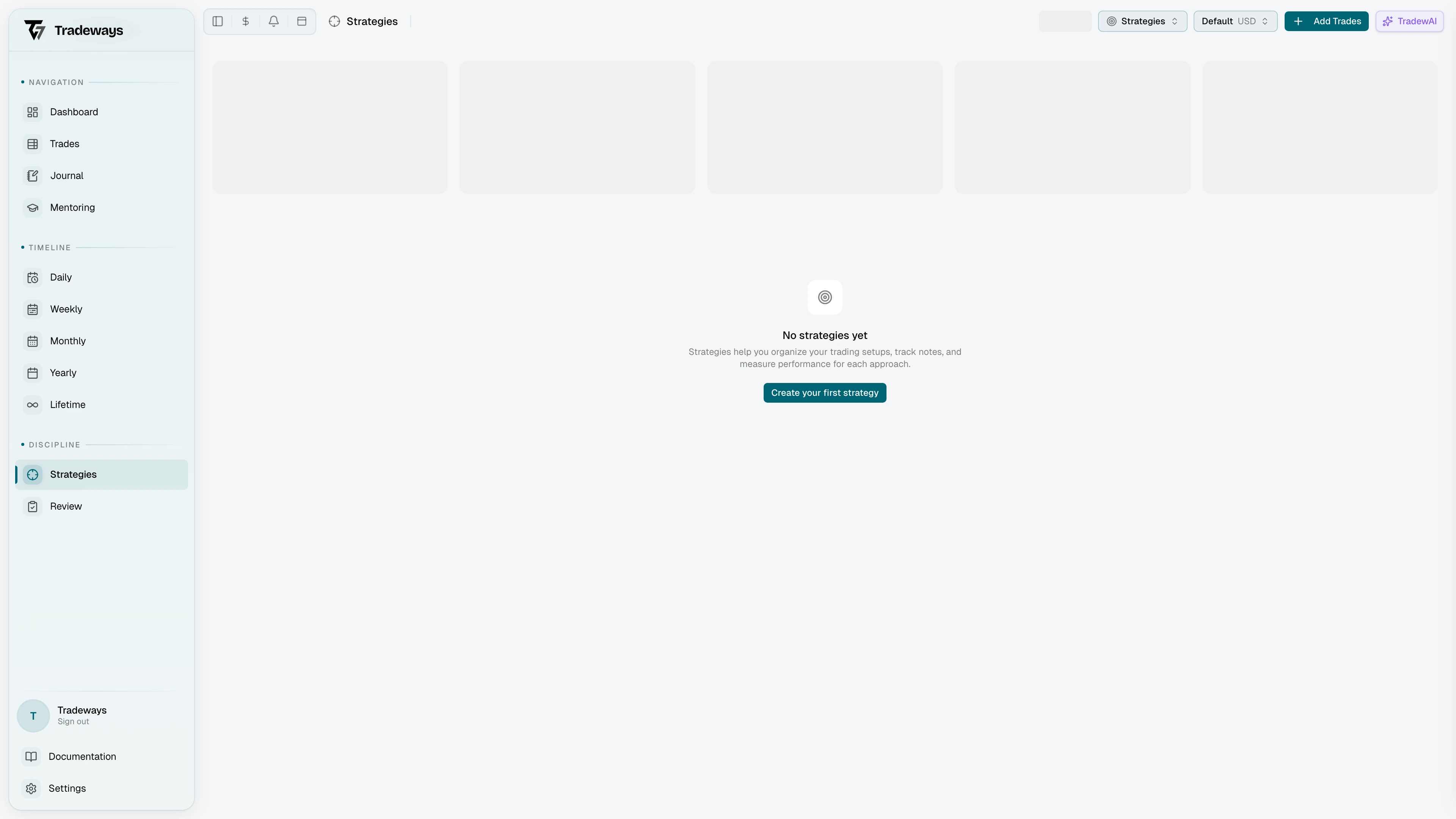
The strategies page at /strategies lets you define and manage your trading approaches. Each strategy has its own notes, rules, and compliance tracking. You can link strategies to individual trades so that every trade is evaluated against the rules you set. Use strategies to enforce discipline, track adherence, and measure how well you stick to your plan over time.
Strategy Switcher
When you are on the /strategies route, a strategy switcher appears in the header. It shows the icon and name of the active strategy.
Click it to open a dropdown listing your favorited strategies. Select any strategy to switch to it immediately. If you have no favorites, the dropdown shows a hint to star one.
At the bottom of the dropdown, click Manage Strategies to open the full management modal.
Managing Strategies
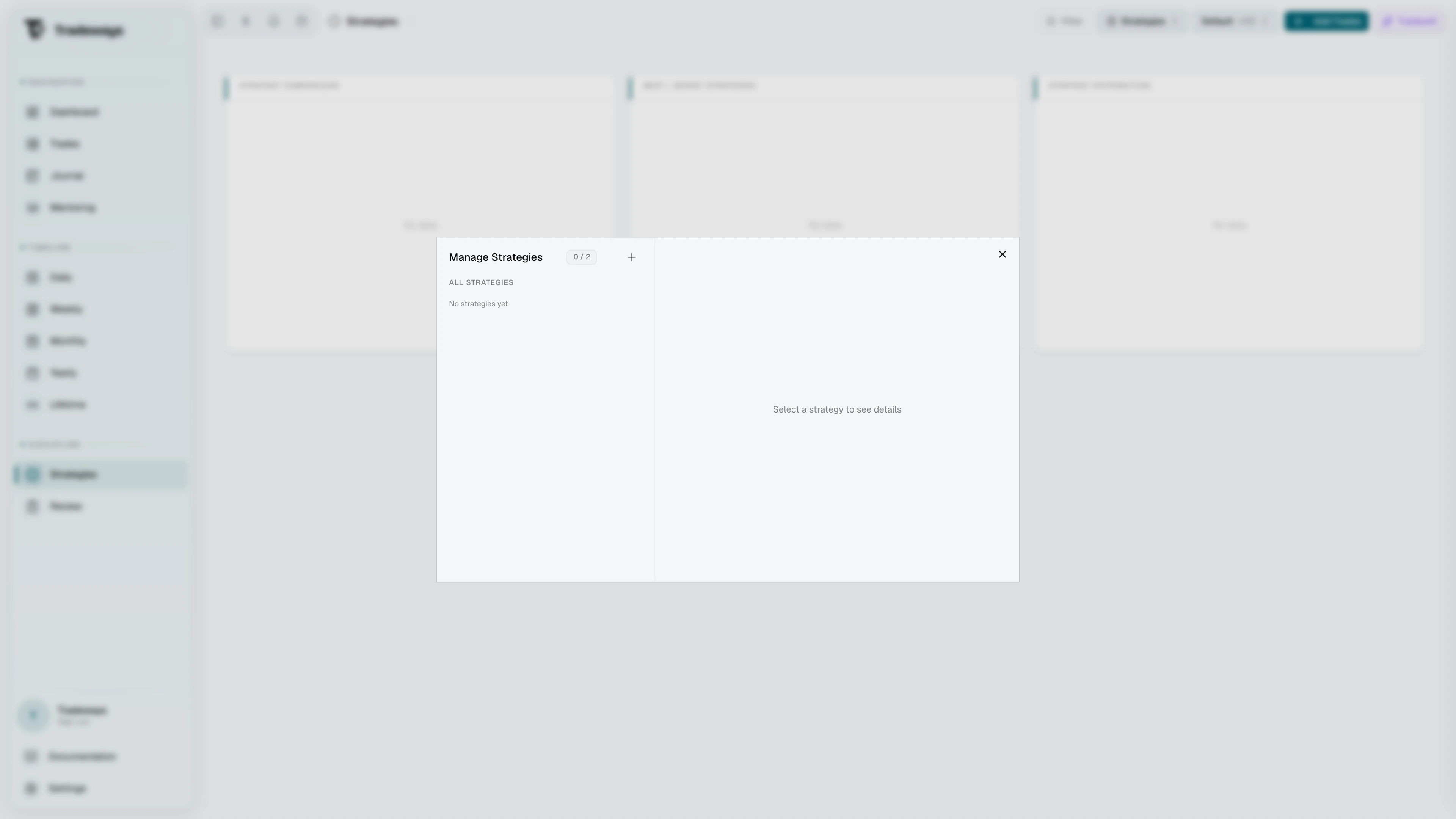
The manage modal provides a complete overview of all your strategies.

Left Panel
The left panel lists your strategies in up to three sections:
- Favorites -- strategies you have starred. These also appear in the header switcher dropdown.
- All -- every strategy you have created that is not favorited.
- Locked -- strategies that exceed your plan's billing limit. These are read-only until you upgrade.
Hover over a strategy to reveal the star toggle, edit icon, and delete icon. A usage counter in the header shows how many strategies you have used out of your plan limit.
Click the + button at the top of the panel to create a new strategy. If you have reached your plan limit, the button is disabled with a tooltip explaining why.
Detail Panel
Hover over or click any strategy in the list to see its details on the right side: the icon, name, description, and creation/update dates. For accessible strategies, click the edit icon to switch to inline editing mode where you can change the name, description, icon, and color. For locked strategies, the panel shows an upgrade prompt.
Creating Strategies
Click the + button in the manage modal or the Create Strategy button in the empty state to open the creation dialog.
| Field | Description |
|---|---|
| Name | Required. The display name for your strategy. |
| Description | Optional. A short note about this strategy's purpose. |
| Icon | Choose from a curated set of icons. Displayed in the switcher and list. |
| Color | Pick a color for the icon from the available palette. |
The number of strategies you can create depends on your billing plan. When you hit the limit, the create button is disabled and an upgrade prompt appears.
Editing and Deleting
Edit a strategy inline from the detail panel in the manage modal. Change the name, description, icon, or color, then click Save. Click Cancel to discard changes.
To delete a strategy, click the trash icon on its row. A confirmation dialog appears before the strategy is removed. Hold Shift and click the trash icon to skip the confirmation dialog.
Deleting a strategy is a soft delete with cascading effects:
- All rules belonging to the strategy are archived.
- All notes belonging to the strategy are archived.
- The strategy is cleared as the active strategy if it was selected.
- The strategy is removed as the default strategy from any trading accounts that used it.
Strategy Notes
The left side of the strategy page contains a tabbed rich text editor for strategy notes. Each tab is an independent notebook page.
- Click the + button in the tab bar to create a new note.
- Right-click or open the dropdown menu on a tab to Rename, Move Left, Move Right, or Delete it.
- Reorder tabs by moving them left or right via the dropdown menu.
- There is no limit on the number of notes per strategy.
Notes auto-save as you type. A status indicator in the tab bar shows the current save state.
Strategy Rules
The right side of the strategy page shows the rules panel. Rules define the constraints and conditions your trades should follow under this strategy. Click the + button in the panel header to add a new rule.
Rule Categories
Rules are organized into five categories:
| Category | Rule Types |
|---|---|
| Time & Session | Max trades per day, Max trades per week, Trading hours, Stop after losses |
| Risk Management | Must have stop-loss, Must have take-profit, Min R:R ratio, Max position size |
| Instruments | Allowed symbols, Allowed asset classes, Allowed directions |
| Performance | Daily P&L limit, Weekly P&L limit, Monthly P&L target, Max daily loss, Min win rate, Profit factor target |
| Manual Checks | Manual check (a self-reported check for each trade with a label you define) |
Rule Scopes
Each rule has a scope that determines when it is evaluated:
| Scope | Description |
|---|---|
| Trade | Evaluated per individual trade |
| Daily | Evaluated across all trades in a single day |
| Weekly | Evaluated across all trades in a single week |
| Monthly | Evaluated across all trades in a single month |
When you create or edit a rule, the available scopes depend on the rule type. Some rules only support a single scope (for example, "Must have stop-loss" is always per trade), while others let you choose.
Threshold Types
Performance rules that involve P&L values (Daily P&L limit, Weekly P&L limit, Monthly P&L target, Max daily loss) support two threshold types:
- Currency -- set the threshold in a specific currency (e.g. 500 USD).
- Native units -- set the threshold in the instrument's native units (e.g. ticks or points), scoped to a specific asset class. If your strategy spans multiple asset classes, a warning explains which trades will be excluded from evaluation.
Managing Rules
- Enable/Disable -- toggle a rule on or off without deleting it. Disabled rules show an "Inactive" badge and are excluded from compliance scoring.
- Edit -- open the rule form to change its parameters or scope.
- Delete -- remove the rule permanently. A confirmation dialog appears. Hold Shift to skip confirmation.
Each strategy supports a maximum of 50 rules.
Compliance Score
The compliance score measures how well your trades follow the active rules of a strategy. It is calculated as:
passed rules / total evaluated rules
Rules that result in "N/A" (not enough data to evaluate) are excluded from the total. The score is displayed as a percentage with color coding:
| Score Range | Color |
|---|---|
| 80--100% | Green |
| 50--79% | Yellow |
| Below 50% | Red |
The compliance score appears in several places:
- Strategy page -- in the rules panel as a collapsible summary. Expand it to see each rule's pass/fail/N/A result.
- Dashboard -- via compliance-related widgets (compliance score card, compliance trend chart, compliance heatmap).
- Strategy widgets on the
/strategiespage widget area.
Linking Strategies to Trades
Strategies are linked to trades so that rules can be evaluated against actual trading data.
From the Trade Log
The Trade Log includes a strategy column. Click the strategy cell on any trade row to open a dropdown and assign or change the linked strategies.
From the Trade Detail
The Trade Detail page shows linked strategies in the header area. You can assign or remove strategies from there.
Bulk Assign
Use the bulk assign feature to link a strategy to all trades in an account at once. This is useful when you retroactively create a strategy and want to apply it to existing trades.
Default Strategy per Account
In account settings, you can set a default strategy for a trading account. When a new trade is created or imported into that account, the default strategy is automatically linked. This saves you from manually assigning a strategy to every trade.
Unlinking
Remove a strategy from a trade via the strategy cell in the Trade Log or from the Trade Detail page. Unlinking does not delete the trade or the strategy -- it only removes the association.
Mentor View
If you share strategies with a mentor via the Mentoring permissions, the mentor can view your strategies in read-only mode. The mentor sees the same notes and rules panels but cannot edit, create, or delete anything. The strategy switcher in mentor view lists all shared strategies (not just favorites).
See Also
- Dashboard -- compliance widgets for strategy tracking
- Trade Log -- assign strategies to trades via the strategy column
- Trade Detail -- view and change linked strategies on a single trade
- Mentoring -- share strategies with a mentor