

Trade Detail
Review one trade, its calculations, chart, journal context, fills, adjustments, levels, and sharing.
Trade Detail
Open a trade from the Trade Log, a dashboard, a timeline, Review, or a linked journal entry. The back action returns to the source when that context is available. Previous and next controls move through the related trade set. From the Trade Log, they follow the table's current sort. On the full trade page, the left and right arrow keys do the same, and so do the J and K keys.
Review embeds the same trade workspace beside its checklist. There, the checklist owns trade navigation, the review state, and custom fields, so the embedded trade leaves them out. On smaller screens, View trade and Checklist switch between them without losing your place. Open full trade opens the standalone page.
Summary
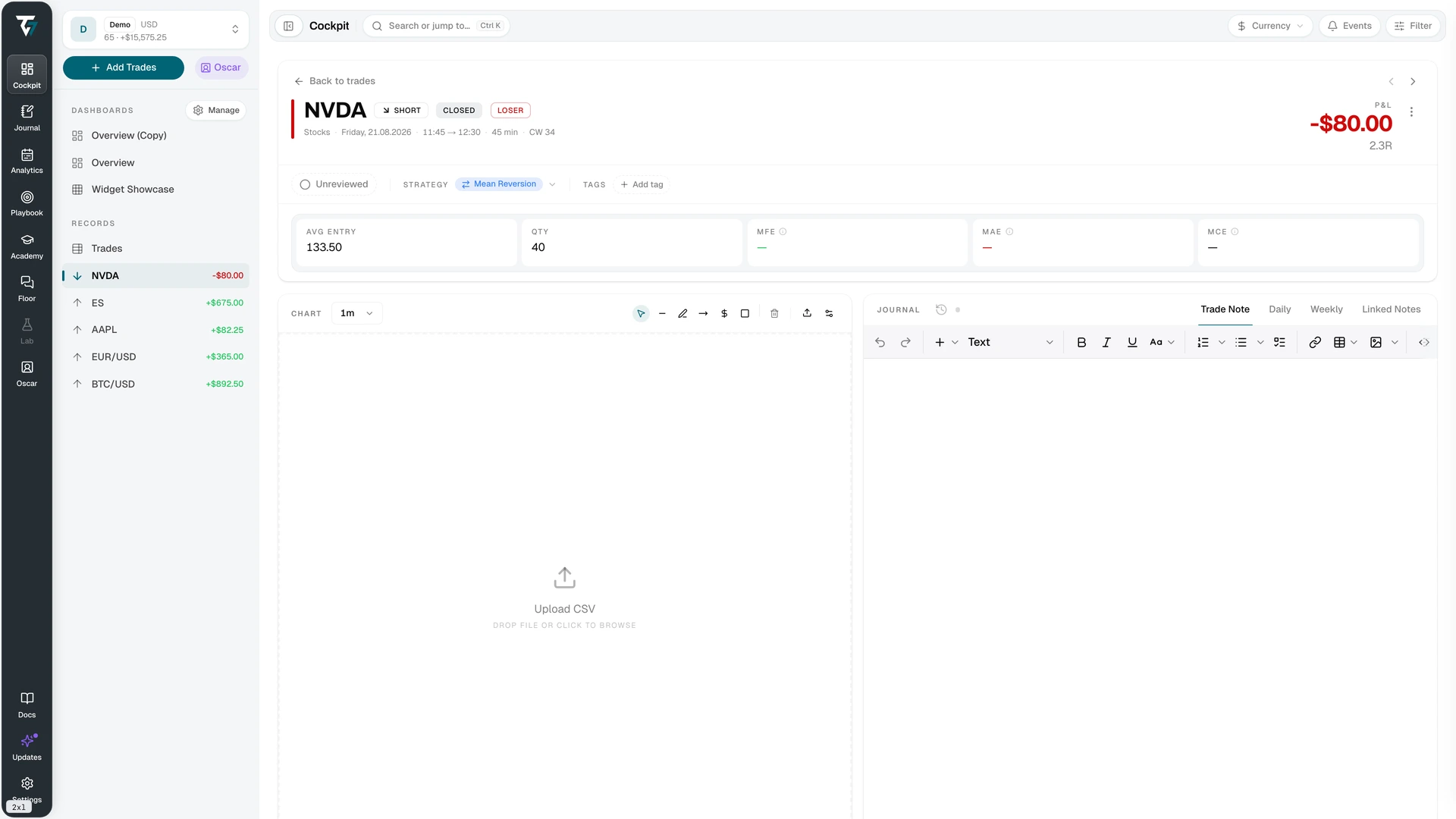
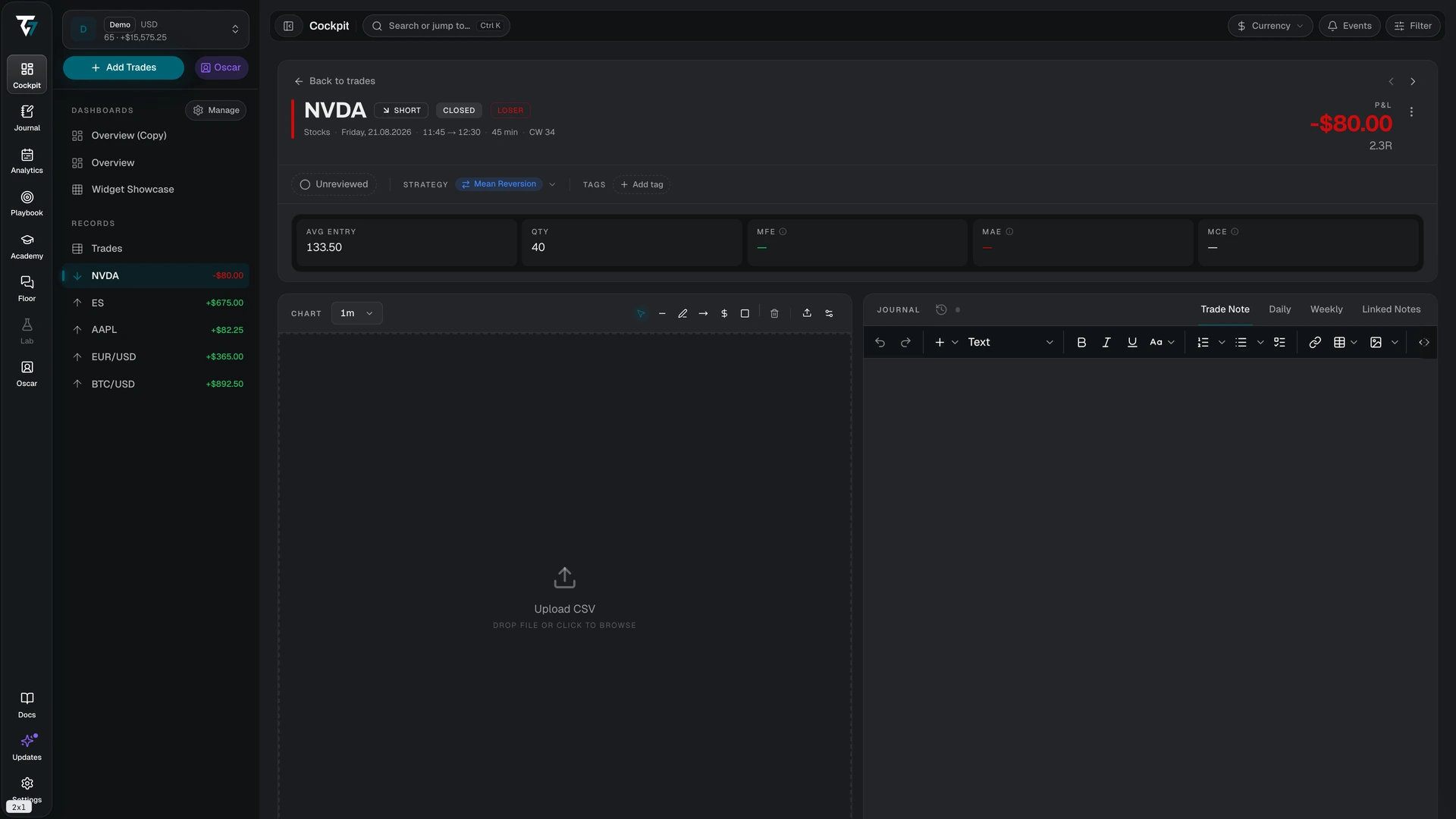
The header identifies the symbol, the futures contract, the direction, the status, and the result. A context line below it adds the asset class, the date, the open and close times, the duration, and the calendar week. A row of labelled figures below shows the average entry, the quantity, and the excursion metrics. The gross P&L and adjustment figures appear only in the currency and percentage display modes, and only when the trade has those values. A commission figure appears in every display mode when the trade has commission.
Net P&L includes commission and supported adjustments. Gross P&L excludes commission. An unconverted marker means that no exchange rate to the account currency was available for the trade date, so the amount stays in the instrument's currency. An "Excludes unconverted fees" marker means that one or more fees or adjustments are in another currency with no rate for their date, so they are left out of the total.
MFE, the maximum favorable excursion, is the best open P&L while the trade was held. MAE, the maximum adverse excursion, is the worst. MCE, the maximum continuation excursion, is how far the move continued after close, measured over a window of five times the holding time. Open each metric explanation to see its time window and source. A pending state means that market data or calculation work is not complete.
The trade page reads in the P&L display mode of the current account scope, the same mode as the header, so a trade opened from All accounts keeps that mode. The P&L and the excursion figures show a dash until the values for that mode have loaded, so no figure appears briefly in another unit. In R multiple mode the excursion tiles divide by the average realized loss of the trade's own account. In Ticks (1-lot) mode they show the move for one contract from the average entry.
On the full trade page, use the review control to mark the trade reviewed or not reviewed. Assign strategies and tags from the header controls.
Chart
The chart shows available price data with execution markers, level markers, and the risk/reward zone. Change the timeframe to inspect another interval. The locate control scrolls back to the trade. Drawing tools are stored with the trade.
Chart settings control the candle colors, the grid, the crosshair, and the shape, size, labels, and colors of the execution markers. The settings apply to every chart, not to one trade.
Some instruments are drawn from a reference market instead of your broker's feed. A note under the chart names the instrument that was used and explains why prices can differ by a small amount.
The Upload chart data button in the chart toolbar imports a candle CSV from your broker to draw the trade on your own prices. The import preview shows whether the file covers this trade fully, partly, or not at all. The candles stay in this browser and are used by every account you select. Where they exist, they replace hosted prices for that instrument, and gaps in them are not filled. A note under the chart says when the prices are uploaded candles. Manage, back up, and remove stored candles in Local Data.
When uploaded candles cover the whole trade, Tradeways calculates MFE, MAE, and the P&L path in this browser and saves the results to your account. The explanation of each metric then names the uploaded candles as its source. A metric stays pending or unavailable when the candles do not cover its time window or are too coarse to separate the executions.
No chart data does not mean that the trade is missing. Market data can be unavailable for the instrument, contract, or time range. The executions remain the source for the trade record.
Journal
The Journal area has four views:
- Trade note stores the note for this trade.
- Daily previews the journal entry for the trade date.
- Weekly previews the journal entry for that week.
- Linked notes shows pages, sessions, and daily, weekly, monthly, and yearly entries that you linked to the trade.
Open a preview in Journal when you need the full editor. A shared account only shows journal content that its owner permitted.
Tradeways remembers the Journal view that you selected in this browser and opens the same view on other trades. If that view is unavailable for the current trade or shared-account permissions, the first available view opens instead.
These views display a PDF when the note uses one as its body. Use Document or Extracted text to read it, or Open PDF to open the file separately. On a note you can edit, the PDF control replaces or removes the document. Shared accounts can read permitted PDF notes but cannot change them.
Executions, adjustments, and levels
Executions determine direction, quantity, average prices, status, and trade P&L. You can add an execution only while the trade is open. A futures trade also needs a resolved contract. Edit or delete an execution only when you can reconcile the result with the broker statement. One trade cannot contain a position that crosses flat and reopens in the opposite direction.
Adjustments record swap, dividend, funding, borrow cost, or an additional commission. Each entry has a type, an amount in the account currency, and a date. The sign determines whether it adds to or removes from P&L. Imported adjustments can carry another currency.
Take-profit and stop-loss levels record the plan and its history. A level can show that it came from a broker. Replacing, hitting, or removing a level remains visible in its history.
Changes to executions, adjustments, instruments, or levels can recalculate P&L, result, risk ratios, and analytics. In Review, these edits also refresh the checklist and compliance overview.
Additional context
Custom fields use the account's field definitions. Each field is a checkbox, a selection, or a text box, and each change saves on its own. A text field saves when you leave it; press Escape to discard the edit. If a save fails, the field shows an error. The empty state links to setup when no fields exist.
Images can be added and removed from the trade. Select an image to view it full size. In the viewer, the left and right arrow keys move between the trade's images, not between trades. Escape closes the viewer, or resets the zoom first when the image is zoomed. Supported formats are PNG, JPEG, and WebP, up to 10 MB per file. Images that were attached in a linked note also appear here.
To mark up an image, open it here, from the image column in the Trade Log, or from a trade embed in the Journal, and select Draw, or press D. The tools are select and move (V), pen (P), line (L), arrow (A), horizontal level (H), zone (R), text (T), and eraser (E). Hold Shift while drawing a line or arrow to snap it to 45° steps. With the select tool, drag a mark to move it, drag its handles to resize it, press Delete to remove it, or double-click text to edit it. Sizes are extra thin, thin, medium, and thick. A mark stays selected after you draw it, and a new color or size applies to the selected mark. Tab and Shift+Tab select the next or previous mark. The arrow keys nudge the selected mark; hold Shift for larger steps. While zoomed in, hold Space and drag to pan. Undo and redo use ⌘Z and ⇧⌘Z (Ctrl on Windows). Press ⌘S to save. Cancel and Escape ask before discarding unsaved changes.
Drawings are stored separately from the image, so the original stays unchanged. The eye button hides or shows them, and thumbnails show them too. An image attached in a linked trade note shares one drawing with the note, so a change in either place shows in both. Only the image's owner can draw; people you share the account with see the drawings but cannot edit them. When AI screenshot analysis is on, it runs again five minutes after your last save and includes your drawings. The previous analysis stays visible until the new one finishes.
Strategy compliance appears when a strategy with rules applies to the trade. Automatic rules show pass, fail, or not applicable and cannot be toggled. Select anywhere on a manual rule's row, including its text and the Failed tag, to check or uncheck it. An unchecked manual rule remains open while the trade is unreviewed. Once you mark the trade reviewed, Tradeways counts each unchecked manual rule as failed. Mark the trade unreviewed to return it to the unchecked state.
Actions and recovery
The actions menu can edit the trade, change its instrument or contract, move it to another account, share it with a public link, share it to a community channel, force-close it, or delete it. Force close appears only while the trade is open. Available actions depend on trade status, ownership, and permissions.
Force close marks the trade closed at the current time and keeps the realized P&L of the executions that exist. It does not add a closing execution and does not price the quantity that is still open. Use it only when the actual exit cannot be recovered. Moving a trade can change its number and reporting context.
Delete moves the trade to the trash. You can restore it from there for 30 days.
A not-found state can mean that the trade was removed or that the account context does not allow access. A load error has a retry action. Do not recreate the trade until you confirm that the original record does not exist.
Sharing
Two share actions exist on the trade. Both are separate from account sharing and from mentoring access.
Public link
"Share trade" creates a read-only page at a public address. Anyone with the link can open it, and no account is needed.
The page shows the price chart with your entries and exits, the direction, the timing, the result, the price levels, the execution list, the stop-loss and take-profit levels that you set, and the excursion metrics, each as the move for one contract from the average entry. Your name, account, balance, fees, notes, tags, and other trades are never shown.
The page is a snapshot. It is captured when you create the link and again when you use Update. Later changes to the trade do not appear until you update the link. "Hide profit & loss" removes the P&L and the position size from the page. "Stop sharing" revokes the link, and the address stops working at once. A trade with more than 500 executions cannot be shared.
Community trade card
"Share to community" posts a trade snapshot to a channel in one of your communities. Select the community and the channel, and add an optional comment. The card can hide P&L in the same way as a public link. The channel list only contains channels where you can post. The card is immutable: later changes to the trade do not change the card.