

Strategies
Write your trading strategies down, set rules around them, and check every trade against the plan you actually wrote.
Strategies
The strategies page at /strategies is where you turn vague "this is how I trade" thinking into a written setup with rules. Each strategy holds its own notes (your playbook) and a list of rules (the constraints that actually define it). Once a strategy is linked to a trade, Tradeways checks the trade against those rules and tells you exactly where you stuck to the plan and where you didn't.
If rule compliance is the only thing you take from this page, that is the centerpiece. Most traders know what their strategy should look like; what they don't know is which trades broke it. That gap is what strategies fix.
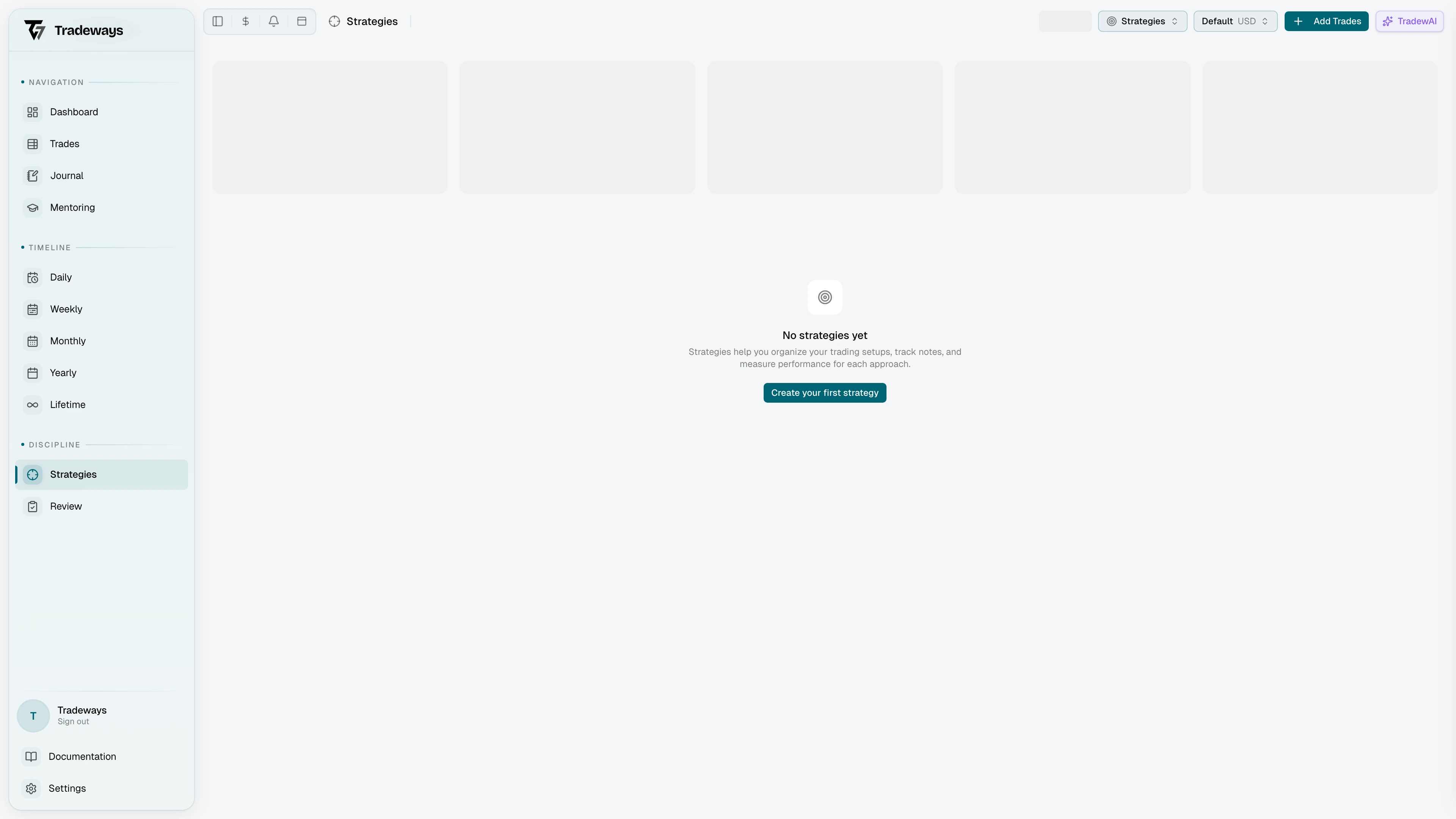
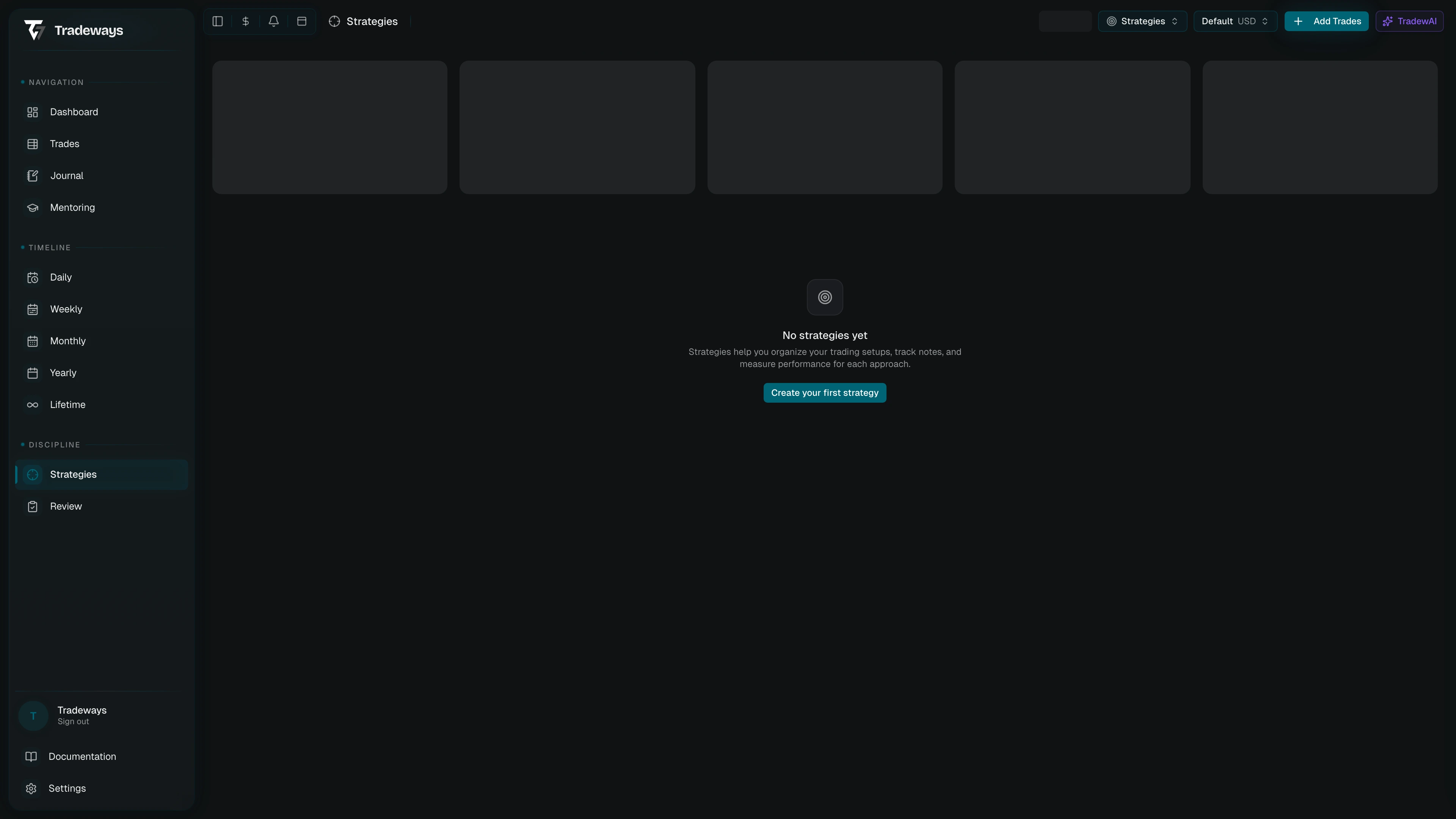
Switching the active strategy
When you are on /strategies, the header shows a strategy switcher with the icon and name of the active strategy. Open it to pick from your starred strategies, or click Manage Strategies at the bottom of the dropdown to open the full strategies dialog.
If you have not starred anything yet, the dropdown points that out and the switcher acts as a shortcut to the manage dialog.
Creating and managing strategies
The Manage Strategies dialog is where you create, star, edit, and archive strategies. It lists everything in up to three groups:
- Favorites — the strategies you have starred. These also show up in the header switcher.
- All — every other strategy you have created.
- Locked — strategies that exceed your plan's limit. Read-only until you upgrade.
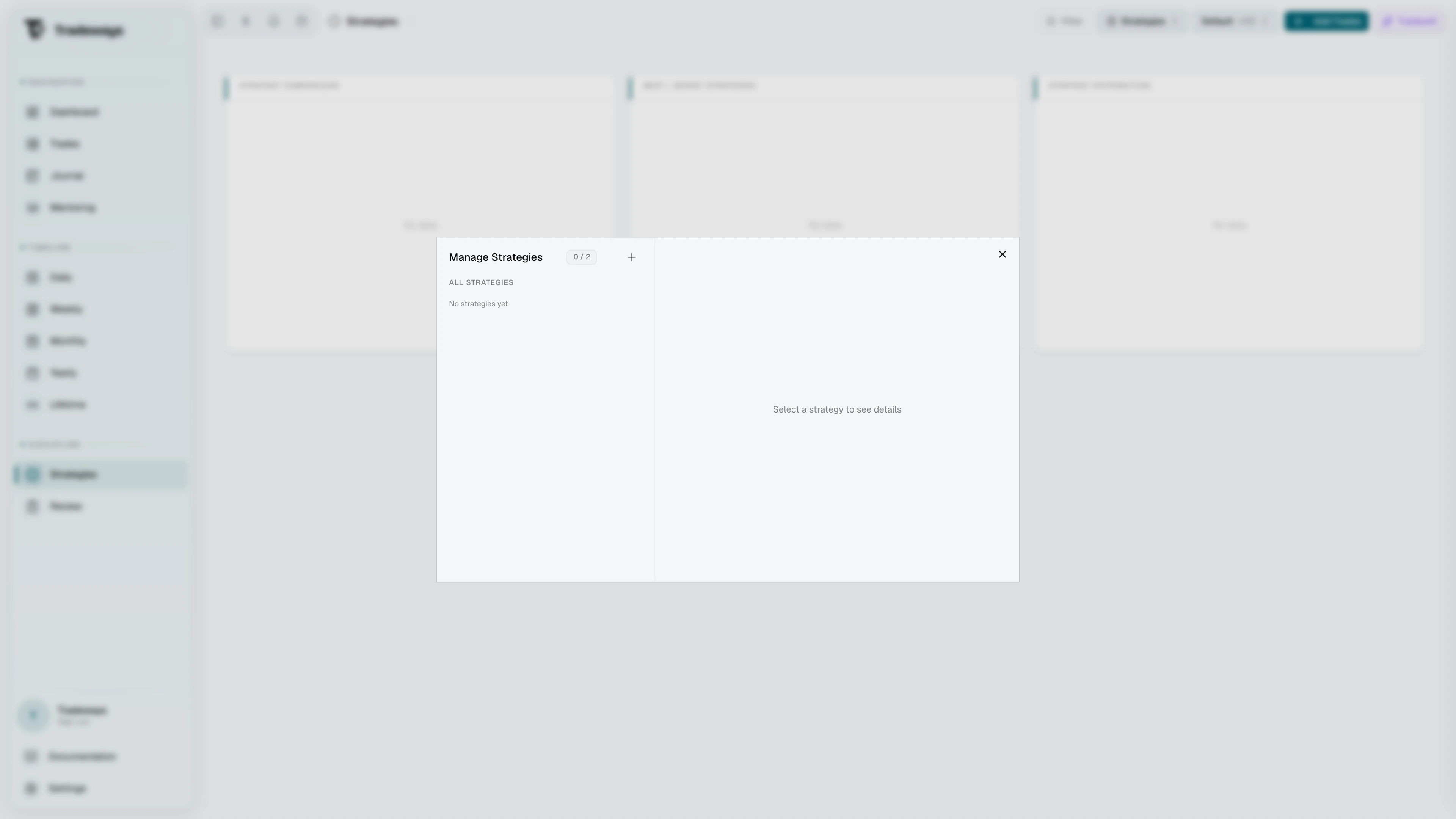

Hover any strategy to reveal the star, edit, and archive controls. A usage counter shows how many strategies you have used out of your plan's limit. The + button at the top opens the creation form. If the new strategy would exceed your plan limit, the form reports the limit and offers an upgrade when one is available.
To create a strategy:
| Field | What it is |
|---|---|
| Name | Required. Shown in the switcher, lists, and on every linked trade. |
| Description | Optional. A one-liner about when this strategy applies. |
| Icon | Pick from the curated set. Used in the switcher and strategy lists. |
| Color | Color for the icon. |
The creation form can also add the strategy to the current account's defaults and assign it to existing trades in that account. Adding it to the defaults is selected initially.
Edit inline from the same dialog and click Save. Select a strategy to edit its default take-profit and stop-loss levels. Each level uses ticks and can close the full position, one half, one third, or one quarter.
To archive a strategy, click the archive icon on its row and confirm. Hold Shift while clicking to skip the confirmation. Archiving moves the strategy and its notes to the archive, clears it as the active strategy if it was selected, and removes it from the account defaults.
Notes (your playbook)
The left side of the strategy page is a tabbed rich-text editor. Each tab is a separate note for material such as an entry checklist, setup examples, or a post-trade analysis.
- + in the tab bar adds a new note.
- Open a tab's menu to rename, reorder, or delete it.
- Each strategy can have up to 20 notes.
Notes auto-save as you type. A status indicator in the tab bar shows the current save state.
A note can use an uploaded PDF instead of rich text. You can view the PDF inline, read its extracted text, replace it, or remove it. A mentor can view a shared PDF note but cannot change it.
Rules
The right side of the strategy page is where rules live. Rules define measurable constraints for a strategy. Click the + in the rules header to add one. Each strategy can hold up to 50 rules.
Rule categories
The rule creation form groups rule types into five categories. Each saved rule shows its category in the rules list:
| Category | Rule types |
|---|---|
| Time & Session | Max trades per day, Max trades per week, Trading hours, Stop after losses |
| Risk Management | Must have stop-loss, Must have take-profit, Min R:R ratio, Max position size |
| Instruments | Allowed symbols, Allowed asset classes, Allowed directions, Fixed bias |
| Performance | Daily P&L limit, Weekly P&L limit, Monthly P&L target, Max daily loss, Min win rate, Profit factor target |
| Manual Checks | A self-reported checkbox per trade with a label you define (e.g. "Pre-market levels marked") |
Rule scopes
Most rules need a scope so Tradeways knows what to count:
| Scope | Evaluated across |
|---|---|
| Trade | One trade at a time |
| Daily | All trades in a single day |
| Weekly | All trades in a single week |
| Monthly | All trades in a single month |
The available scopes depend on the rule type. "Must have stop-loss" is always per trade, while "Max trades" lets you pick.
Fixed bias is always daily. It passes when every trade linked to the strategy on a given day is in the same direction, whether all long or all short. A day containing both directions fails; a day without trades is N/A.
Choose a P&L unit
Performance rules involving P&L (daily, weekly, and monthly limits or targets) support three units:
- Currency sets the threshold in a specific currency, such as 500 USD.
- Instrument units uses the price distance per trade, independent of position size. Tradeways uses ticks for futures, pips for forex, cents for stocks, and points for crypto or CFDs. Partial exits use their quantity-weighted average distance.
- Instrument units × quantity multiplies that distance by the exited quantity, so position size affects the result.
Both instrument-unit options are pinned to one asset class. If your strategy spans multiple asset classes, the rule applies only to the selected class. The form identifies which trades it will exclude.
Enable, disable, delete
Disabled rules show an Inactive badge and are skipped during scoring. That's useful when you are A/B testing a rule without losing its configuration. Delete removes it for good; hold Shift to skip the confirmation.
Rule compliance
Compliance is calculated as:
rules passed / rules evaluated
Rules that return N/A because of insufficient data or scope do not count in the denominator. Compliance widgets and the Review page show the percentage with these status colors:
| Score range | Color |
|---|---|
| 80–100% | Green |
| 50–79% | Yellow |
| Below 50% | Red |
Compliance appears in these places:
- On the Review page, for the selected trade set and each evaluated rule.
- On dashboards and supported page-widget areas through compliance cards, trends, heatmaps, and related strategy widgets.
Linking strategies to trades
Rules can only be evaluated against trades that are linked to the strategy. There are four ways to make the link:
- From the Trade Log — click the strategy cell on any trade row and pick a strategy from the dropdown.
- From the Trade Detail page — assign or remove strategies in the header area.
- Bulk assign — link a strategy to every trade in an account in one go. Useful when you create a strategy retroactively.
- Defaults per account — configure one or more default strategies for an account. New trades imported or created in that account receive each default strategy automatically.
Unlinking a strategy from a trade does not delete either. It only removes the association.
Review trades against the plan
Open Review to compare trades with the rules of every attached strategy. Its overview summarizes compliance. The checklist shows automatic results, lets you record manual checks, and keeps the trade details beside the review controls.
An unchecked manual rule remains open work while the trade is unreviewed. When you mark the trade reviewed, Tradeways treats every unchecked manual rule as failed. Mark the trade unreviewed to return those rules to the unchecked state.
When you share strategies with a mentor
When you share strategies through Mentoring, your mentor sees the same notes and rules in read-only mode. They cannot edit, create, or archive anything. In their switcher, every shared strategy is listed (not just the ones you have starred), so they can flip between them while reviewing.
See also
- Dashboard — compliance widgets for strategy tracking
- Trade Log — assign strategies to trades via the strategy column
- Trade Detail — view and change linked strategies on a single trade
- Mentoring — share strategies with a mentor
- Tradeways Score — plan adherence in the Discipline pillar is driven by strategy links