Dashboard
Customizable multi-dashboard system with drag-and-drop widgets, templates, and per-account memory.
Dashboard
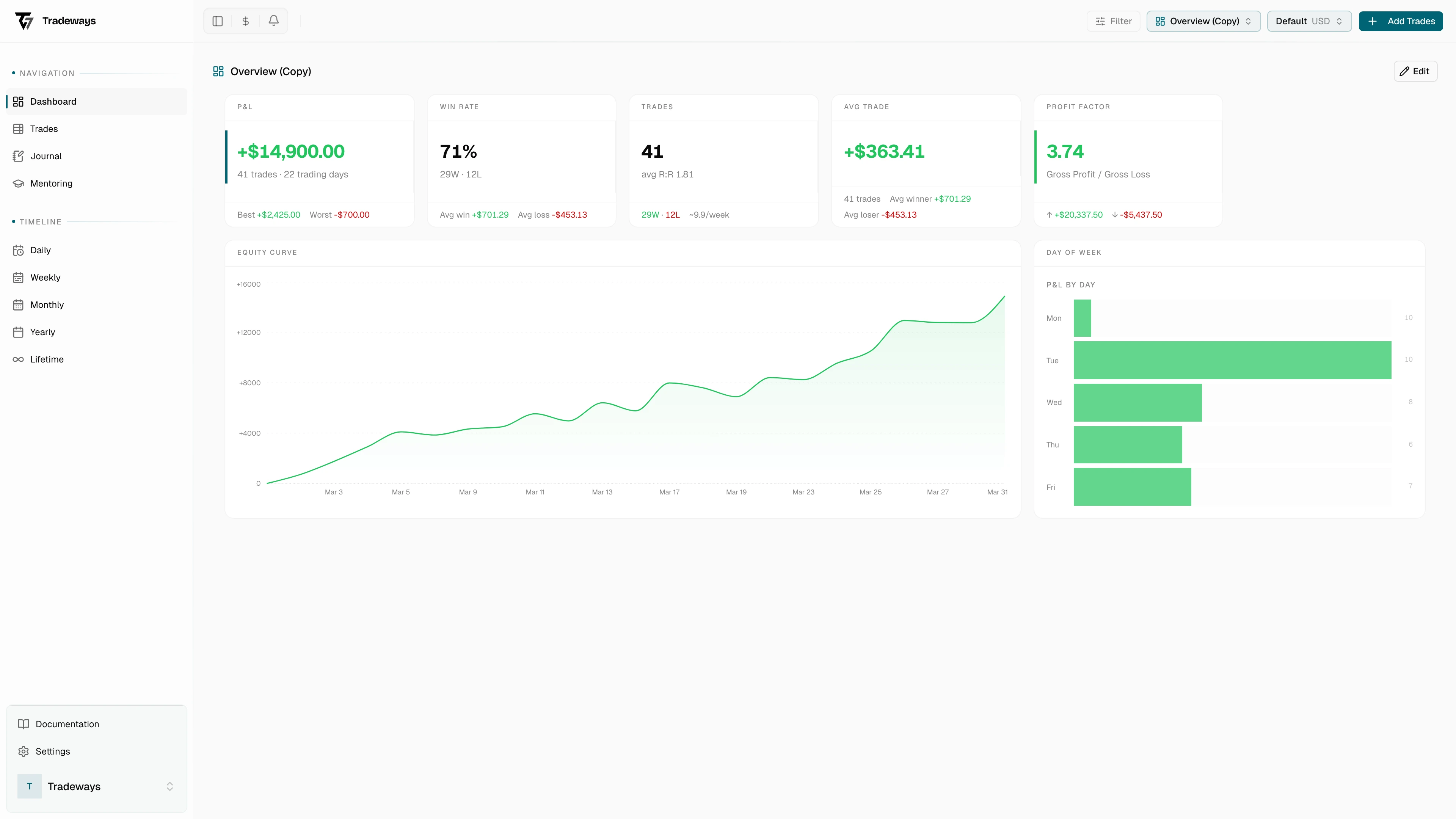
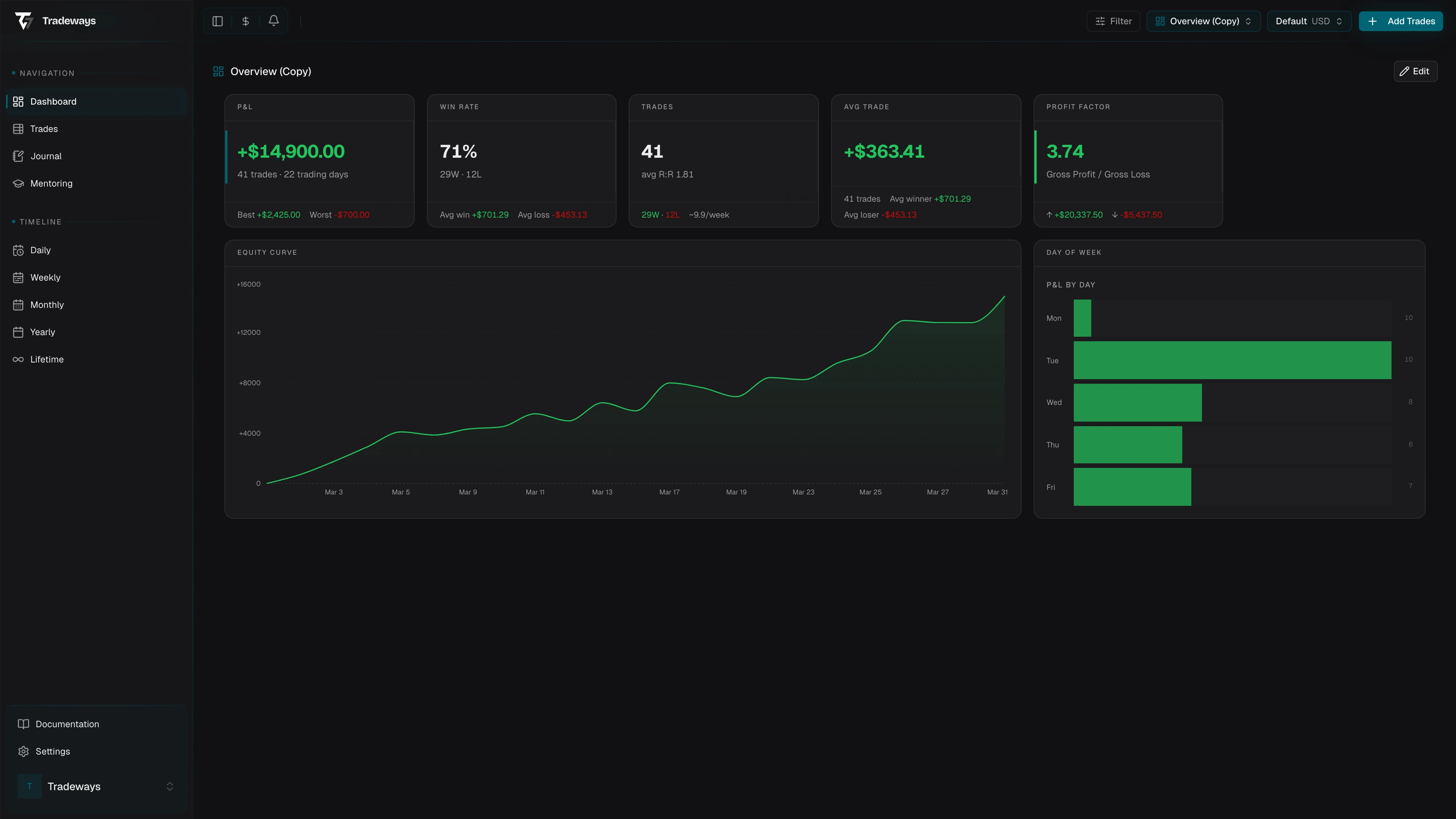
The dashboard at /dashboard displays performance data for the active trading account using configurable widgets. You can create multiple dashboards, customize their layouts, and switch between them. Each trading account remembers which dashboard was last active.


Dashboard Switcher
When you are on the /dashboard route, a dashboard switcher appears in the header next to the account switcher. It shows the name and icon of the active dashboard.
Click it to open a dropdown listing your favorited dashboards. Select any dashboard to switch to it immediately. The active account remembers your selection, so switching back to this account later will restore the same dashboard.
At the bottom of the dropdown, click Manage Dashboards to open the full management modal.
Managing Dashboards
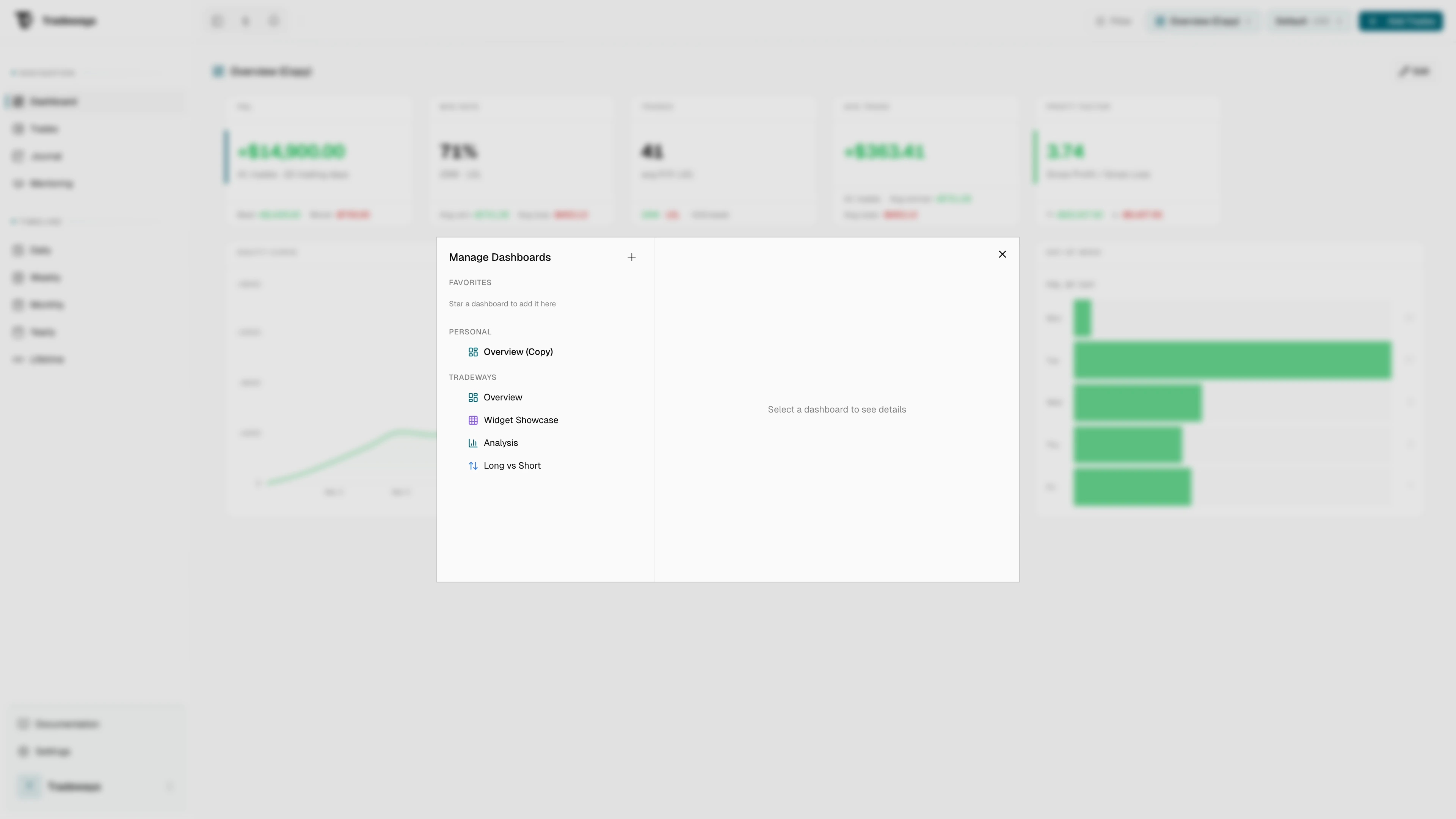
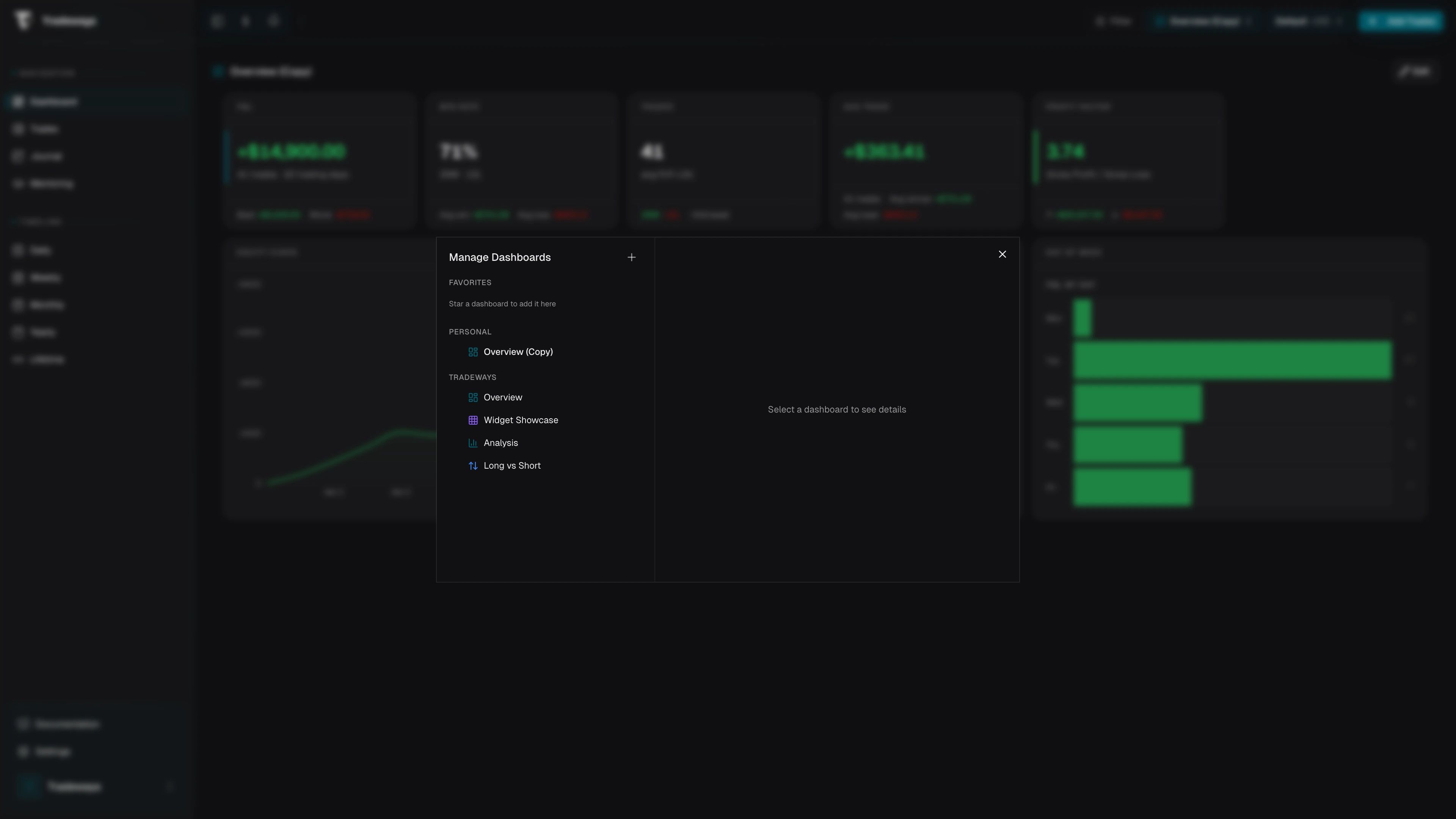
The manage modal provides a complete overview of all available dashboards, organized into four sections.


Favorites
Dashboards you have starred appear here for quick access. They also show up in the header switcher dropdown. If you have not favorited any dashboards yet, this section shows a hint to star one.
Personal
All dashboards you have created. Hover over a dashboard to reveal the star toggle for adding it to favorites. At the bottom of this section, click Create Dashboard to make a new one.
Tradeways
Pre-built system dashboards provided by Tradeways. These serve as ready-to-use starting points and as templates for creating your own dashboards. System dashboards cannot be edited or deleted directly.
Shared with Me
If another user (such as a mentor or teammate) has shared dashboard access with you, their dashboards appear in this section, grouped by the person who shared them. You can star shared dashboards to add them to your favorites. Clicking a shared dashboard activates it in read-only mode, viewing the data from the shared account. Shared dashboards cannot be edited or forked.
Detail Panel
Hover over any dashboard in the list to see its details on the right side: the dashboard icon, name, description, and widget count. For personal dashboards, you can edit the name and description inline or delete the dashboard. For system dashboards, a Use as Template action lets you fork it into a personal copy.
Click any dashboard in the list to activate it and close the modal.
Creating Dashboards
Click Create Dashboard in the manage modal to open the creation dialog.
| Field | Description |
|---|---|
| Name | Required. The display name for your dashboard. |
| Description | Optional. A short note about this dashboard's purpose. |
| Icon | Choose from a curated set of icons. Displayed in the switcher and manage modal. |
| Color | Pick a color for the icon from the available palette. |
| Start from | Choose Blank for an empty dashboard, or select a system template to clone its layout. |
When you choose a template, the new dashboard starts with the same widget layout as the template but is fully independent — changes to your copy do not affect the original.
Edit Mode
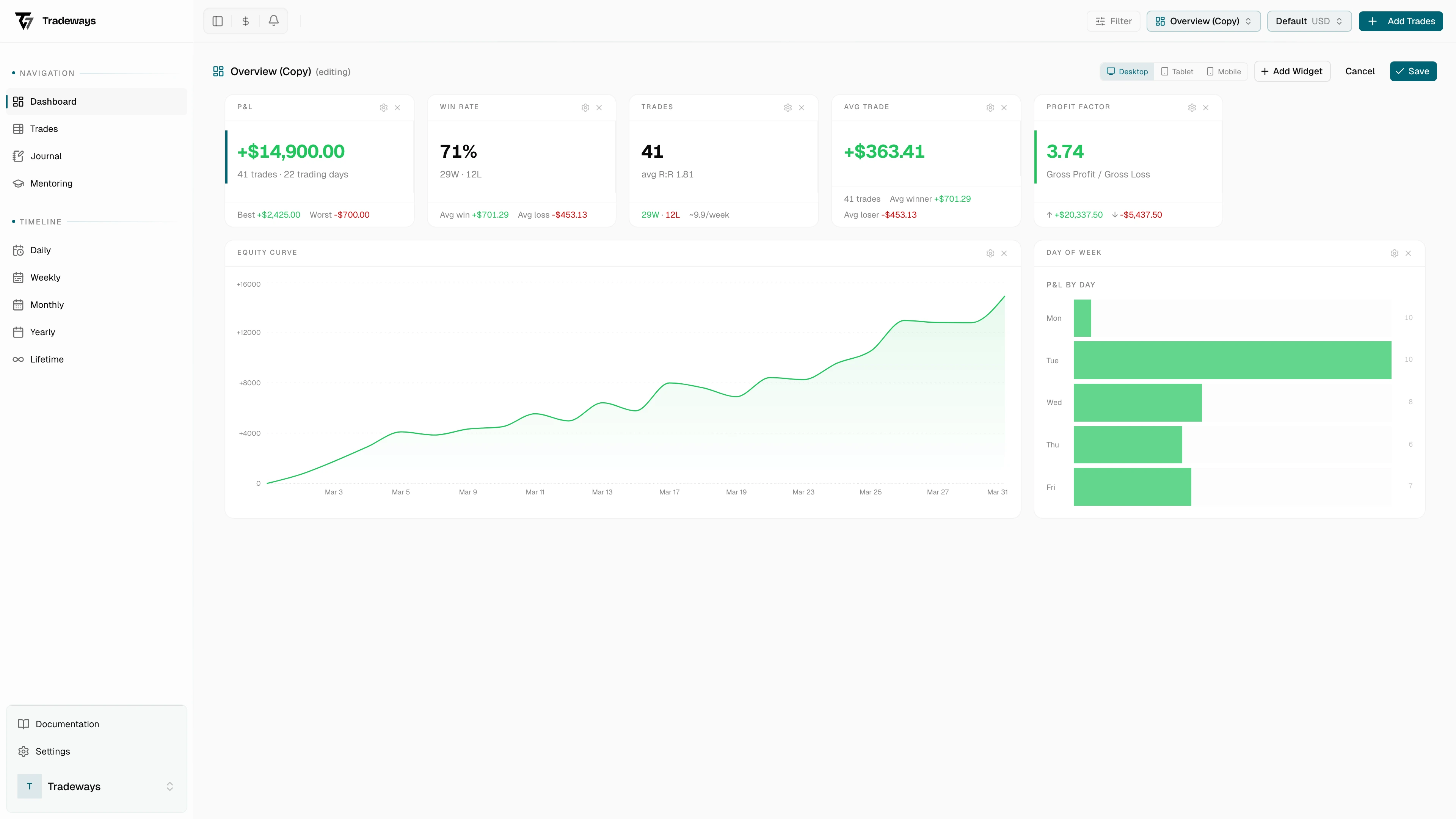
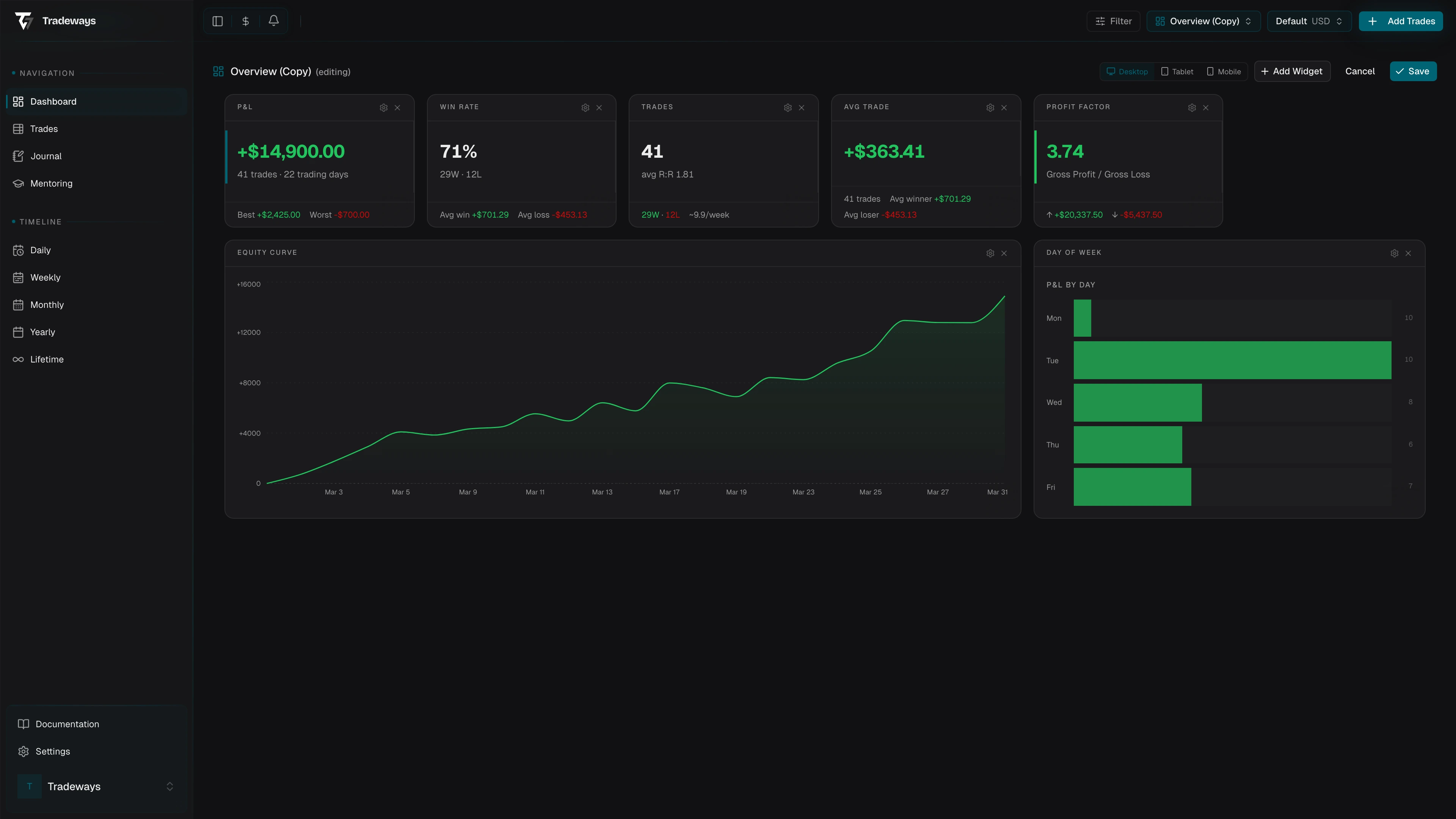
Click Edit in the dashboard toolbar to enter edit mode. The toolbar changes to show a responsive breakpoint toggle, Add Widget, Cancel, and Save buttons.


Responsive Breakpoint Preview
In edit mode, a Desktop / Tablet / Mobile toggle appears in the toolbar. Clicking a breakpoint previews how the dashboard grid renders at that screen size. Each breakpoint has its own column count, so widgets reflow automatically. Use this to verify your layout works across device sizes before saving. Desktop is the default view; selecting Tablet or Mobile constrains the grid width to simulate smaller screens.
Rearranging Widgets
In edit mode, drag widgets by their header to reposition them on the grid. Drag the bottom-right corner of a widget to resize it. The grid snaps to a responsive column layout.
Adding Widgets
Click Add Widget to open the widget picker. The picker is organized into multiple sections: Smart Insights, Widgets, Quick Add presets, Your Symbols, Your Asset Classes, and Your Tags.
Select any widget to add it to the dashboard. A live preview appears when you hover over a widget in the picker.
Removing Widgets
In edit mode, each widget shows a remove button (X) in its header. Click it to remove the widget from the layout.
Saving and Canceling
Click Save to persist your layout changes. The save is explicit — nothing is written to the server until you confirm. Click Cancel to discard all changes and return to the previously saved layout.
If you have unsaved changes and try to switch dashboards, switch accounts, or navigate away, a confirmation dialog asks whether to discard your changes.
Available Widgets
KPI Cards
| Widget | Description |
|---|---|
| P&L | Total profit and loss. |
| Win Rate | Win rate with W/L/BE breakdown. |
| Trades | Total trade count with average R:R. |
| Avg Trade | Average P&L per trade. |
| Profit Factor | Gross profit / gross loss ratio. |
| Expectancy | Expected P&L per trade. |
| Risk:Reward | Average risk-to-reward ratio. |
| Commission | Total commission paid. |
| Trade Result Streak | Current and max winning/losing trade streaks. |
| Day Result Streak | Current and max winning/losing trading-day streaks. |
| Week Result Streak | Current and max winning/losing trading-week streaks. |
| Largest Win/Loss | Biggest single winning and losing trade. |
| Max Drawdown | Largest peak-to-trough decline. |
| Avg Holding Time | Average trade duration. |
| Quality Rate | Percentage of trades rated OK. |
| Technical PF | Profit factor based on TP/SL levels. |
| Sharpe Ratio | Risk-adjusted return (annualized). Configurable risk-free rate. |
| Sortino Ratio | Downside risk-adjusted return. Configurable risk-free rate. |
| Kelly Criterion | Optimal position sizing fraction. |
Charts
| Widget | Description |
|---|---|
| Equity Curve | Cumulative P&L over time. |
| Day of Week | P&L breakdown by weekday. |
| Time of Day | P&L breakdown by hour. |
| Distribution | P&L distribution by symbol, direction, or asset class. |
| Cumulative Trades | Total trade count over time. |
| Trade P&L | P&L per trade as bars. |
| Daily P&L | P&L per trading day as bars. |
| Price Chart | Candlestick chart with trade overlays. Configurable symbol. |
Heatmaps
| Widget | Description |
|---|---|
| Monthly Heatmap | 12-month P&L heatmap for the year. |
| Month Heatmap | Daily P&L for the current month in a calendar view. |
| Week Heatmap | Daily P&L for the current week. |
Lists and Journal
| Widget | Description |
|---|---|
| Recent Trades | Last closed trades with P&L. |
| Journal Entries | Recent journal entries with preview. Configurable folder. |
| Notebook | Embed a notebook on your dashboard. Configurable page. |
| Journal Folders | Browse your journal pages and folders. |
Smart Insights
When you open the widget picker, the Smart Insights section appears at the top if Tradeways has detected noteworthy patterns in your trading data. Each insight is a one-click action that adds a pre-configured widget to your dashboard.
Insights are generated automatically from your trade data and may include:
| Insight | Description |
|---|---|
| Best performer | Your most profitable symbol, added as a P&L card filtered to that symbol. |
| Needs attention | Your worst performing symbol, added as a P&L card filtered to it. |
| Direction comparison | Whether long or short trades perform better, added as a filtered equity curve. |
| Strongest day | Your best day of the week by average P&L, added as a day-of-week chart. |
| Most traded class | Your most frequently traded asset class, added as a filtered P&L card. |
| Best hour | Your most profitable trading hour, added as a time-of-day chart. |
Insights only appear when there is enough data to draw meaningful conclusions (at least 2 symbols, 2 directions with trades, 2 traded weekdays, or 3 traded hours).
System Dashboards and Fork on Edit
System dashboards (listed under Tradeways in the manage modal) are read-only. If you click Edit while a system dashboard is active, Tradeways automatically creates a personal copy (a fork) and enters edit mode on that copy. The original system dashboard remains unchanged.
The forked dashboard preserves the original layout and can be freely customized. You can rename it and change its icon via the manage modal.
Per-Widget Settings
Individual widgets can carry their own settings. In edit mode, click the gear icon on a widget header to open the settings dialog. The dialog has two tabs: Settings and Filter.
Settings Tab
| Setting | Description |
|---|---|
| Title | A custom display title that overrides the widget's default heading. |
| Account | Pin the widget to a specific trading account (see below). |
| Type settings | Widget-specific options, such as the risk-free rate for Sharpe/Sortino widgets. |
Filter Tab
| Setting | Description |
|---|---|
| Filter Mode | Either Replace (use only the widget filter, ignore the global filter) or Layer (intersect the widget filter with the global dashboard filter so both constraints apply simultaneously). |
| Filter | A full trade filter with all dimensions: date range, status, side, result, instruments, symbols, tags, entry price, position size, weekdays, and time of day. |
Per-widget settings are used heavily in the Long vs Short system preset, where each card is scoped to a single direction.
Widget Account Pinning
By default, every widget shows data from the currently active trading account. In the widget settings dialog, you can pin a widget to a specific account. When pinned, the widget always displays data from that account regardless of which account is active in the header.
The account picker lists your own accounts and any shared (mentored) accounts. A pinned widget shows a small badge with the account name in its header. If the pinned account is later removed or sharing is revoked, the widget displays an "account unavailable" message instead of data.
Risk-Free Rate
The Sharpe Ratio and Sortino Ratio widgets have an additional Risk-free rate setting in their settings tab. Enter the annualized risk-free rate as a percentage (e.g. 4.5 for 4.5%). This rate is used in the ratio calculation. The default is 0%.
System Presets
Tradeways ships the following system dashboards out of the box:
| Preset | Description |
|---|---|
| Overview | The default starting dashboard with four KPI cards, an equity curve, and a day-of-week chart. |
| Analysis | A deep-dive layout featuring the profit factor card, monthly heatmap, distribution chart, and recent trades. |
| Long vs Short | Side-by-side comparison of long and short performance using per-widget filters on P&L, win rate, and equity. |
All system presets appear under the Tradeways section in the manage modal and can be forked into personal copies.
Per-Account Memory
Each trading account independently remembers which dashboard was last active. When you switch to a different account, the dashboard switches to that account's last selection. New accounts start on the default system dashboard.