

Filter
Narrow trades with the global filter and per-page local filters across the Dashboard, Trade Log, Review, and widget filters.
Filter
Tradeways has two filter layers that work together.
| Layer | Where it lives | What it narrows |
|---|---|---|
| Global filter | A sheet that slides in from the right when you click the Filter chip in the app toolbar | The active filter for every view that participates: Dashboard, Trade Log, Review, the timeline views, most widgets |
| Local filter | A row of dashed-outline chips on a specific page (most prominently the Trade Log toolbar) | Narrows further on top of the global filter, scoped to that page only. Local filters never leak across pages. |
Both filters share the same dimensions and the same combine rules (see How Filters Combine). Their visuals differ on purpose: solid pills mean global, dashed pills mean local.
The timeline pages — Daily, Weekly, Monthly, Yearly, and Lifetime — drive their own period. On those pages the global date range is still saved but does not narrow the page. Every other global dimension still applies. The global filter sheet shows a note in the Date Range section, and the date pill renders dimmed with a Not applied on this page hint.
Global Filter
Opening the panel
Click the Filter chip in the app toolbar. A sheet slides in from the right. When filters are active, the chip shows a badge with the count of active dimensions.
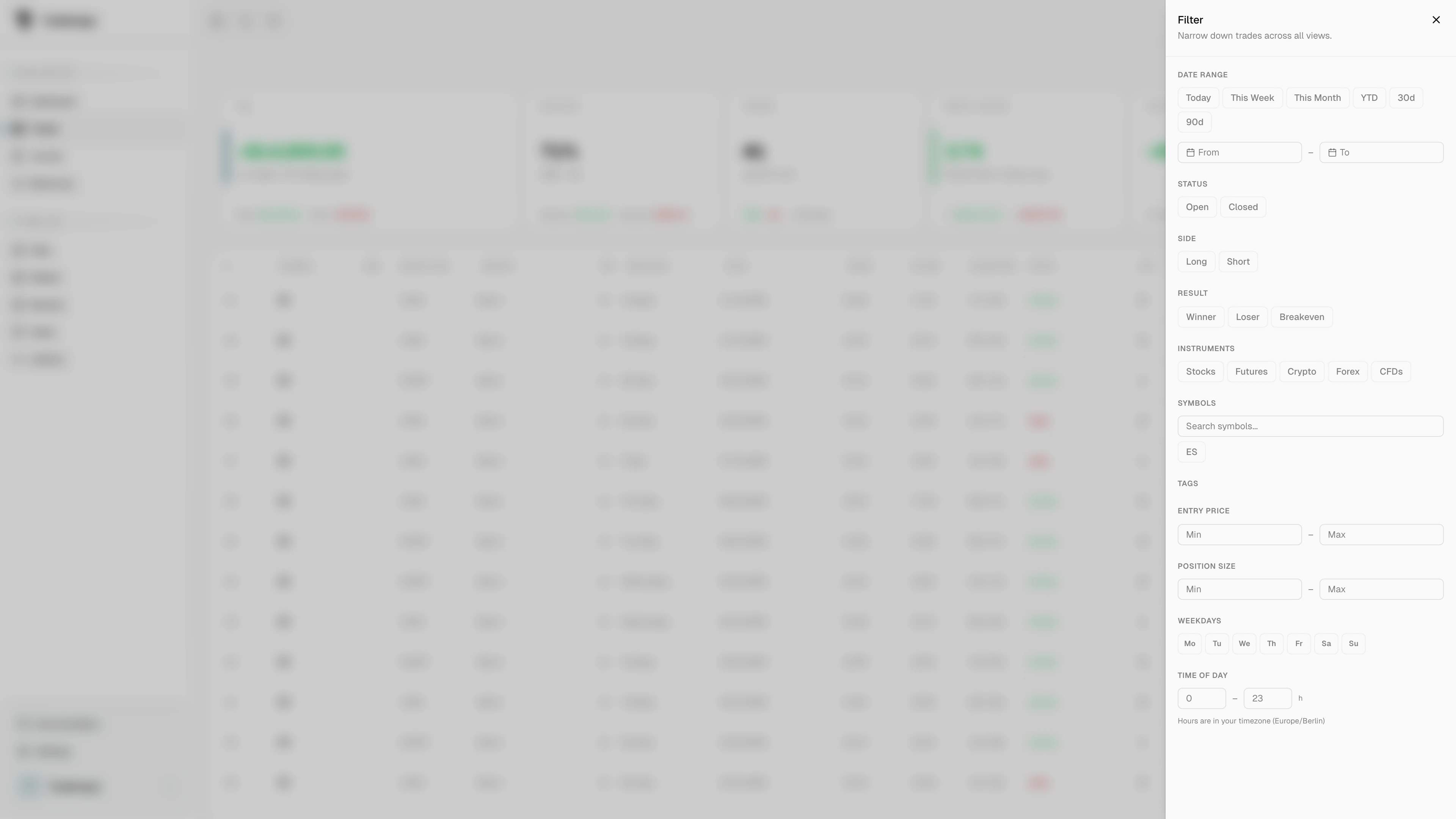
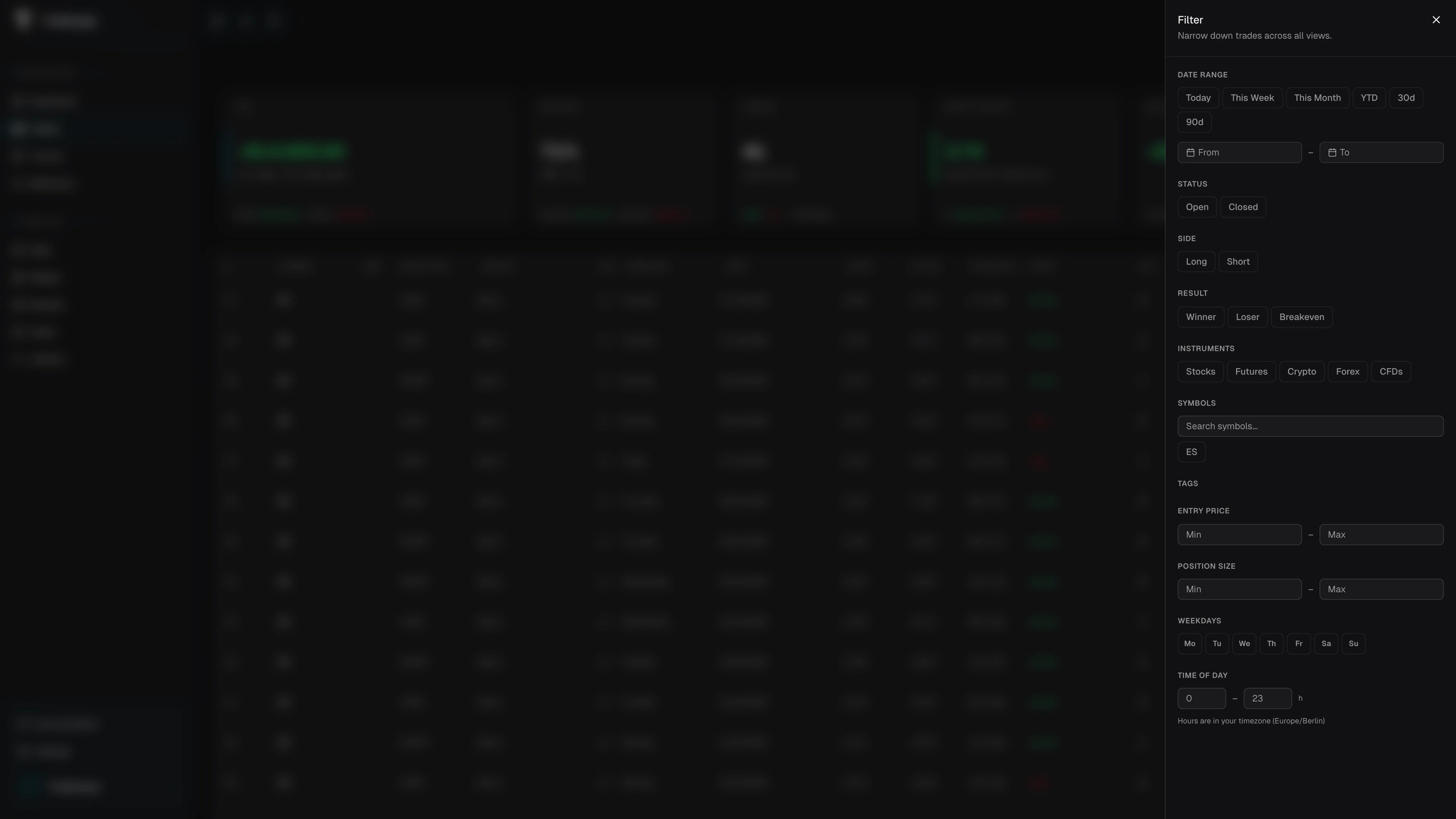
Click Clear all in the panel header to wipe every dimension at once. The button appears only while at least one dimension is active.
Filter pills
When dimensions are active, a pill row sits inside the panel, under the header. Each pill summarizes one dimension (e.g. Status: Open, Side: Long, Short). Click the X on a pill to drop that dimension. A pill for a dimension that the current page ignores stays removable but renders dimmed.
Groups and dimensions
The panel splits the dimensions into five collapsible groups. Each group header shows a one-line summary of what is active inside it. Tradeways remembers which groups you left open.
| Group | Dimension | Notes |
|---|---|---|
| When | Date Range | Quick presets — Today, This Week, This Month, YTD, 30d, 90d — plus a From / To date picker for custom ranges. A preset clears any custom dates. A custom date clears the preset. |
| When | Weekdays | Toggle individual weekday buttons (Mon–Sun). |
| When | Time of Day | An hour range (0–23), shown in your configured timezone. A range whose start is later than its end wraps across midnight. |
| Outcome | Status | Open, Closed. |
| Outcome | Side | Long, Short. |
| Outcome | Result | Winner, Loser, Breakeven. Matches the effective result, so the breakeven threshold is applied. |
| Outcome | Reviewed | Reviewed or Unreviewed. Used heavily on Review to find trades that still need attention. |
| Instruments & symbols | Instruments | Asset classes: Stocks, Futures, Crypto, Forex, CFDs. |
| Instruments & symbols | Symbols | Search and pick any symbol present in the accounts in scope. Selections appear as chips above the list. |
| Tags & strategies | Tags | One or more tags defined on the account. |
| Tags & strategies | Strategies | One or more strategies visible for the selected account scope. Strategy choices are not available while you view a shared account. |
| Ranges | Entry Price | Min / Max average entry price. |
| Ranges | Position Size | Min / Max quantity. |
Where the global filter is saved
The global filter is saved per account on the server, so it survives a reload and follows you to another device. Switching accounts loads that account's own saved filter.
Two scopes are the exception. All Accounts and each shared account keep separate filter state for the current session only. Edits there apply immediately but are not saved, and a mentor viewer never changes the account owner's saved filter.
Local Filter
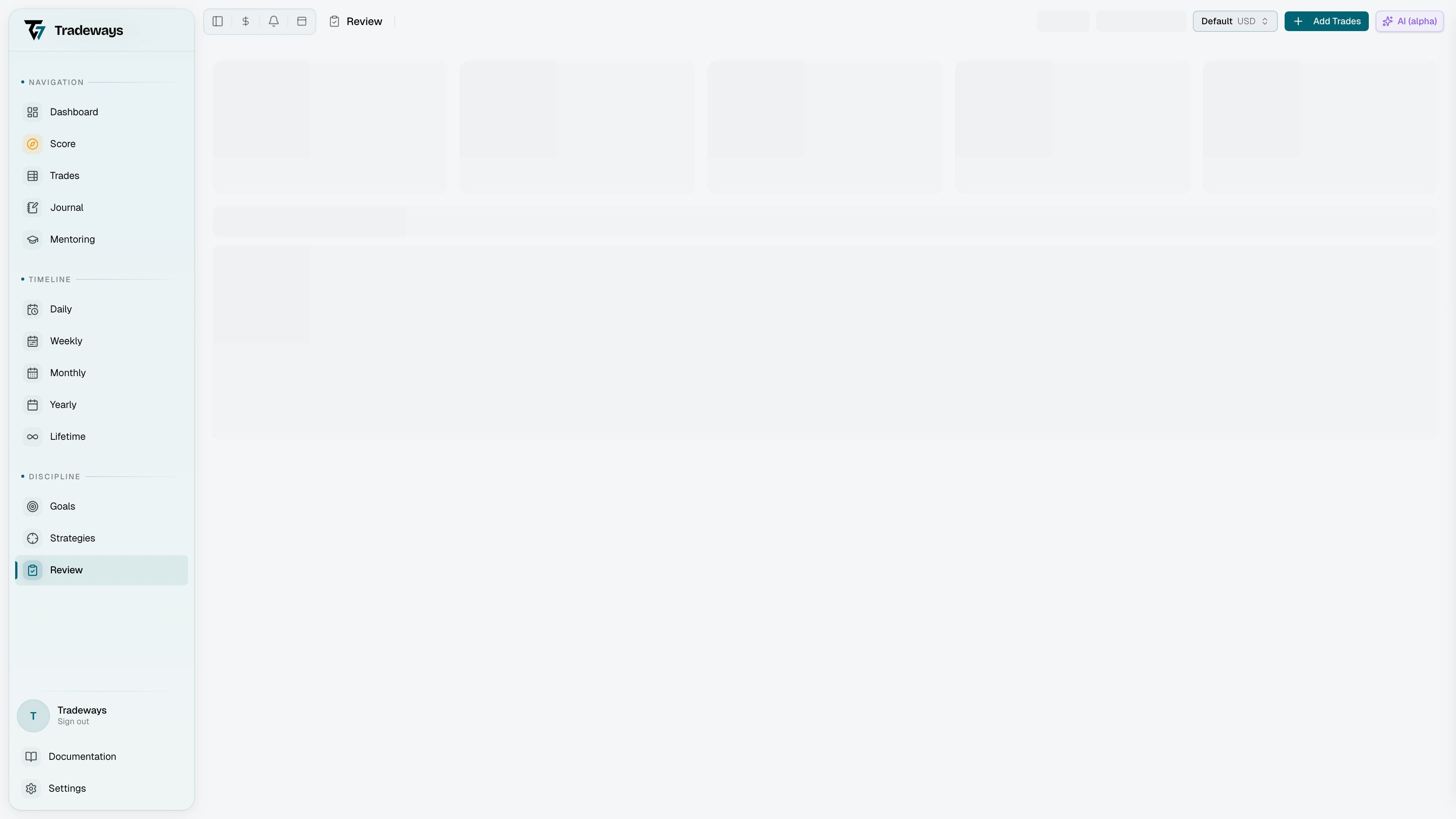
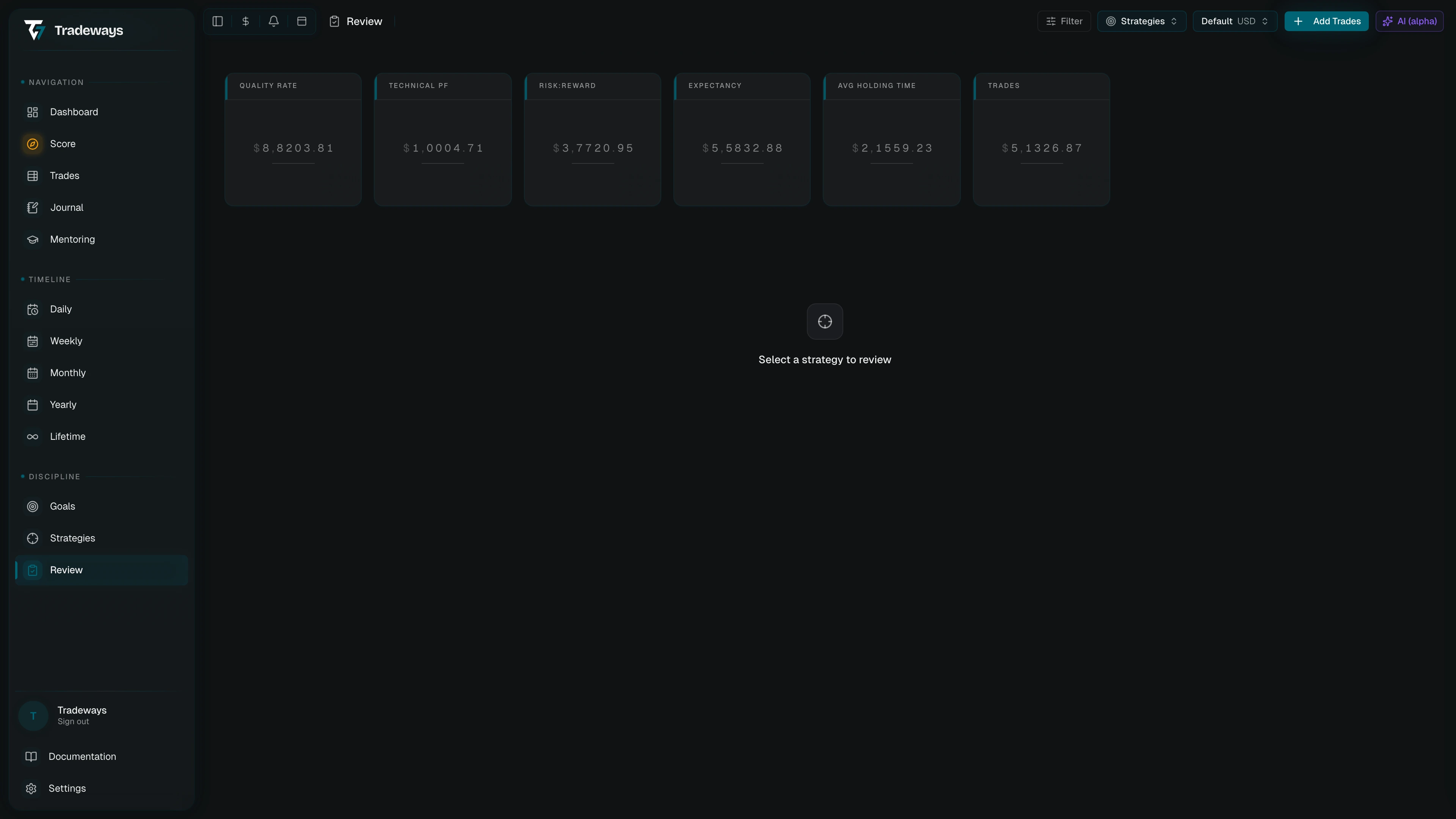
A page can host its own filter row — a dashed-outline chip bar that narrows trades on that page only. The trade log uses it as its primary filter UI.
The chip row
Each local-filter chip behaves like a tiny popover trigger. Click the label to open the dimension's editor, or the inline X to clear that dimension. An active chip shows a short value summary (e.g. Side: Long).
The bar reflows responsively: chips that don't fit collapse into a More popover. On the trade log the popover also hosts the long-tail dimensions that never get their own chip:
- Instruments (asset class)
- Symbols
- Tags
- Strategies
- Entry Price
- Position Size
- Weekdays
- Time of Day
The More button shows a badge with the count of overflowed or otherwise-active long-tail filters.
Dimensions on the trade log
The trade log's chip row leads with the five most-used dimensions:
| Chip | Editor |
|---|---|
| Date Range | Quick presets plus From / To date pickers. |
| Status | Open, Closed. |
| Side | Long, Short. |
| Result | Winner, Loser, Breakeven. |
| Reviewed | Reviewed, Unreviewed. |
Everything else lives in the More popover. Clear local filter appears once any local dimension is active and resets the local bar without touching the global filter.
The trade log's local filter is not saved. It resets when you leave the page.
The Review filter bar
Review shows the same chip bar with two chips only: Date Range and Reviewed. These chips edit the global filter rather than a page-local one, so a change there is saved and carries to other views. Clear local filter on Review clears those two dimensions of the global filter and leaves the rest.
When the toolbar is narrow, these controls move into the Local filters button. Both dimensions and the clear action remain available there.
Widget filters
Individual dashboard widgets can carry their own filter via the widget settings Filter tab — see Configure a widget. A widget filter offers every dimension the global panel offers, with a choice of Replace (ignore the global filter) or Layer (combine with it). Clear filter removes the widget's filter. The Pre-Trade Check does not apply global or widget trade filters because it evaluates the current session and strategy rules instead of a set of trades.
How Filters Combine
- Across dimensions — combined with AND. A trade must satisfy every active dimension to appear.
- Within a dimension — combined with OR. Selecting Winner and Breakeven shows trades that are either.
- Across layers — multi-select dimensions intersect, so only values present in both layers survive. Numeric and date ranges intersect to the overlap. Reviewed and the date preset are single-select: the local value replaces the global one instead of narrowing it.
Two dimensions that do not overlap match nothing. That is the intended result, not an error.
Clearing Filters
| Where | What it clears |
|---|---|
| Global panel → Clear all | Every dimension of the global filter. |
| Pill X | One dimension of the global filter. |
| Local bar → Clear local filter | Every dimension on that page's local filter only. |
| Local chip X | One dimension of the local filter. |
| Widget → Filter tab → Clear filter | The widget's own filter only. Global and page-local filters stay. |