

Review
Work through trades that still need a process review.
Review
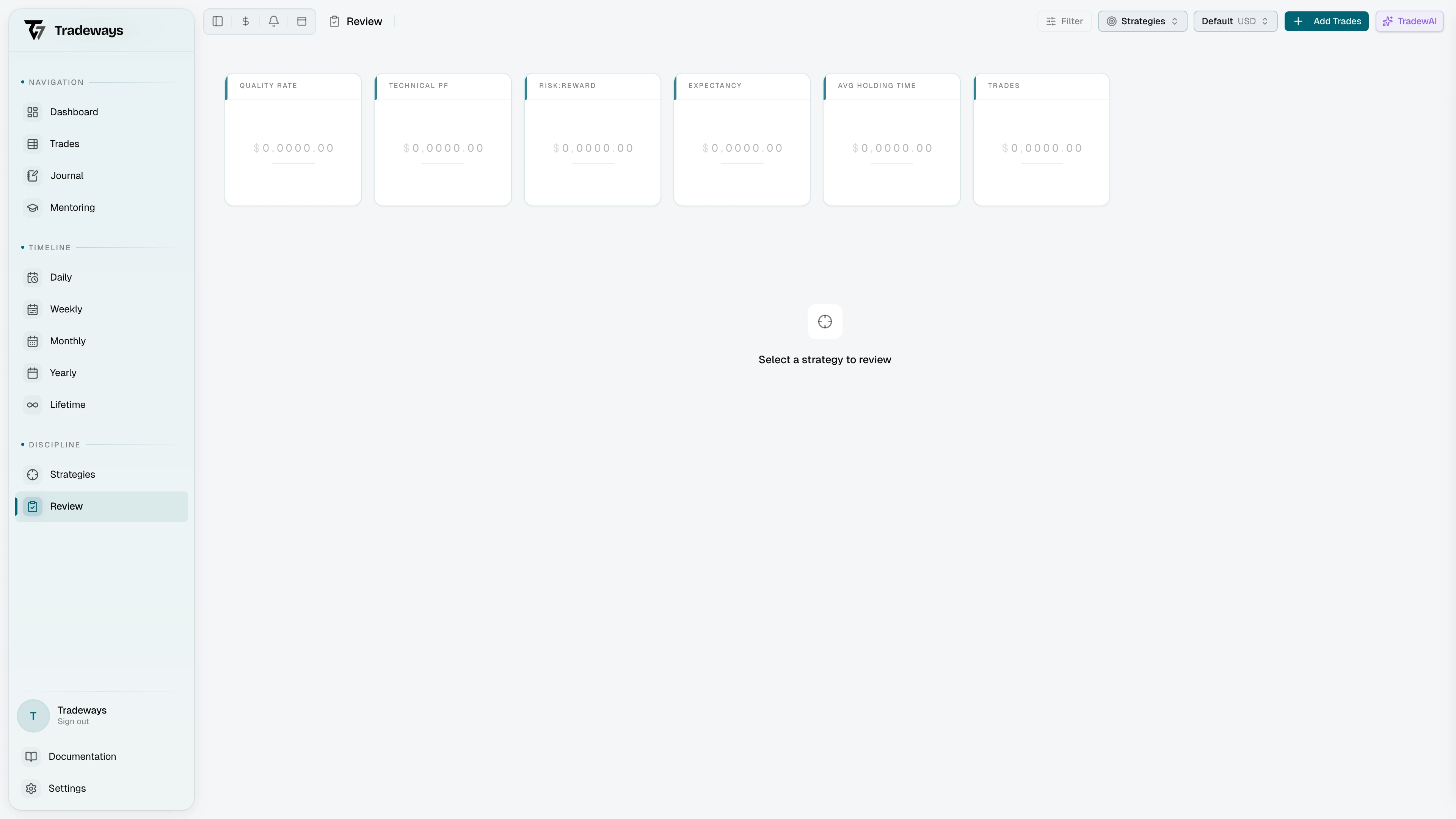
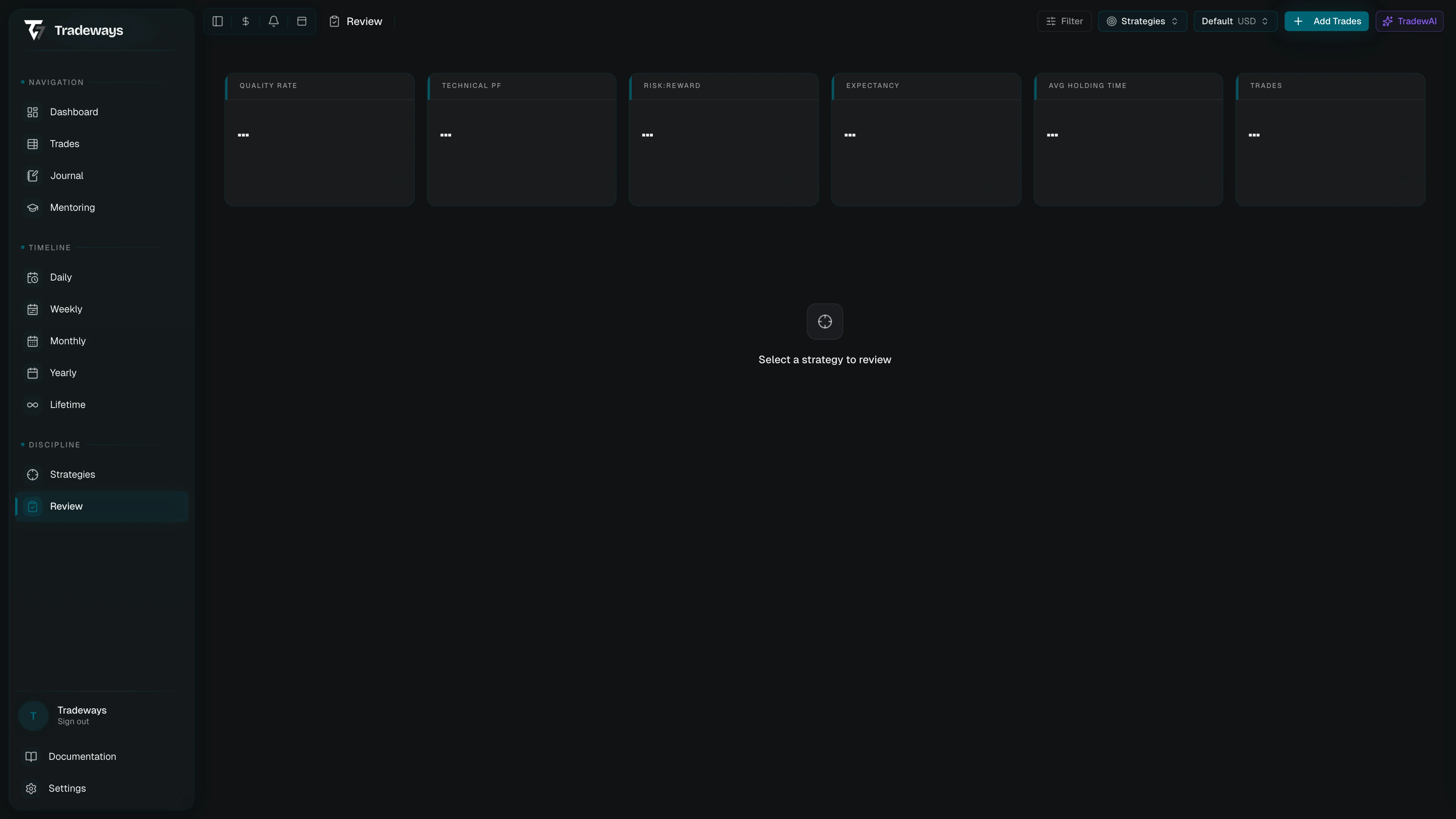
Review gives you a workspace for checking strategy compliance and recording which trades you have reviewed. Open Playbook from the icon rail. Then select Review.
Choose the trade set
Review starts with your active strategy, or the first accessible strategy when no active strategy is set. Use the strategy selector to include up to 20 strategies. At least one strategy must remain selected.
Use the account switcher to review one account or All Accounts. Use Date Range and Reviewed to narrow the workspace. On smaller screens, these controls are inside Local filters. The global trade filter also applies. The compliance summaries and trade queue update to match the selected strategies, account scope, and filters.
An empty list means that no trade matches the current selection. Change the strategies, clear the filters, or select another account when you expected more trades.
Check progress and compliance
The progress control shows reviewed trades against the matching trade set, regardless of the reviewed-state filter. For larger sets, it reports progress within the most recent 500 matching trades. Select it to open the first unreviewed trade; the queue loads further trades until that trade is listed. This action is unavailable when the Reviewed filter shows only reviewed trades.
The Overview tab has a compliance summary for each selected strategy. Expand a summary to see its rule results. A strategy with no rules or no matching trades shows that state instead of a score.
Review a trade
Trade queue lists trades by open time, newest first. Use the order control at the top of the queue to switch to oldest first. Tradeways remembers the order in this browser. A reviewed trade carries a check mark (read as Reviewed by a screen reader); a row without one still needs review.
Select a trade to open its Checklist. The trade appears alongside it on wider screens, with the same chart, journal, executions, levels, and images as the trade detail page. On smaller screens, use View trade to open it and Checklist to return without losing your checklist position. Open full trade opens the standalone page.
The checklist header shows the trade, its open time, its review state, and its position in the queue. A count ending in + means more trades are available. Use Load more in the queue to load them.
Rules lists the rules from every accessible strategy attached to the trade. Tradeways calculates automatic rule results from the trade record. While the trade is unreviewed, unchecked manual rules are listed separately from failed automatic rules. When you mark the trade reviewed, every unchecked manual rule counts as failed. Marking it unreviewed returns those rules to the unchecked state. When a rule cannot be evaluated, the checklist explains the missing data where available.
Custom fields appear below the rules and save each change on its own. A text field saves when you leave it; press Escape to discard the edit. When the account has no custom fields, a link opens their setup.
Move through the queue
Record each manual rule with its checkbox. Wait for the check to save, then select Mark reviewed & next. It saves the review state and opens the next unreviewed trade. On the last unreviewed trade, the action reads Mark as reviewed. Skip opens the next unreviewed trade without changing the current one. Both continue in queue order, pass over reviewed trades, and turn back toward the start of the queue only when no unreviewed trade remains further along. A line below the actions names the next unreviewed trade.
On a reviewed trade, Next unreviewed continues the queue and Mark as unreviewed returns the trade for another pass. When no unreviewed trade remains, the panel reports that all trades in the view are reviewed. The previous and next controls in the checklist header move one row in the queue without changing review state.
| Key | Action |
|---|---|
| R | Mark reviewed & next |
| N | Skip or next unreviewed |
| ← or J | Previous trade in the list |
| → or K | Next trade in the list |
Shortcuts do not apply while you type in a field or while a menu or dialog is open.
You can also change the review state from the trade detail page. Use Strategies to add or change rules. Use Journal for daily, weekly, session, and notebook work.