

Journal
Record daily, weekly, monthly, yearly, session, trade, and notebook context.
Journal
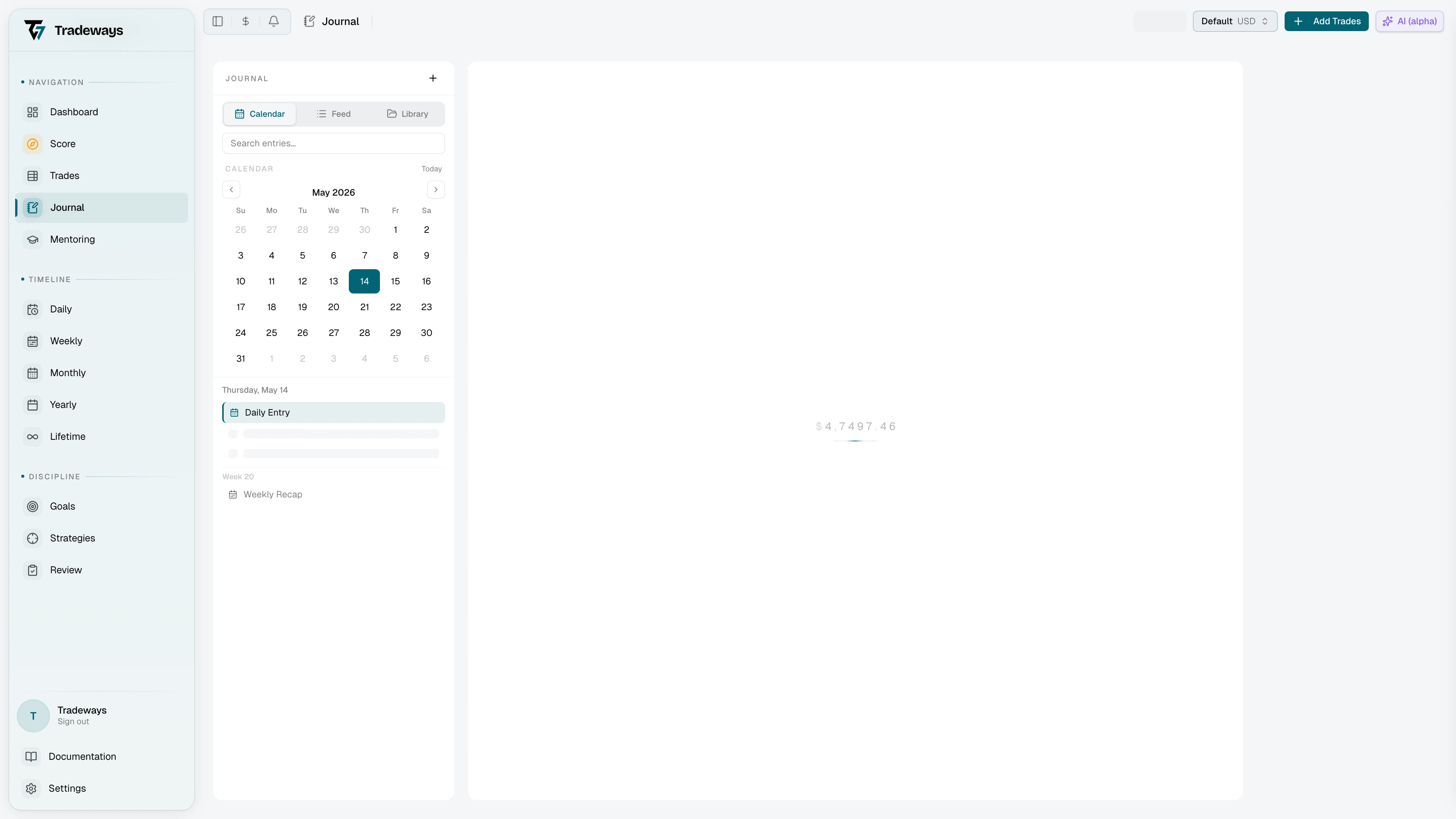
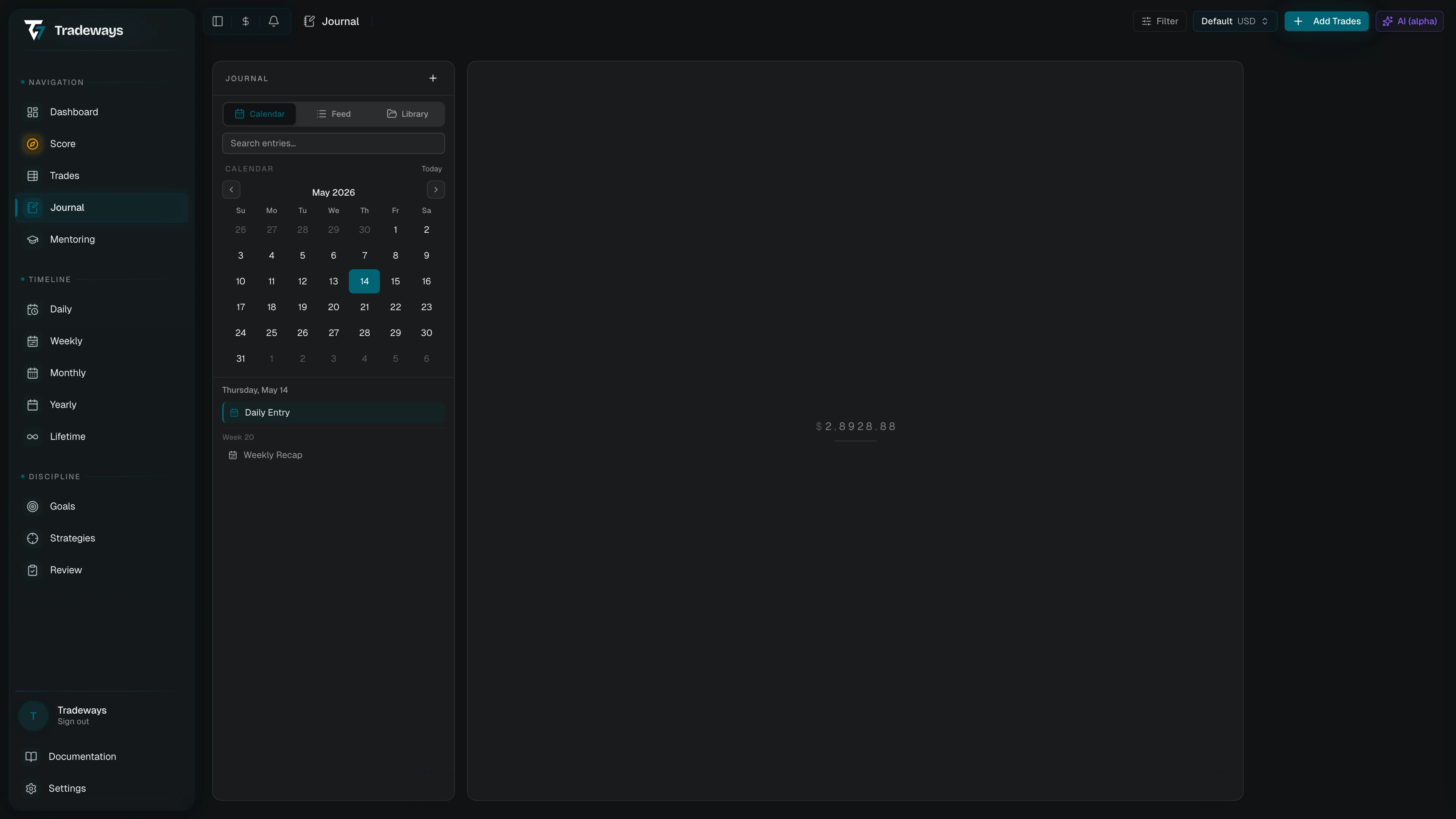
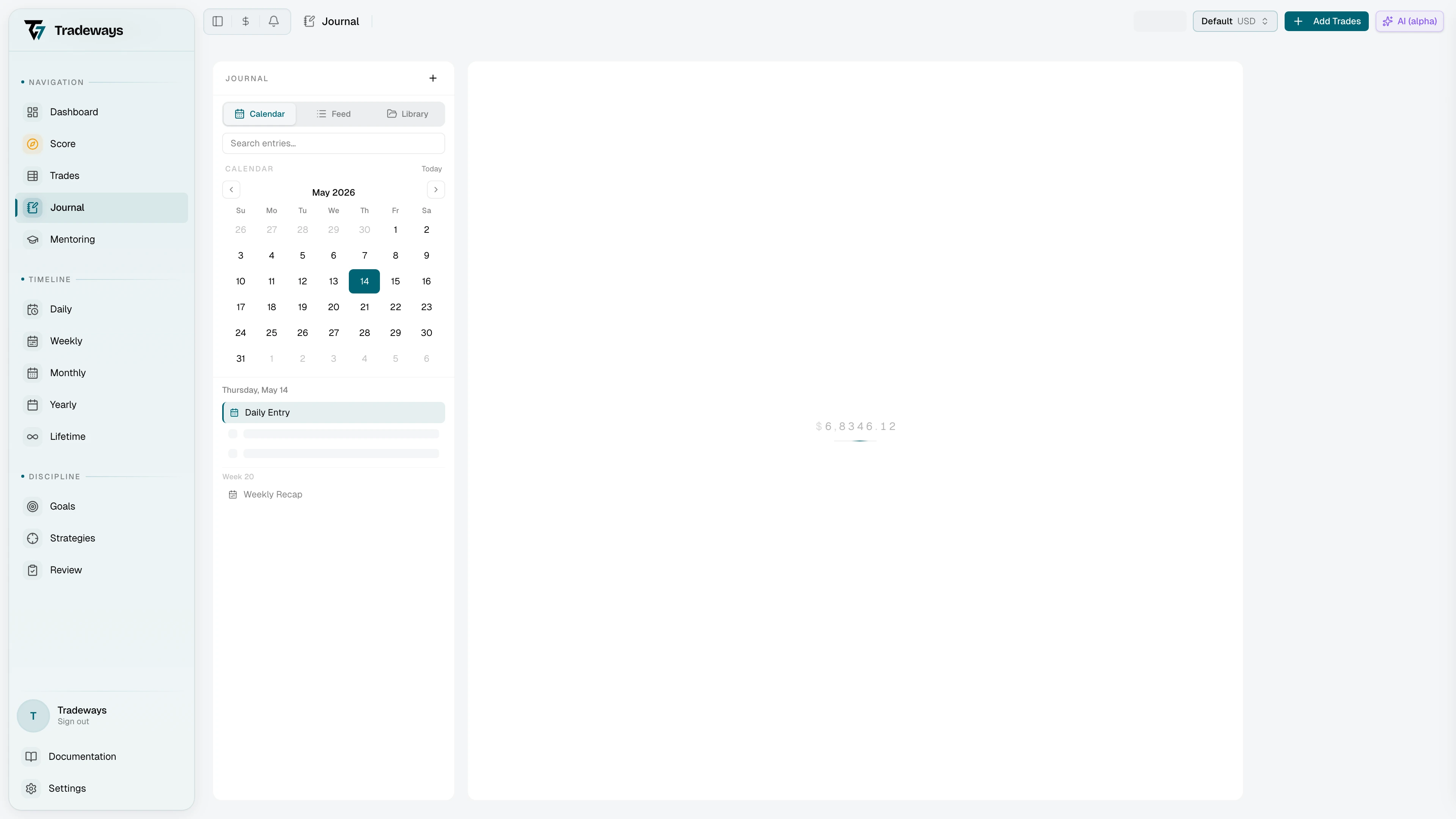
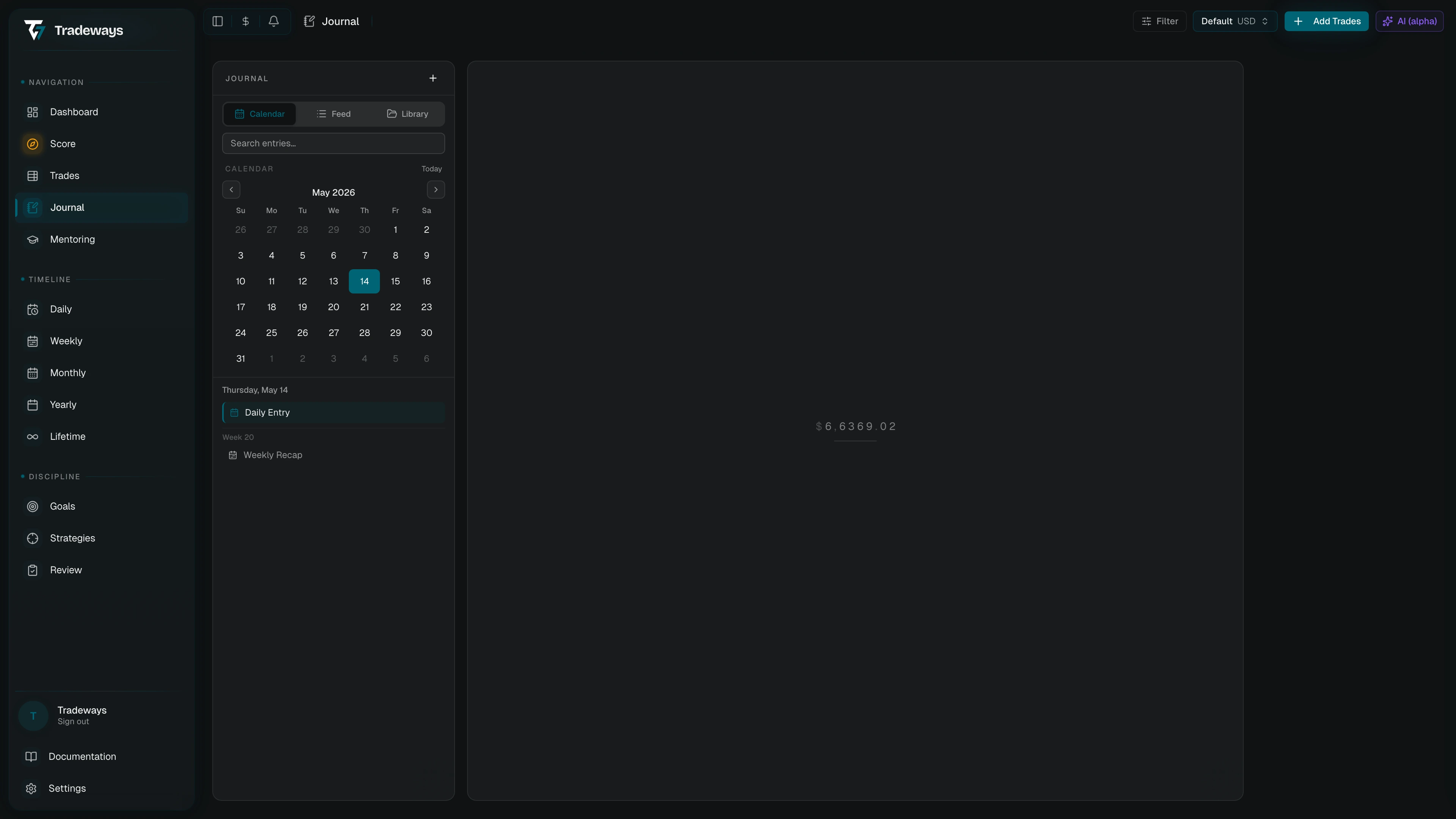
Open Journal from the icon rail. The Journal sidebar has three views: Calendar, Feed, and Library. The plus button opens the create menu. It creates a daily entry, a weekly entry, a session, a page, a PDF page, a folder, or a template. Monthly and yearly entries are not in the create menu. Open them from the monthly and yearly pages with the journal mark, or find them in Feed and the Library Timeline once they exist.
Calendar
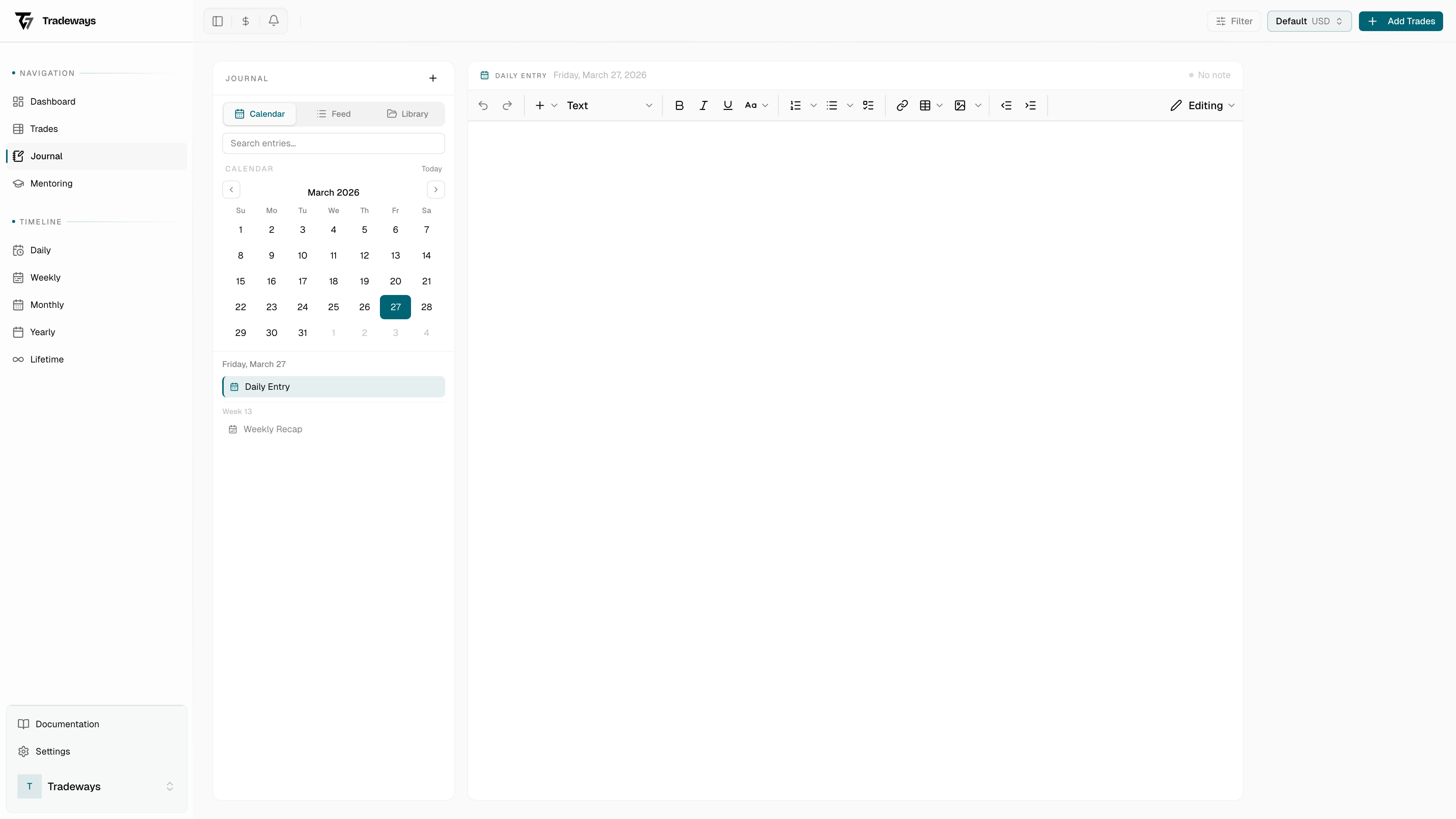
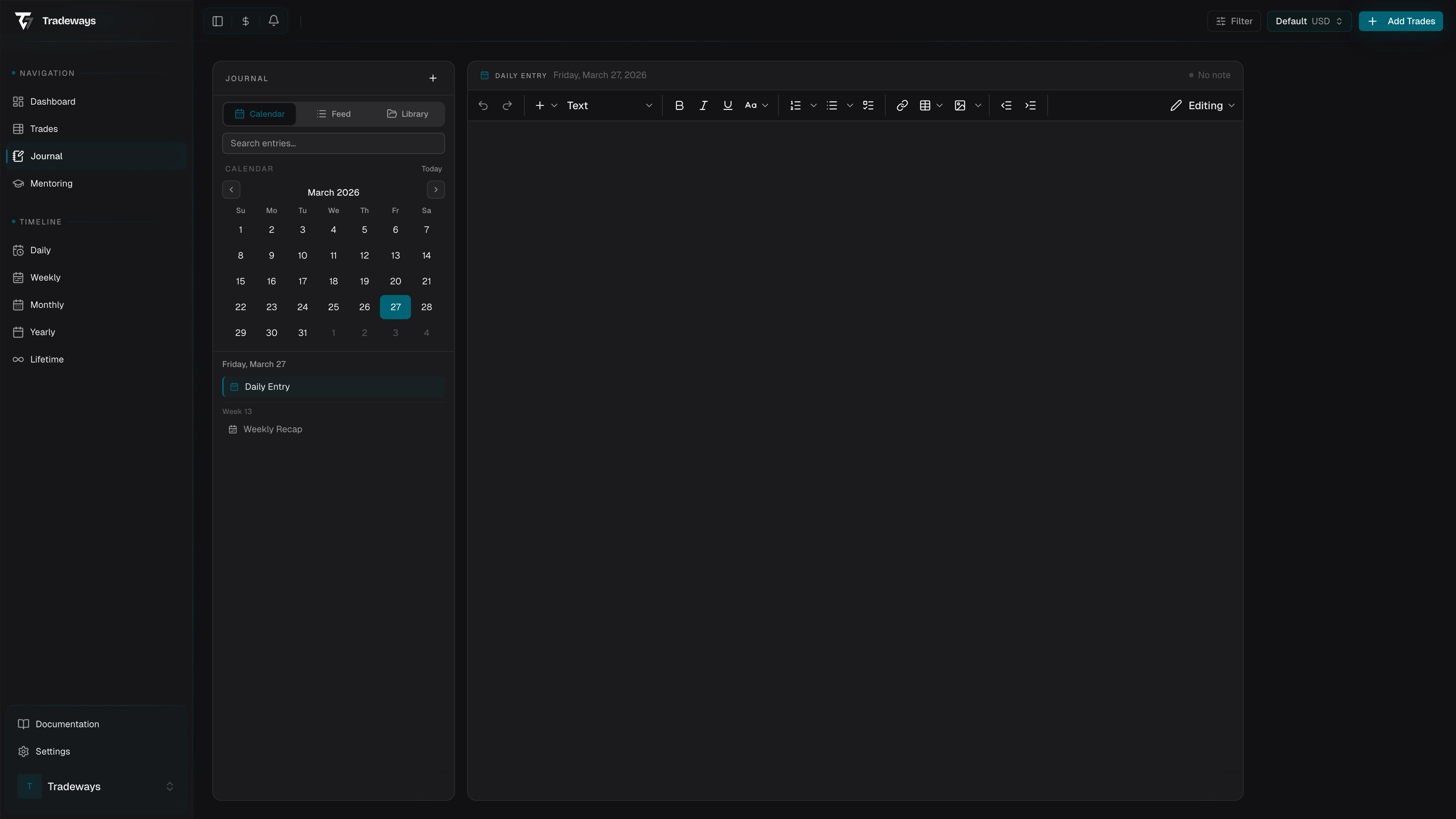
Calendar groups journal activity by date. Select a date to open or create its daily entry. Use it when you know when an event happened.
Below the month grid, the selected day lists its daily entry, its sessions, its trade notes, and the weekly entry of that week.
Dates follow your selected timezone. A trade can appear on another date after an import timezone correction.
Feed
Feed shows recent journal activity in time order, grouped into Today, Yesterday, and older dates. Use it to continue recent work across entry types.
Filter chips limit the list to Daily, Weekly, Monthly, Yearly, Sessions, Trade Note, or Pages. Select several entries to delete them together.
An empty feed means that no matching journal entry exists. Create an entry, clear the filters, or change the active account when you expected content.
Library
Library has five collapsible sections:
- Pages — the page tree, with folders.
- Sessions — every session entry.
- Timeline — the most recently updated daily, weekly, monthly, and yearly entries.
- Templates — your templates.
- Trash — deleted entries and templates.
Create a page, a folder, or a template from the section header or from the Journal create menu. Rename, move, duplicate, or delete an item from its actions menu. Rename and duplicate are available for pages, sessions, and trade notes.
Deleting an item moves it to Trash. Restore it from Trash when it was removed by mistake. Delete permanently and Empty Trash are not recoverable.
Period entries
A daily entry belongs to one calendar date. A weekly entry belongs to one week. A monthly entry belongs to one month, and a yearly entry to one year. There is one entry per period and account. Each is keyed to the first day of its period in your timezone. Daily and weekly entries can also appear in Trade Detail for trades in the matching period.
The daily, weekly, monthly, and yearly pages open their entry in a side panel. A part of a period that has an entry, such as a day on the week page or a month on the year page, carries a journal mark that opens it. Hovering a part without an entry shows a faint mark that creates one.
With more than one trading account, Multi-Account Sync in Journal Settings decides how these entries are scoped. Combined keeps one shared entry across all accounts. Per Account keeps a separate entry for each account.
A weekly, monthly, or yearly entry opens with a summary block calculated from the trades of its period: trade count, net P&L, win rate, and the best and worst trade.
Deleted period entries move to Trash and can be restored like any other entry.
Templates can be applied automatically from Journal settings or selected in the editor. Review the current content before you replace it with a template.
Sessions
A session entry records a defined part of a trading day. The create dialog asks for a start and an end date with times. Presets set Today, Yesterday, Last 7 days, or Last 30 days. Name the session in the editor header after you create it.
A session also opens with a summary block calculated from the trades in its range. Use Re-generate Summary in the editor header to rebuild it after the trade record changes.
Editor and saving
The editor supports headings, bulleted, numbered, and to-do lists, tables, code blocks, blockquotes, dividers, links, images, and trade embeds. Type a slash to open the insert menu. Under Trading, Trade inserts a trade embed. An embedded trade can be shown as a card or as a chip.
Select an image in an entry to view it full size. On an image you uploaded, select Draw to mark it up with the same tools as trade screenshots, described in Trade Detail. The drawing is saved separately from the image and appears on the image in the entry. An image in a trade note also appears on that trade and shares one drawing with it, so a change in either place shows in both. The screenshots in a trade embed open in the same viewer, and you can draw on them there. Drawing is not available in a read-only view or on an entry in Trash.
Images can be PNG, JPEG, GIF, or WebP. You can add an image to an entry that does not exist yet; Tradeways creates the entry first and then uploads the image. If the upload fails, an error message appears. Select the image to try again.
The save indicator identifies these states:
- No entry exists yet.
- The entry is being created.
- Changes are not saved.
- Changes are being saved.
- The current version is saved.
Wait for Saved before you close a tab after a connection problem.
Version history is in the editor header. It lists automatic saves and manual checkpoints. Save checkpoint records the current content. Restore this version replaces the live entry and saves a backup of the current content first.
A sync conflict appears in Combined mode when your period entries hold different content across accounts. Review the versions and keep the correct one. The other versions are overwritten.
PDF note bodies
A daily, weekly, session, page, strategy, or trade note can use one PDF as its body instead of rich text. Select the PDF control in the editor, or create a PDF page from the Journal menu. You can also drop a PDF onto an empty note. Only PDF files up to 20 MB are accepted.
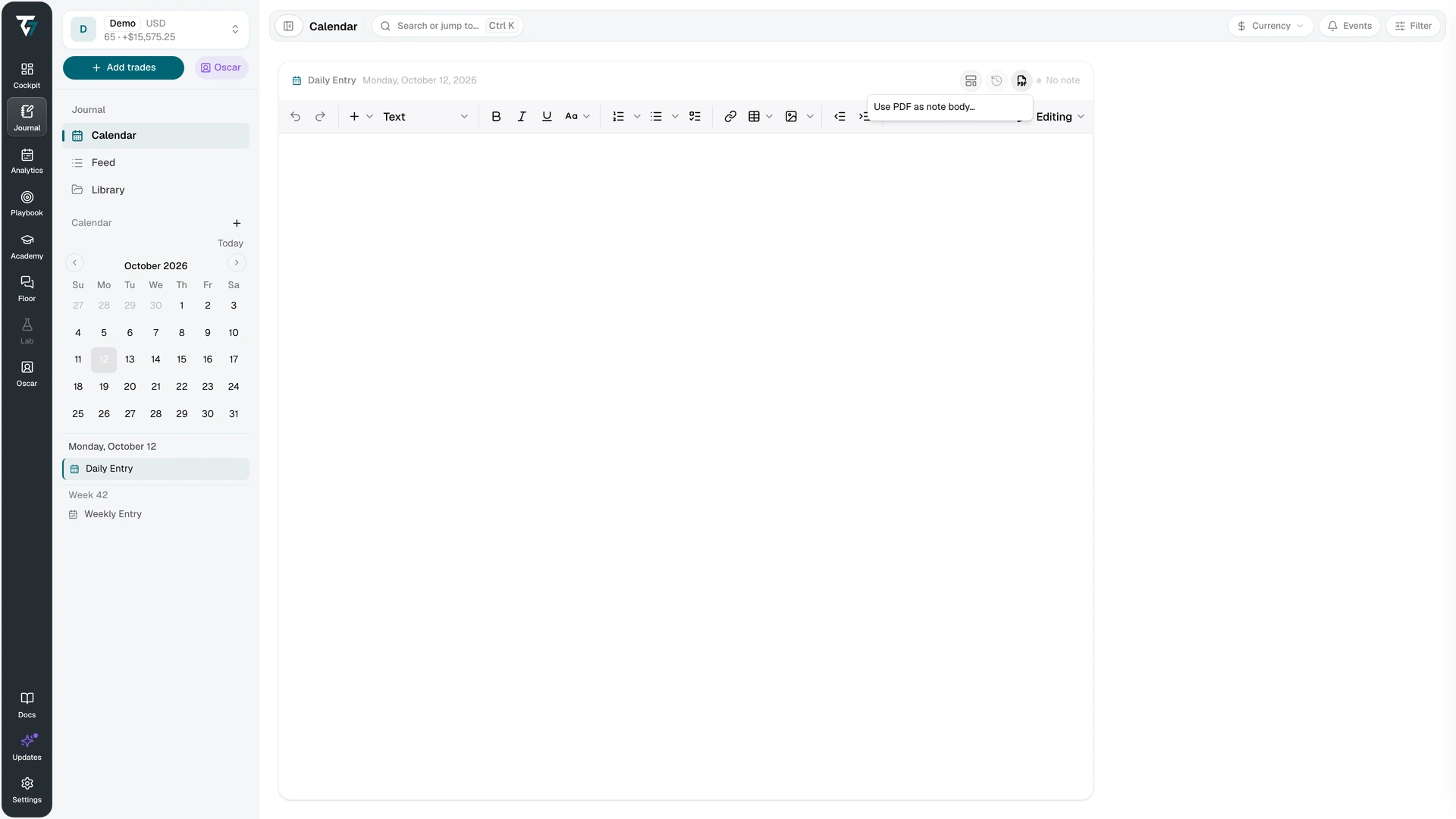
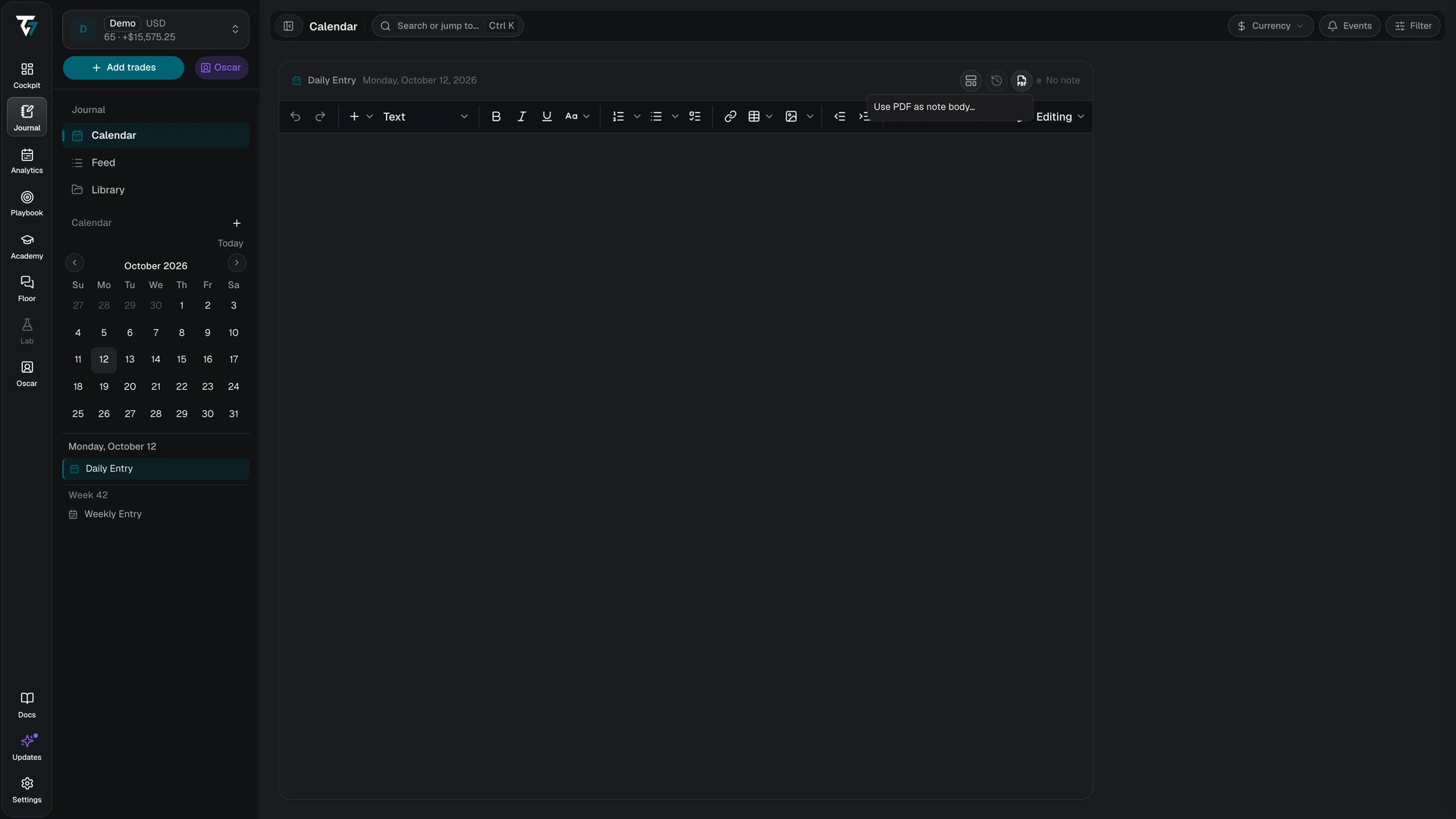
Attaching a PDF to a note that already has text saves the text as a version and hides it. Removing the PDF deletes the file and restores the text. You can replace the current PDF. Upload and record status appear beside the editor controls, with Retry after a failed upload or removal.
On a wide screen, switch between Document and Extracted text. Narrow screens open the extracted text first and keep Open PDF available. Text extraction can still be processing, can fail, or can find no readable text. Extraction stops after 300 pages and identifies a partial result.
Extracted text is machine-derived from the PDF and is the text that Journal search uses. A PDF badge identifies document-body notes in Journal lists and search results. Normal text editing, templates, and version actions stay unavailable until you remove the PDF. Shared mentor access can read a permitted PDF note but cannot change it.
Templates
Templates provide reusable content. Create and edit templates in the Library Templates section. A template is global or scoped to one account. The apply dialog shows this scope.
In Journal settings, a template can be applied automatically to new daily, weekly, monthly, yearly, trade, and session entries. Daily also supports per-weekday overrides.
Apply a template manually from the template button in the editor header. It replaces the current content of the entry. Restore the previous content from version history.
Linked trades and notes
A trade note belongs to one trade. Daily, weekly, monthly, and yearly entries belong to their time period. A page can be linked to a trade without copying its content.
Trade Detail has tabs for the trade note, the daily entry, the weekly entry, and linked notes. Open a linked item from there. Unlinking removes the connection. It does not delete the journal item.
Shared mentor access follows the permissions set by the account owner. Missing Journal navigation or content can mean that the owner did not share it. A mentor view is read-only.