

Journal Settings
Configure the default journal view, default entry type, multi-account sync, and auto-apply templates.
Journal
Control how the journal opens and which templates are applied automatically. Access this page in Settings → Journal.
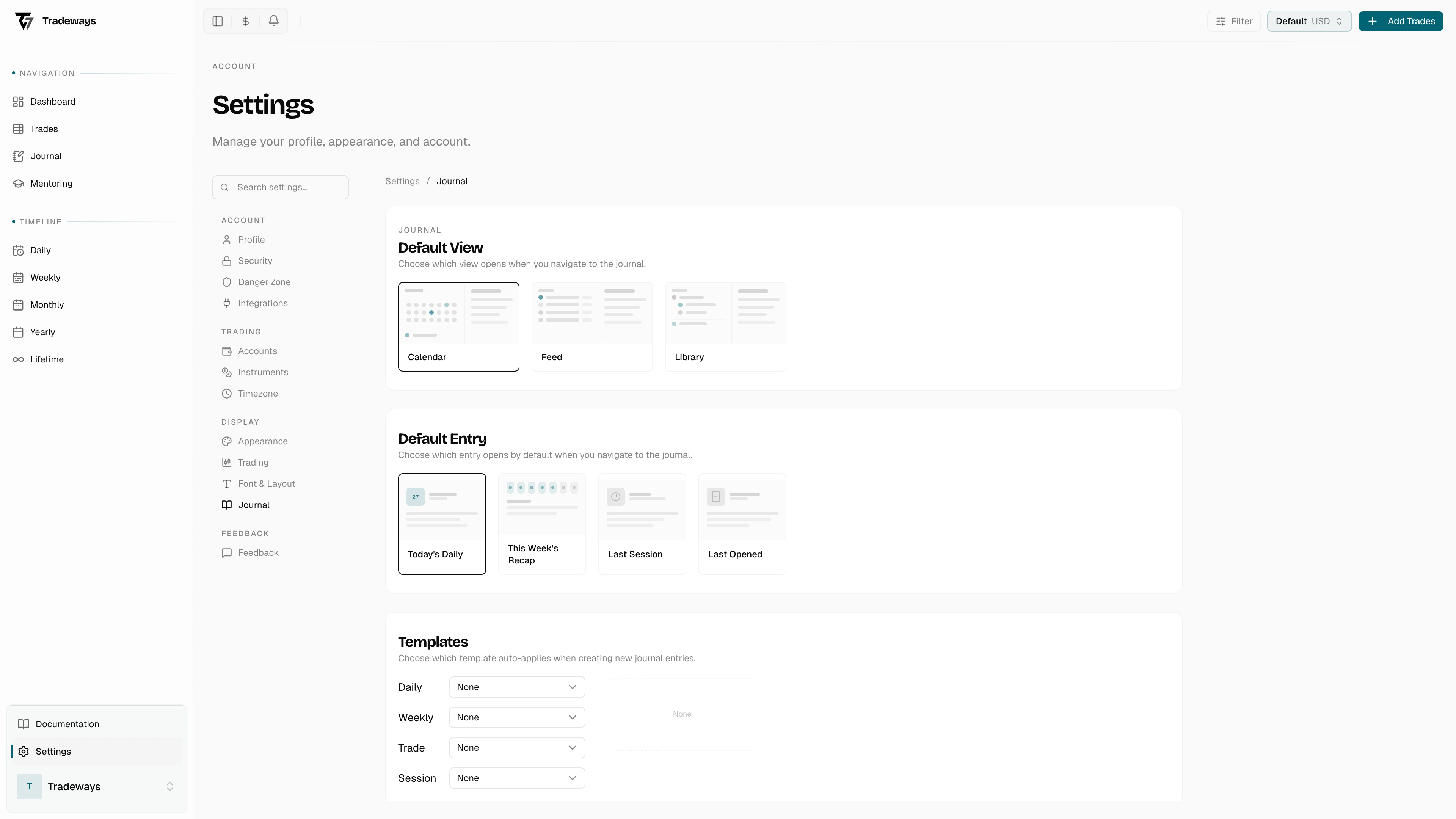
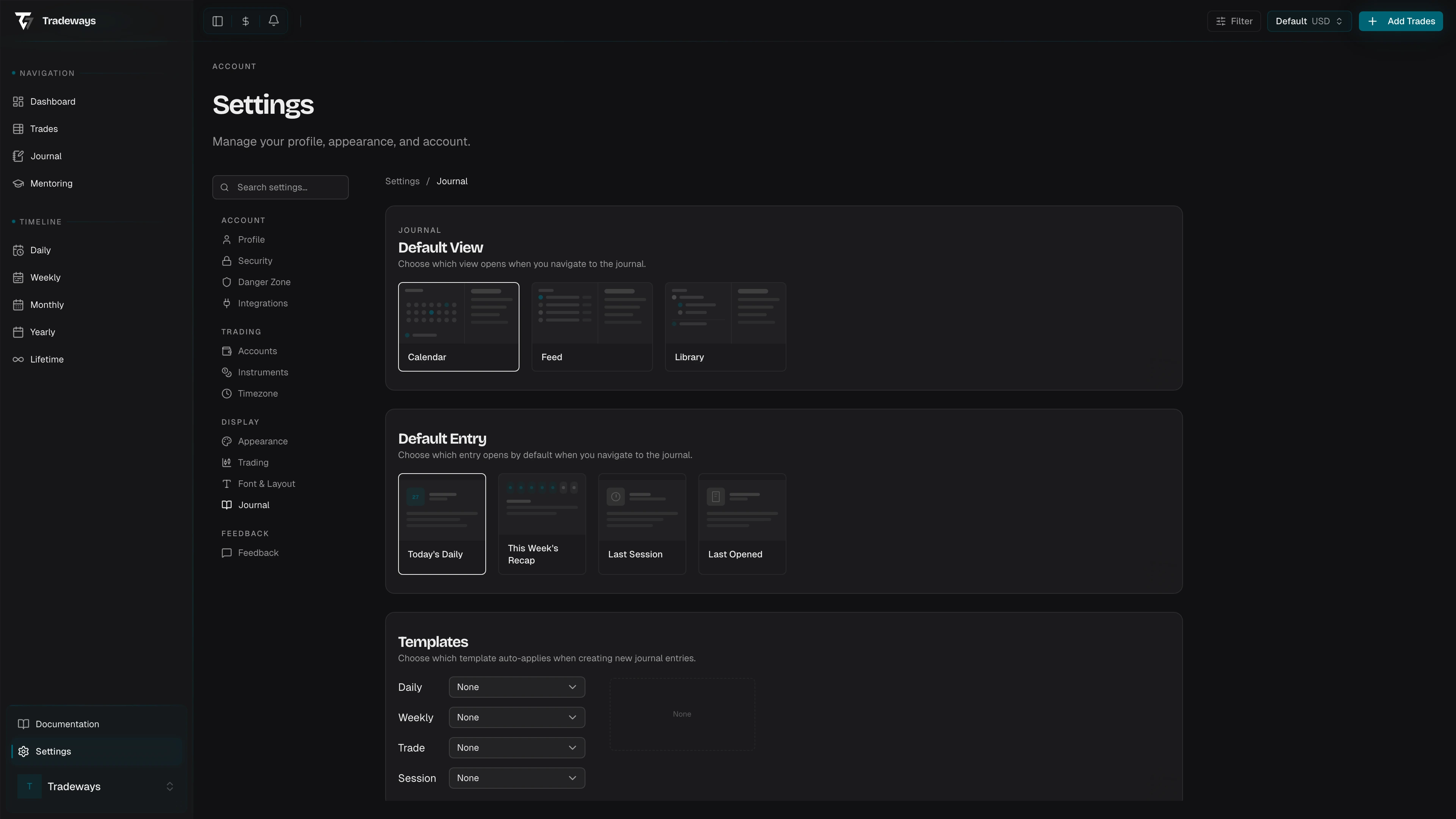
Default View
Choose the layout that appears when you open the journal. Click a preview card to switch.
| View | Description |
|---|---|
| Calendar | Month grid on the left, editor on the right. Best for daily journaling. |
| Feed | Chronological list of entries on the left, editor on the right. |
| Library | Folder tree on the left, editor on the right. Best for organized notebooks. |
The default is Calendar. The change takes effect immediately the next time you navigate to the journal.
Default Entry
Choose which entry opens automatically when you visit the journal. Click a preview card to switch.
| Entry | Behavior |
|---|---|
| Today's Daily | Opens or creates the daily entry for today. |
| This Week's Recap | Opens or creates the weekly recap for the current week. |
| Last Session | Opens the most recent session entry. |
| Last Opened | Reopens the last page you viewed, regardless of type. |
The default is Today's Daily.
Multi-Account Sync
Controls how daily, weekly, monthly, and yearly entries behave when you journal across more than one trading account.
| Mode | Behavior |
|---|---|
| Combined | One shared entry across all accounts. |
| Per Account | A separate entry for each account. |
With only one trading account the choice has no effect, so both cards are disabled with the hint "Add a second trading account to choose a sync mode."
Switching from Per Account back to Combined can lose content. If today's entries differ between accounts, Tradeways stops and asks which version to keep — the others are overwritten. Switching from Combined to Per Account is safe and applies immediately.
Auto-Apply Templates
Assign a template to each entry type so that new entries start with pre-filled content. Each entry type can have one template assigned.
| Entry Type | When Applied |
|---|---|
| Daily | When a new daily entry is created |
| Weekly | When a new weekly recap is created |
| Monthly | When a new monthly entry is created |
| Yearly | When a new yearly entry is created |
| Trade | When a new trade journal entry is created |
| Session | When a new session entry is created |
For each entry type, select a template from the dropdown or choose None to leave new entries blank. Only templates you have created in the journal's library appear in the list.
A live preview of the selected template is shown on the right side of the section (desktop only). Hover over a template in the dropdown to preview it before committing.
If a template is already assigned to a different entry type and you assign it to a new one, the previous assignment is removed automatically — each template can only be auto-applied to one entry type at a time.
See Also
- Journal — the journal itself
- Appearance — theme, visual presets, and widget style
- Trade Table — font sizes and cell alignment