

Trade Table
Control which columns appear in the trade table, reset the layout, set font sizes, and pick the default cell alignment.
Trade Table
Column visibility, layout, font sizes, and cell alignment for the trade log. Open Settings → Trade Table.
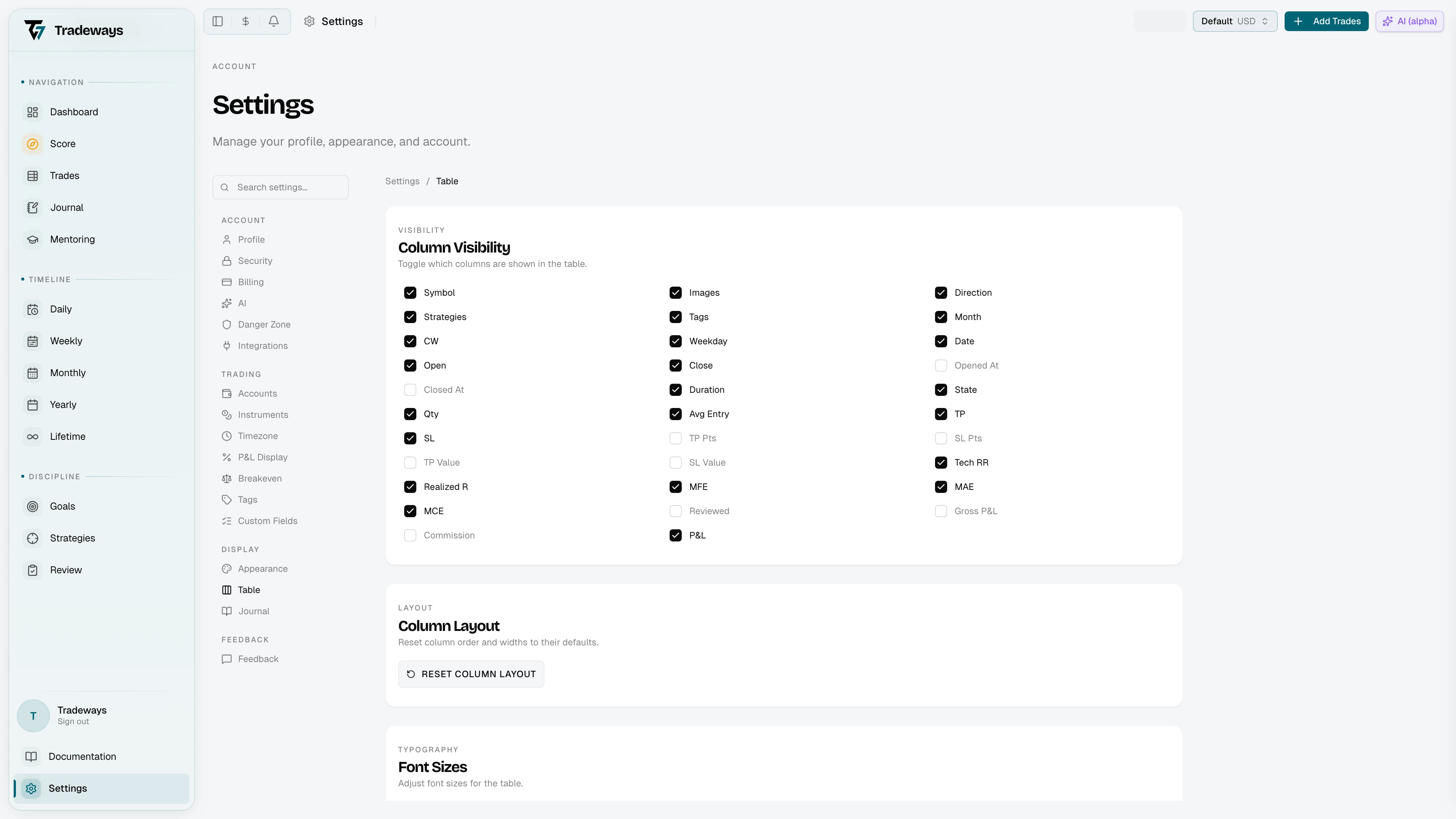
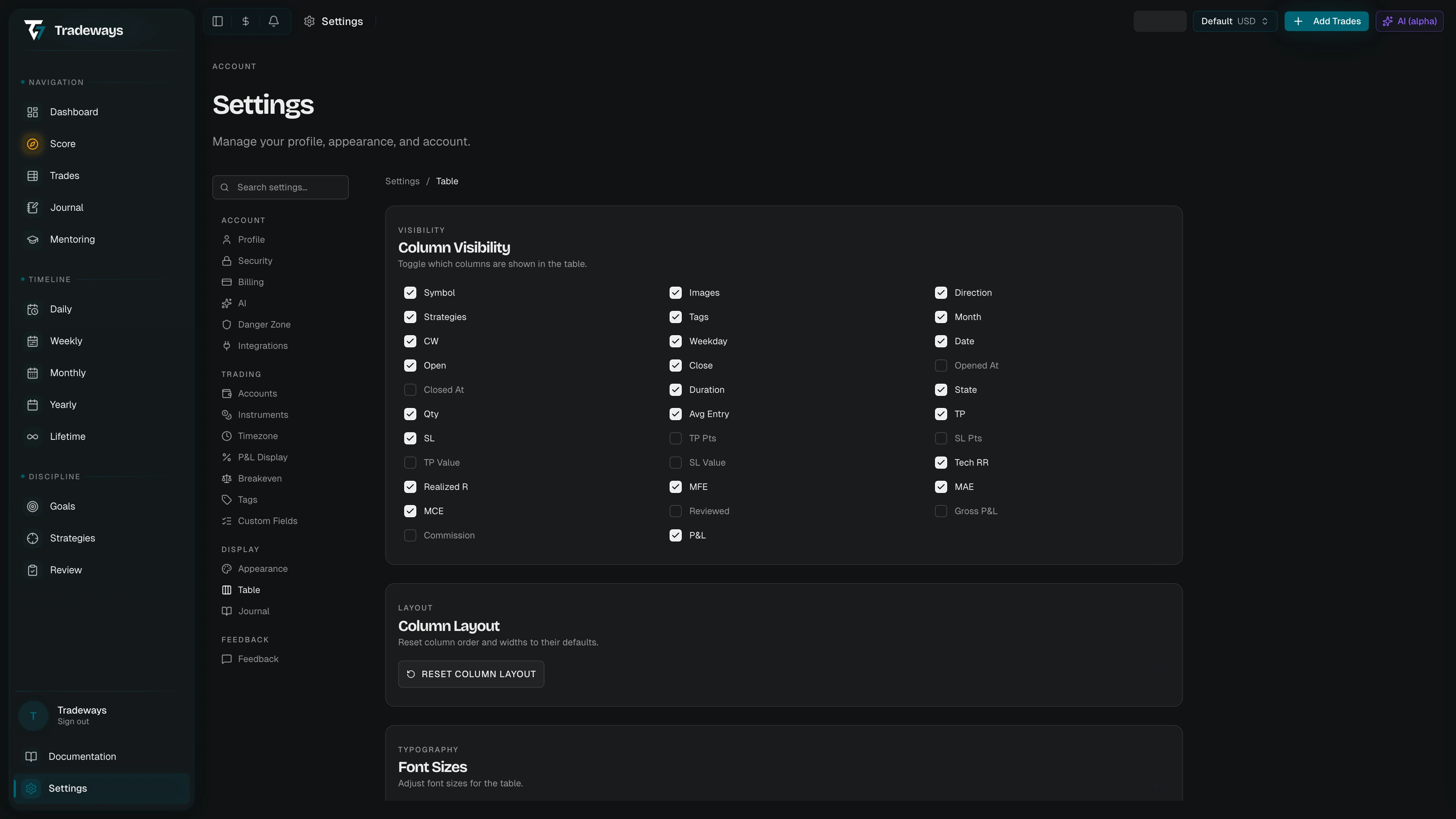
The page has four sections (Column Visibility, Column Layout, Font Sizes, Cell Alignment). Every change applies immediately and is global; it affects the trade log across all accounts.
The same controls are also reachable from the trade log itself. The Display button above the table opens a panel with Columns, Sizes, and Align tabs, plus Reset layout. Both paths write the same settings.
Column Visibility
Toggle which standard columns appear in the trade log. The list is shown as a grid of checkboxes; check a column to show it, uncheck it to hide it.
Hidden columns keep their data; toggling them back on restores the values without any recalculation. Required columns (such as the row selector and actions) cannot be hidden and are not shown in the list.
When the app introduces a new column, it appears in the visibility list with its default state pre-applied so the table matches what you see in this panel.
To manage the extra columns you have defined yourself, see Custom Fields. To manage trade labels, see Tags.
Column Layout
The trade log lets you drag columns to reorder them and drag their edges to resize. Select Reset Column Layout, then confirm, to restore the default order and widths. The reset cannot be undone. Only the layout is reset; column visibility, font sizes, and cell alignment are untouched.
Font Sizes
Three independent font-size controls for the trade log. Available sizes range from 8 px to 20 px (8, 9, 10, 11, 12, 14, 16, 18, 20). Click a size to apply.
| Setting | What it controls | Default |
|---|---|---|
| Column Headers | The header row at the top of the table. | 10 px |
| Cells | All standard data cells. | 12 px |
| Custom Text Cells | Free-text cells in your custom text-type fields. | 10 px |
Cell Alignment
Set the horizontal (Auto / Left / Center / Right) and vertical (Top / Center / Bottom) alignment for cells. The table updates in place.
Auto is the default: numbers align right and text aligns left. Hover Auto for that hint. Choosing Left, Center, or Right applies that alignment to every column except free-text custom fields and the row-select checkbox, which keep their own alignment.