

Custom Fields
Add per-trade checklists, text, or categories that apply to all accounts or one account.
Custom Fields
Custom fields are extra data points you define yourself and capture per trade. Each field shows up as a column in the trade log and as an editable input on the trade detail view. Manage them in Settings → Custom Fields.
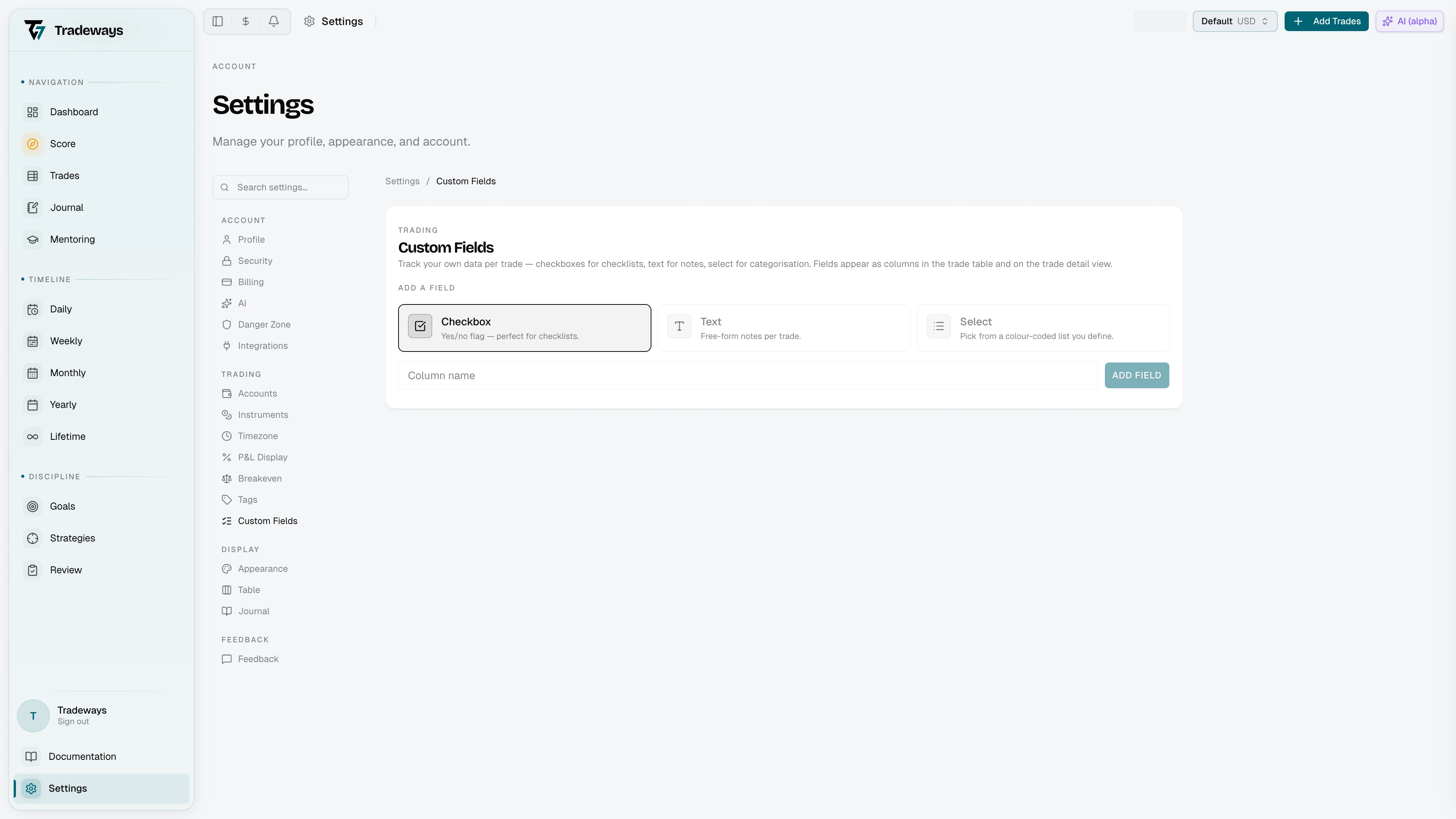
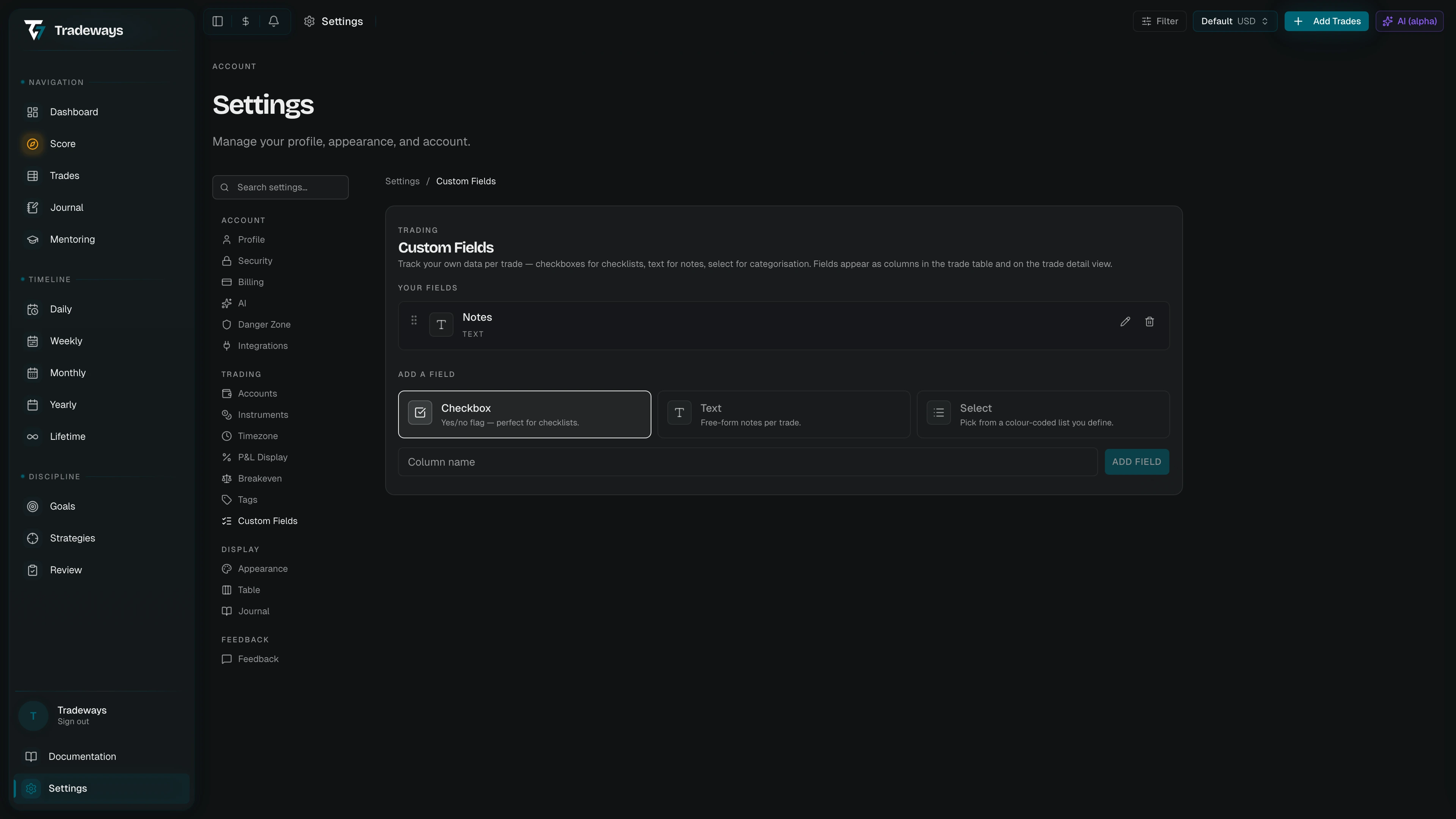
Every custom field applies to all accounts or one account. The list shows this scope beside each field. In an all-accounts view, Tradeways combines shared fields with the fields for the accounts in scope. Account fields with the same name and type become one column in the trade log. Each trade shows and edits the value of its own account's field. A shared field, and a second field with the same name on one account, stay separate columns.
Field Types
When you add a field, you pick one of three types:
| Type | What it stores | Good for |
|---|---|---|
| Checkbox | A yes/no flag. | Per-rule checklists (e.g. Setup followed, On plan). |
| Text | Free-form text. | Notes in your own words (e.g. Why entered). |
| Select | One value from a list of color-coded options. | Categories from your playbook (e.g. Setup type). |
Before you add any fields, the page suggests three example fields covering each type so you can see what works.
Adding a Field
The Add a field section sits at the bottom of the page:
- Pick a type by clicking one of the three tiles.
- Choose Applies to: All accounts or one named account.
- For Select fields, click Add option to define one or more options. Each option has a label and a color picker.
- Enter a column name (e.g. Setup followed).
- Click Add Field to save. The new field appears in the fields list and as a new column in the trade log.
For checkbox and text fields, press Enter in the name input to save quickly.
Editing a Field
Click the pencil icon on a field row to enter edit mode. You can change the column name, scope, and, for select fields, rename, recolor, add, or remove options. Click Save to commit; Cancel to discard.
Renaming a field updates the column header in the trade log immediately. Existing trade values are preserved. A field cannot be narrowed to one account while trades outside that account still have values for it. Keep it on All accounts, or clear those values first.
Deleting a Field
Click the trash icon, then Confirm in the inline prompt. Deleting a field removes the column and clears any values stored on trades for that field. This cannot be undone.
Reordering Fields
Each field row has a drag handle on the left. Drag to reorder it. The new order is reflected in the trade log column order and on the trade detail view.
Where Custom Fields Show Up
- Trade log — each custom field becomes a column. Toggle visibility from Trade Table → Column Visibility.
- Trade detail — the trade detail view shows every custom field as an editable input.
- Font sizes — text-type cells respect the Custom Text Cells font size under Font Sizes.
- Oscar — Oscar can group and filter your trades by custom field values, for example to compare the results of each checklist combination.