

Tags
Create colored labels to categorize trades. Tags can apply to all accounts or one account.
Tags
Tags are short, colored labels you can attach to individual trades — for setups, market conditions, mistakes, anything you want to group trades by later. Manage them in Settings → Tags.
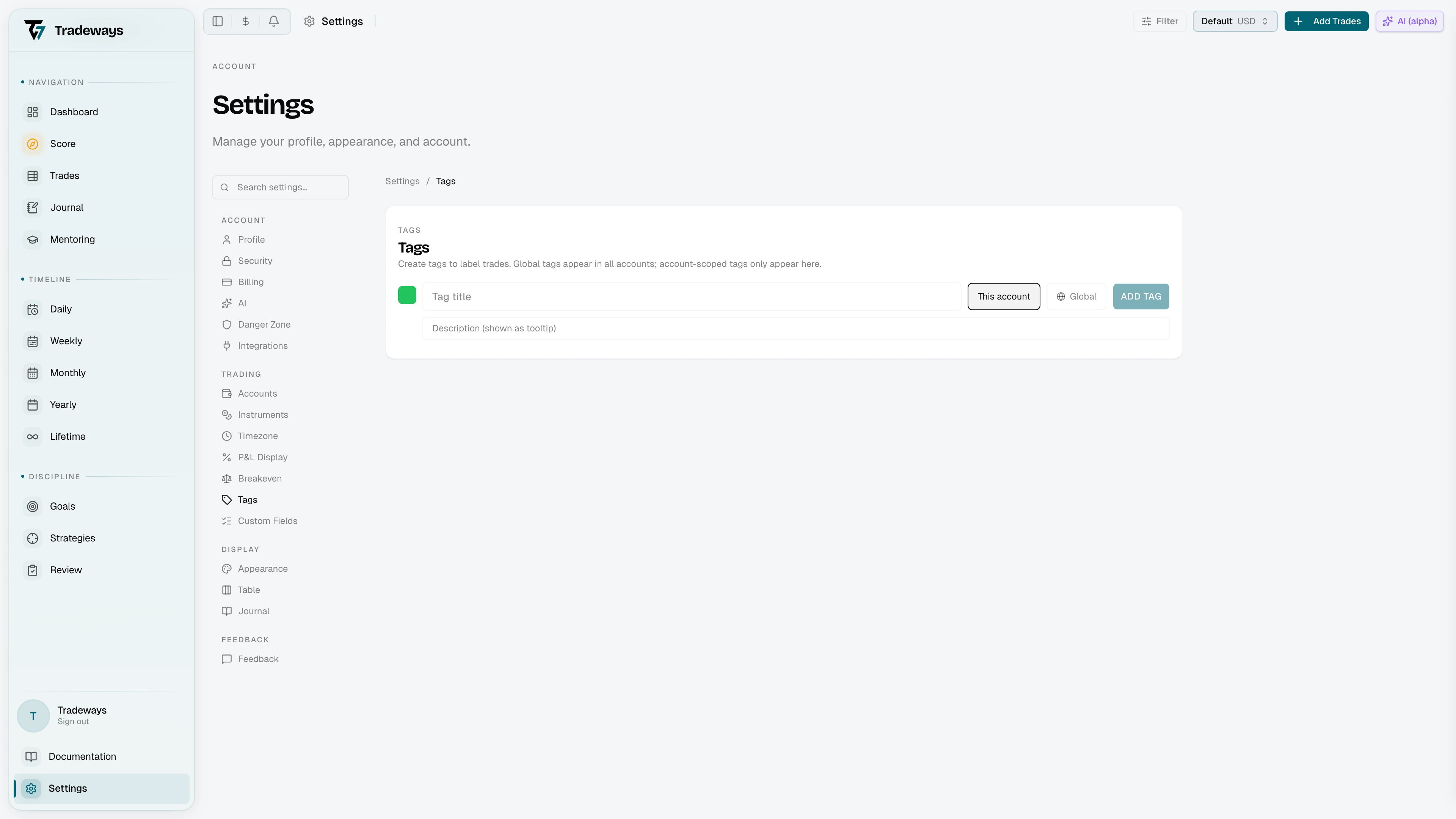
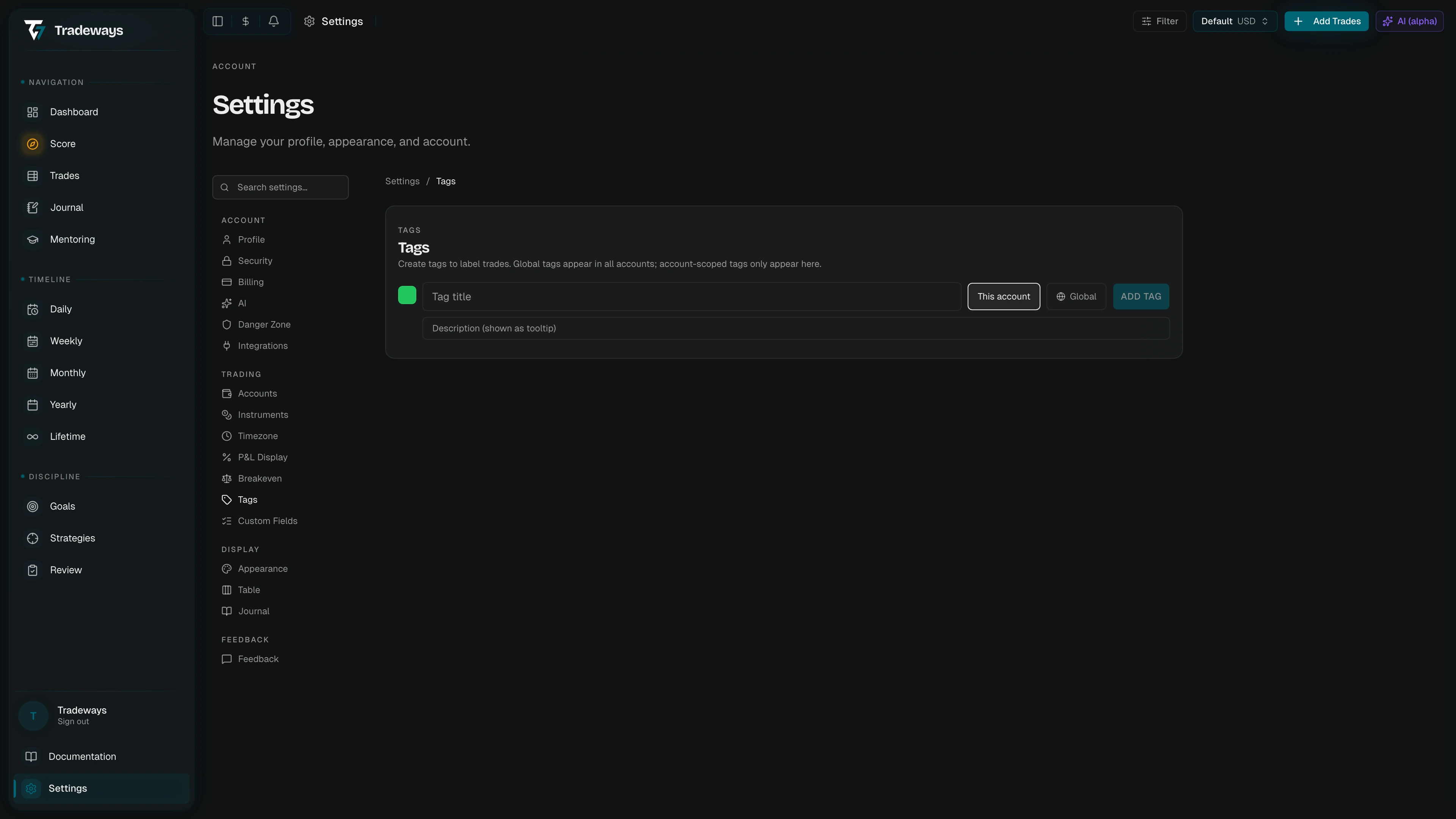
Every tag applies to all accounts or one account. The list shows this scope beside each tag. Once tagged, trades can be filtered, grouped, and analyzed by tag across the dashboard, the trade log, and analysis widgets.
Creating a Tag
The add form sits below the tag list:
- Pick a color from the color picker.
- Type a title — short, ideally a few words.
- Choose Applies to: All accounts or one named account.
- Optionally add a description in the second row, up to 1,000 characters. The list shows it under the tag, limited to two lines. Elsewhere, hover over a tag to read it in a tooltip, and the trade log tag picker shows it beside each tag.
- Click Add Tag or press Enter to save.
The new tag appears at the top of the list and is immediately available in the tag pickers across the app.
Scope
| Scope | Behavior |
|---|---|
| One account | The tag appears only for trades in the named account. |
| All accounts | The tag is shared across every account. Useful for cross-account setups or themes. |
You can change the scope of an existing tag while editing. Moving it to All accounts keeps its existing trade assignments.
Editing a Tag
Click the pencil icon on a tag row to enter inline edit mode. The row expands into a small form where you can change the color, title, description, and scope. Press Enter or click Save to commit; press Escape or click Cancel to discard.
Deleting a Tag
Click the trash icon. The row shows Confirm / Cancel inline. Deleting a tag removes it from every trade it was attached to.
Reordering
Tags display in a fixed order across the app. Drag the grip handle on the left of a row to reorder them — the new order is saved automatically and reflected wherever tags appear (pickers, filters, widgets).
Where Tags Show Up
- Trade log — tag chips in the Tags column, plus a tag picker on each row that lists every tag with its description. See Trade Log.
- Trade detail — full tag editor in the trade detail panel. See Trade Detail.
- Filter — filter trades by one or many tags. See Filter.
- Dashboard widgets — tag-scoped widgets are available in the widget picker.
See Also
- Trade Log — apply tags to trades in bulk or inline
- Filter — narrow analysis by tag
- Custom Fields — for structured data beyond simple labels