Tradewaysdocs

Mentoring

Share a trading account read-only with a mentor, or work alongside students from the mentor side, with fine-grained permissions and a built-in feedback thread.

Mentoring

The mentoring page at /mentoring exists for two kinds of conversations that don't really fit anywhere else: a trader handing read-only access of their account to someone they trust for feedback, and a mentor sitting on the other side of that handoff working through a student's trades. The same Tradeways user can be a student in one relationship and a mentor in another; it's the same page, just a different role.

Mentoring page with relationships in the sidebar and a student dashboard in the detail view

Two roles, one page

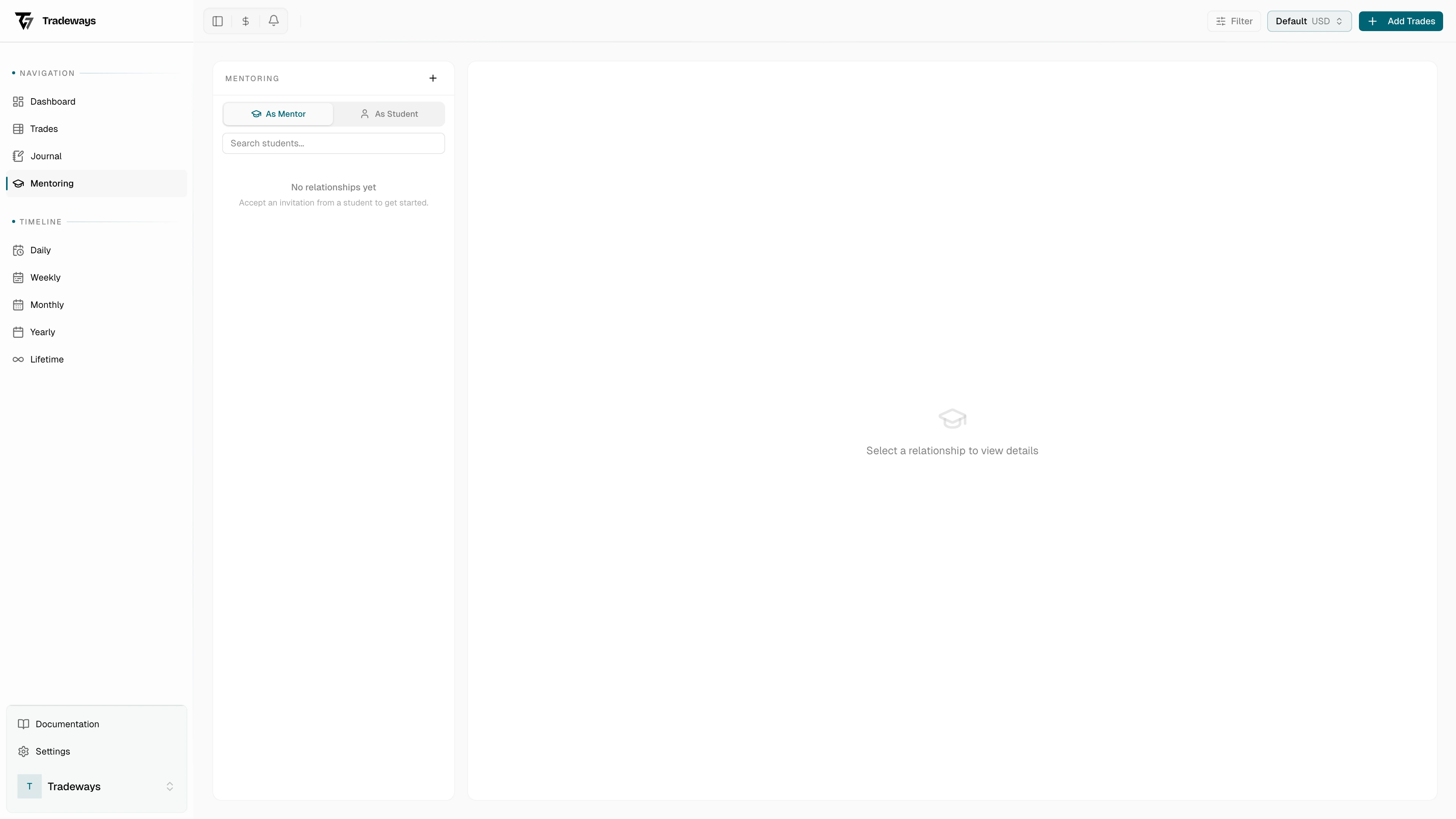
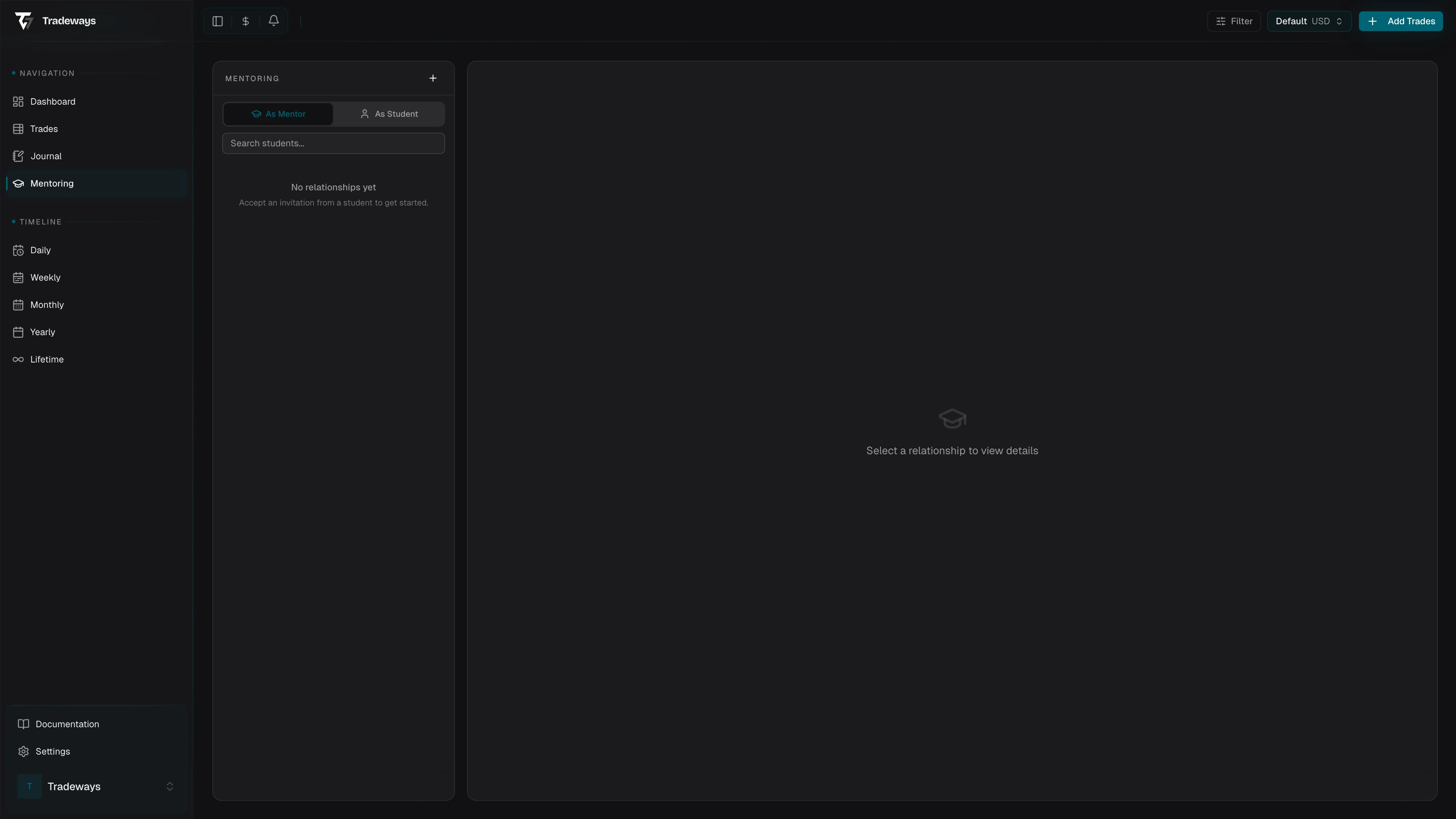
A role switcher at the top of the sidebar toggles between As Student and As Mentor. The list of relationships below updates to match the role, and the rest of the page shows the detail view for whichever relationship you have selected.

If you have no relationships in the active role yet, the sidebar points that out and links to the invite flow.

Starting a relationship

Either party can send the first invitation. Email is the only thing you need.

As a student inviting a mentor

  1. Switch to As Student in the sidebar.
  2. Click Invite.
  3. Enter the mentor's email.
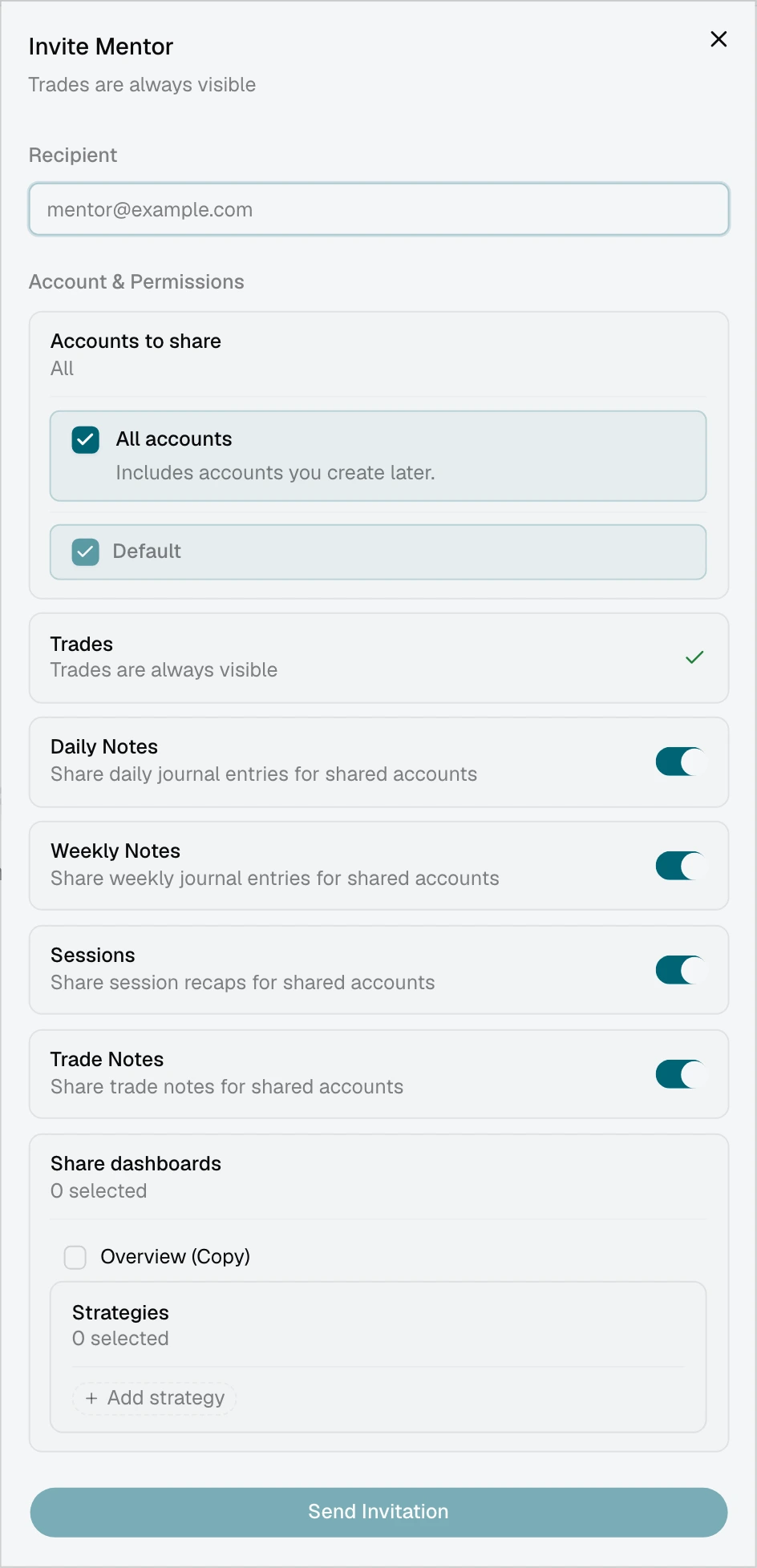
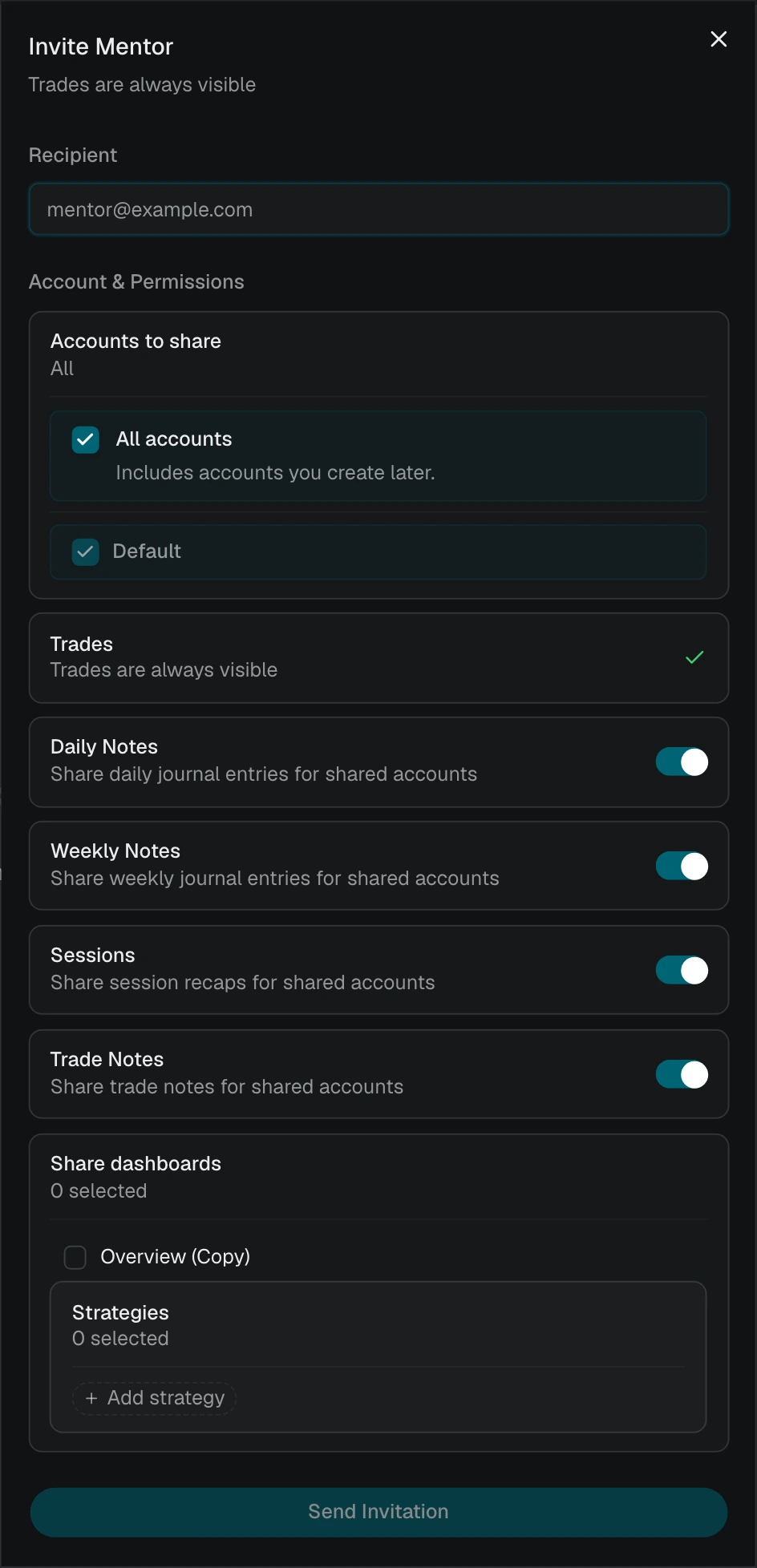
  4. Pick the accounts you want to share.
  5. Set permissions per account.
  6. Send.

The mentor gets an email with a link. The moment they accept, the relationship is live with exactly the permissions you set.

As a mentor inviting a student

  1. Switch to As Mentor in the sidebar.
  2. Click Invite.
  3. Enter the student's email.
  4. Send.

The student gets an email with a link. When they accept, they choose the accounts and permissions before the relationship is finalized, so even a mentor-initiated invitation puts the student in control of what gets shared.

Pending invitations

Pending invitations show up in the sidebar with their status:

  • Outgoing invitations get a Cancel button to withdraw before the other side responds.
  • Incoming invitations get Accept and Decline buttons.

Once an invitation is declined, it is done; you would need to send a new one. Plan-based limits apply: if your plan only allows one active relationship and you already have one, the invite flow will tell you before you waste an email.

Permissions: the student is always in control

This is the part of mentoring most worth understanding before you share anything. Trades are always visible (read-only) on a shared account. Everything else is opt-in, per account, and changeable at any time.

PermissionWhat it shares
DailyDaily journal entries
WeeklyWeekly journal entries
SessionsSession recaps
Trade NotesNotes attached to individual trades
StrategiesSpecific strategies and their notes/rules (picker)
DashboardsSpecific dashboards (picker)
PagesSpecific journal pages (picker)
FeedbackLets the mentor send feedback messages

Each toggle is independent. The strategy, dashboard, and page permissions use multi-select pickers so you can share, for example, only your "ES Range" strategy and your weekly review dashboard without exposing the rest. Accounts can be added to and removed from the relationship after the fact; the mentor's view of that account simply disappears when you remove it.

Changes take effect immediately. If a mentor is looking at your dashboard at the moment you flip a toggle, their view updates in real time.

What the mentor sees

When viewing as mentor, the sidebar lists students grouped by name. Under each name are the accounts they have shared, with a quick read on activity: trade count, win rate, P&L, and when the last trade hit.

Selecting a student account opens a full widget dashboard in the detail view. It uses the same widget system as the main Dashboard, with full edit, drag, resize, and configure powers. The point is that a mentor can build a workspace per student: maybe a clean compliance and drawdown setup for the discretionary scalper, a different layout for the algo trader.

The detail-view toolbar gives you:

  • Edit Widgets — switch the dashboard into edit mode to rearrange and add widgets.
  • Open in New Tab — open the student's dashboard in its own tab, useful when you want the chart on one screen and your feedback notes on another.
  • Feedback — open the feedback panel without leaving the dashboard.

A feedback panel slides in from the side of the detail view for writing messages to the selected student. See Feedback below.

What the student sees

When viewing as student, the sidebar lists your mentors. Selecting one opens a detail view with two sections.

Permissions

A collapsible section that shows every permission toggle, account management, and the dashboard / page / strategy selectors. This is the same set of controls you used during the invitation flow, and they continue to work here so you can tighten or widen access whenever you want.

Feedback thread

Below permissions sits the running conversation with this mentor. See Feedback below.

Revoking access

At the bottom of the student view, a Revoke button ends the relationship. The confirmation dialog spells it out: revocation is permanent, all shared account data drops out of the mentor's view, and the feedback history disappears with it.

Feedback

Feedback thread with text messages and trade references

Feedback is the threaded conversation between mentor and student inside a relationship. It is intentionally not a generic chat: it knows about the trades and journal entries on the shared account, so you can reference them directly instead of pasting screenshots.

What you can send

  • Text — standard messages.
  • Images — upload screenshots, charts, or annotated visuals.
  • Trade references — link to a specific trade in the shared account; the other side can click through.
  • Journal references — link to a specific daily, weekly, or session entry.

Filtering by account

If the relationship covers multiple accounts, a dropdown at the top of the thread filters messages by account so a conversation about the prop account doesn't get tangled with the live account.

Message actions

Hover any message to reveal:

  • Edit — change the message text.
  • Delete — remove the message (with confirmation).
  • Copy — copy the text to your clipboard.

Read receipts

Each message shows sent and read indicators that update in real time.

Replies

The mentor controls whether the student can reply via the Allow Student Replies toggle. When replies are off, the student sees a hint explaining that their mentor has turned off replies for this relationship. Useful for one-way coaching where the mentor wants control over the cadence.

Older messages

Older messages load on demand via Load earlier messages at the top of the thread.

Ending a relationship

Either side can end the relationship:

RoleActionWhere
StudentClick Revoke (confirmation required)Permissions section
MentorClick Cancel on pending invitationsSidebar invitation card

Ending a relationship flips its status to revoked, drops every shared account out of the mentor's view, and removes the feedback history for both sides. Plan accordingly: there is no archive to fall back on.

See also

  • Dashboard — the widget system the mentor view reuses
  • Widgets — available widget types and configuration
  • Strategies — share strategies and open the review workflow
  • Reviewing trades — work through trades inside a student's account

On this page