

Trade Log
Find, compare, edit, move, review, and recover trades.
Trade Log
Open Cockpit from the icon rail. Then select Trades. The table shows the trades in the selected account scope. All Accounts also shows the source account in an Account column, which you can resize like any other column.
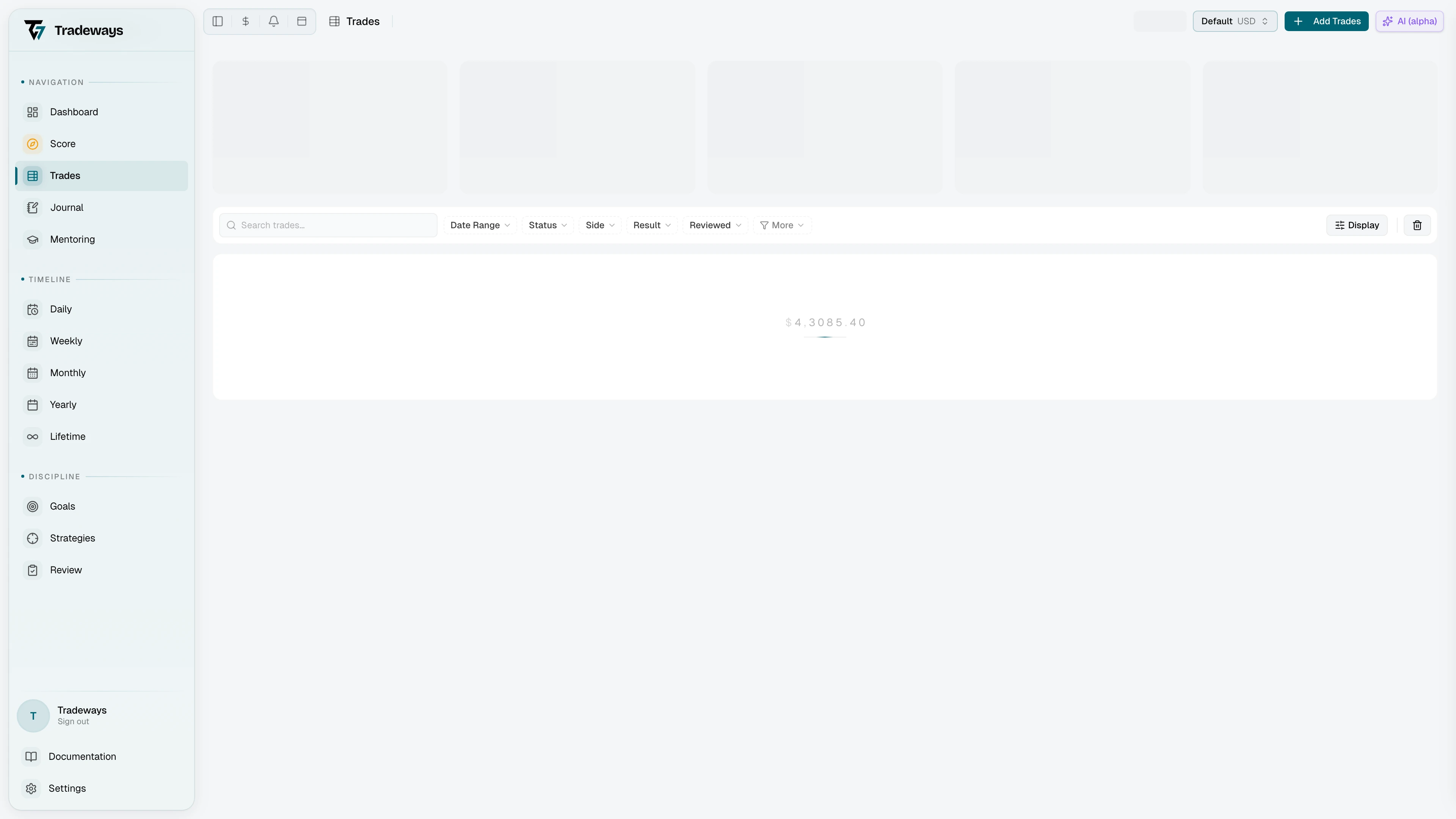
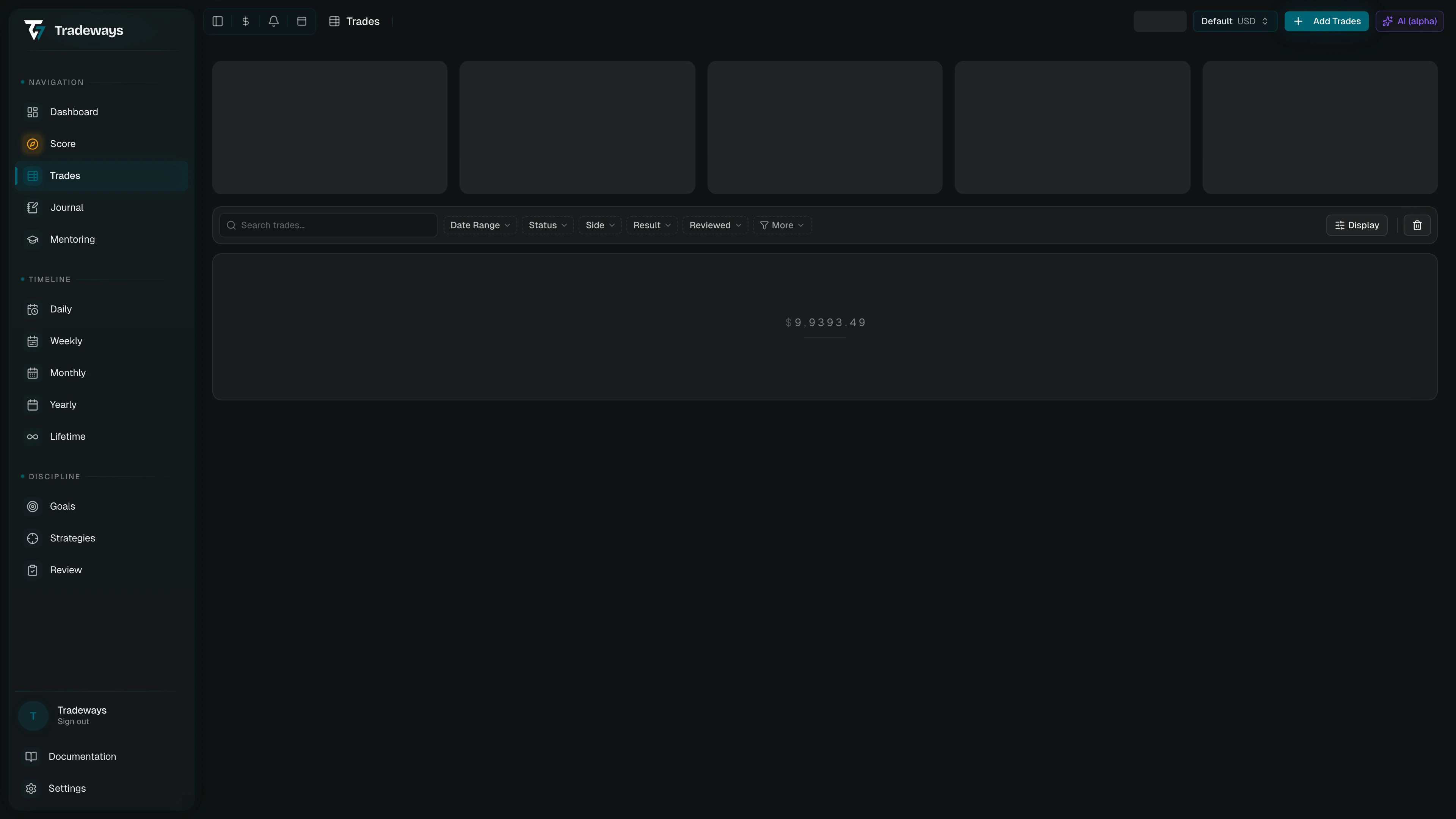
Select a row to open Trade Detail. Use the previous and next controls there to continue through the same trade set in the table's sort order.
Find trades
Smart search converts recognized text into filter chips. You can search for symbols, dates, weekdays, months, direction, status, result, review state, strategies, and tags. Select an ambiguous chip to choose its meaning.
The page filters cover common fields and detailed ranges. Page filters combine with the global filter. Clear both filter areas when a trade that you expect is missing.
No results can mean that the account has no trades or that the filters exclude every trade. The empty state identifies the case.
Work with the table
Select a column heading to sort. Use its menu to choose ascending, descending, or no sort.
Use Display to show, hide, order, size, and align columns. Drag a column to reorder it. Drag its edge to resize it. Rows keep one height and long cell content is cut off instead of wrapping: column headings stay horizontal and truncate with the full name on hover, and a column cannot be made narrower than its heading. A Strategies or Tags cell shows its first chip, a second one when the column is wide enough, and +N for the rest, with the full list on hover. These preferences also appear in Settings under Trade Table.
An account shared with you opens with its owner's columns and sort. You can still sort, reorder, resize, show, and hide columns. These changes last for the browser session and are not saved to the owner's account. Custom view marks a changed layout. Select it, or the reset action in Display, to return to the owner's layout.
Strategies, tags, review state, and supported custom fields can be edited in the table. Select a Tags cell to open the tag picker. It lists every tag with a checkbox, its color, and its description. Check or clear a tag to apply or remove it on that trade, and the menu stays open so you can change several. Select the round control in the Reviewed column to mark one trade reviewed or not reviewed without opening it. The table shows a setup link when the account has no values for the field that you selected.
An unconverted P&L marker means that Tradeways lacks the exchange rate needed for the selected display currency. An adjustments-excluded marker means that the displayed conversion does not include every adjustment. Open the trade before you use that value.
The MFE, MAE, and MCE columns use market data calculated for closed trades. Calculating means the result is still being computed or is waiting for market data; hover over the cell to see which. A dash with a tooltip gives the reason when a result is unavailable. A dash without a tooltip means there is no value to show. The three columns follow the P&L display mode: currency and percentage show the excursion in the instrument's currency, Ticks (sized) shows the whole position in the instrument's own unit, Ticks (1-lot) shows the move for one contract from the average entry, and R multiple divides by the average realized loss of the trade's own account. When R cannot be calculated for a trade, the cell shows the currency amount instead. See Trade Detail for what each metric measures.
Select and update several trades
Select one or more rows to open the bulk action bar. The header checkbox selects the loaded rows. Select all matching trades can extend the selection to the full server-side result when the active filters support it.
Available actions can include:
- Mark reviewed or not reviewed.
- Add, replace, or remove a strategy or tag.
- Force-close open trades at their last execution price.
- Move trades to another account.
- Correct the import timezone.
- Reset market excursion metrics.
- Move trades to Trash.
Review the confirmation for every move, timezone correction, force close, and delete. A move can affect currency reporting and custom fields. A timezone correction reinterprets execution times and can move a trade to another day.
Large changes run as background jobs. The progress notice reports saved, failed, or cancelled work. A cancellation stops remaining work. It does not reverse items that were already saved.
Shared mentor accounts are read-only. Bulk updates are not available in that context.
Trash and recovery
Select Trash to show soft-deleted trades. Deleted trades remain restorable for 30 days.
Select trades in Trash. Use Restore to return them to the live table. Use Delete permanently only when the executions, images, and notes must be removed. Permanent deletion cannot be undone.
An empty Trash means that no restorable trade exists in the current account scope. Mentors cannot open another user's Trash.
Page widgets
The area above the table can contain account and filter-aware widgets. See Page Widgets.