

Two-Factor Authentication
Complete two-factor sign-in to Tradeways with an authenticator, email code, or backup code. Learn how each method works and where to manage your security settings.
Two-Factor Authentication
When 2FA is enabled on your account, you are redirected to the verification page after entering your email and password during sign-in.
Verification Methods
Three tabs are available on the verification page:
Authenticator App (TOTP)
- Open your authenticator app (Google Authenticator, Authy, 1Password, etc.).
- Enter the 6-digit code shown in the app.
- Click Verify.
Email Code
- Click Send Code to receive a one-time code via email.
- Enter the code from the email.
- Click Verify.
Backup Code
Use one of the backup codes generated when you enabled 2FA.
- Select the Backup Code tab.
- Enter a backup code.
- Click Verify.
Each backup code can only be used once. If you run out, generate new codes in Security Settings.
Managing 2FA
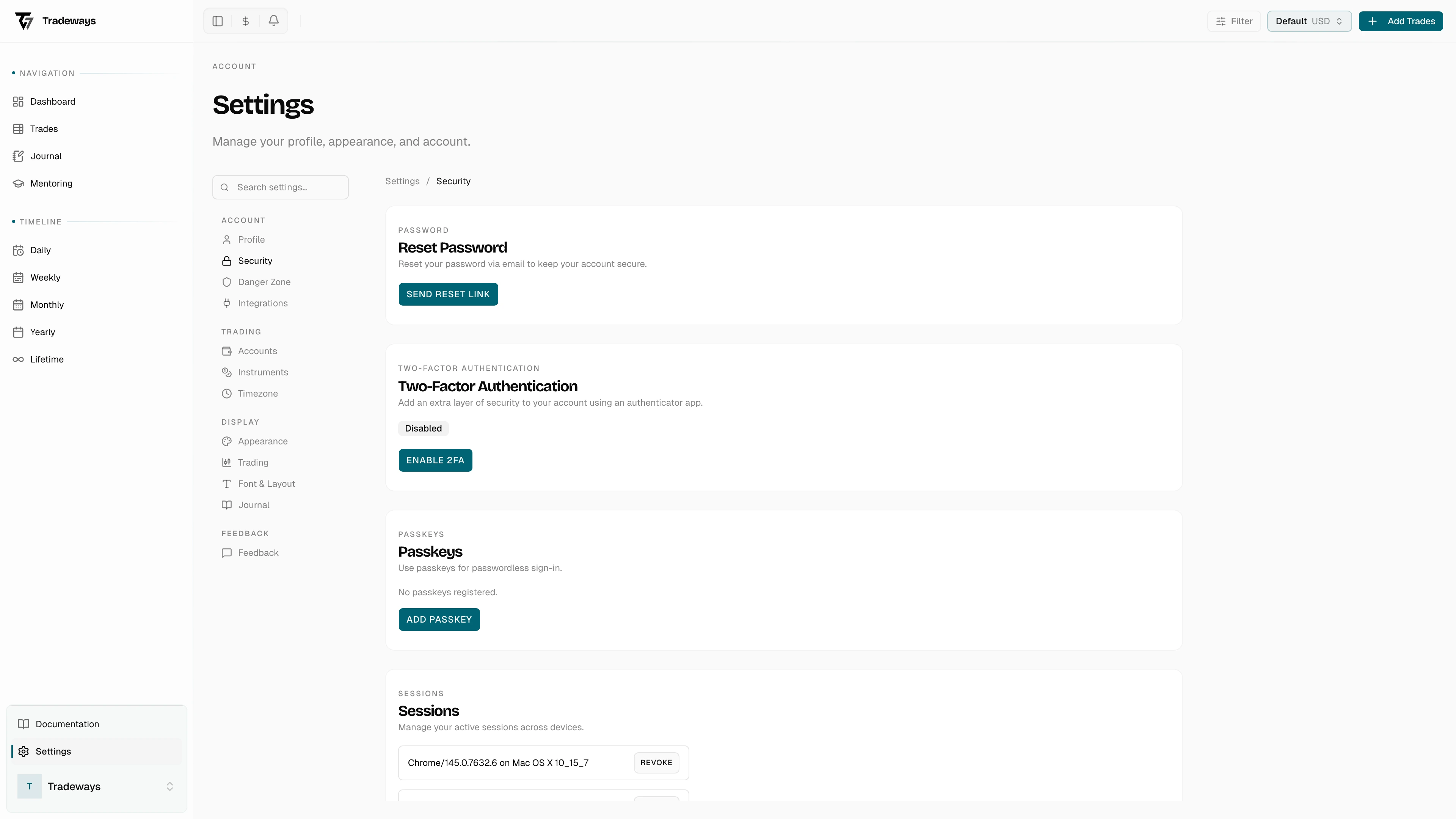
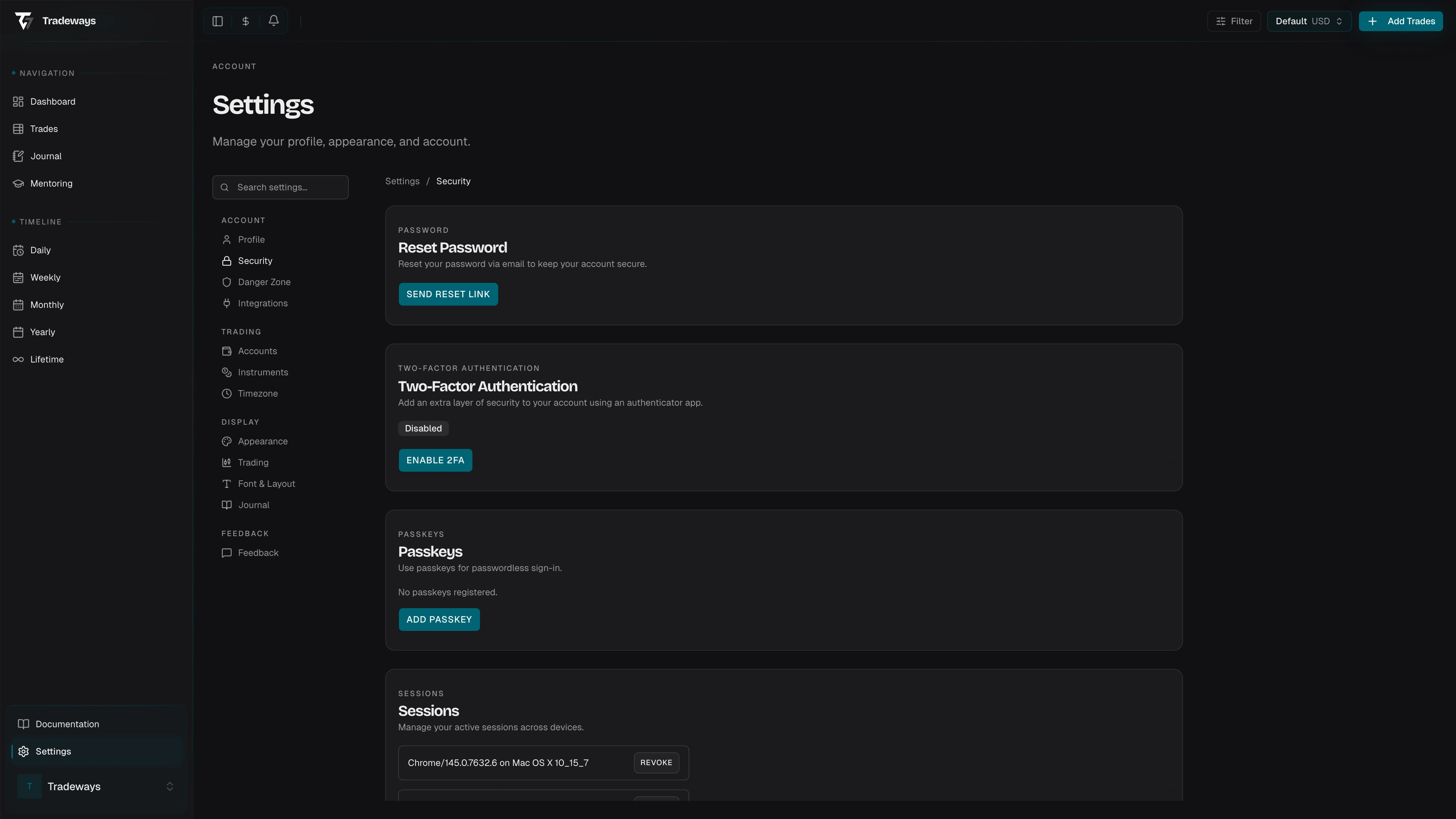
To enable, disable, or regenerate backup codes, go to Security Settings.
Back to Sign In
Click Back to sign in at the bottom of the page to return to the sign-in page.