

Security Settings
Manage your password, two-factor authentication, passkeys, and active sessions.
Security
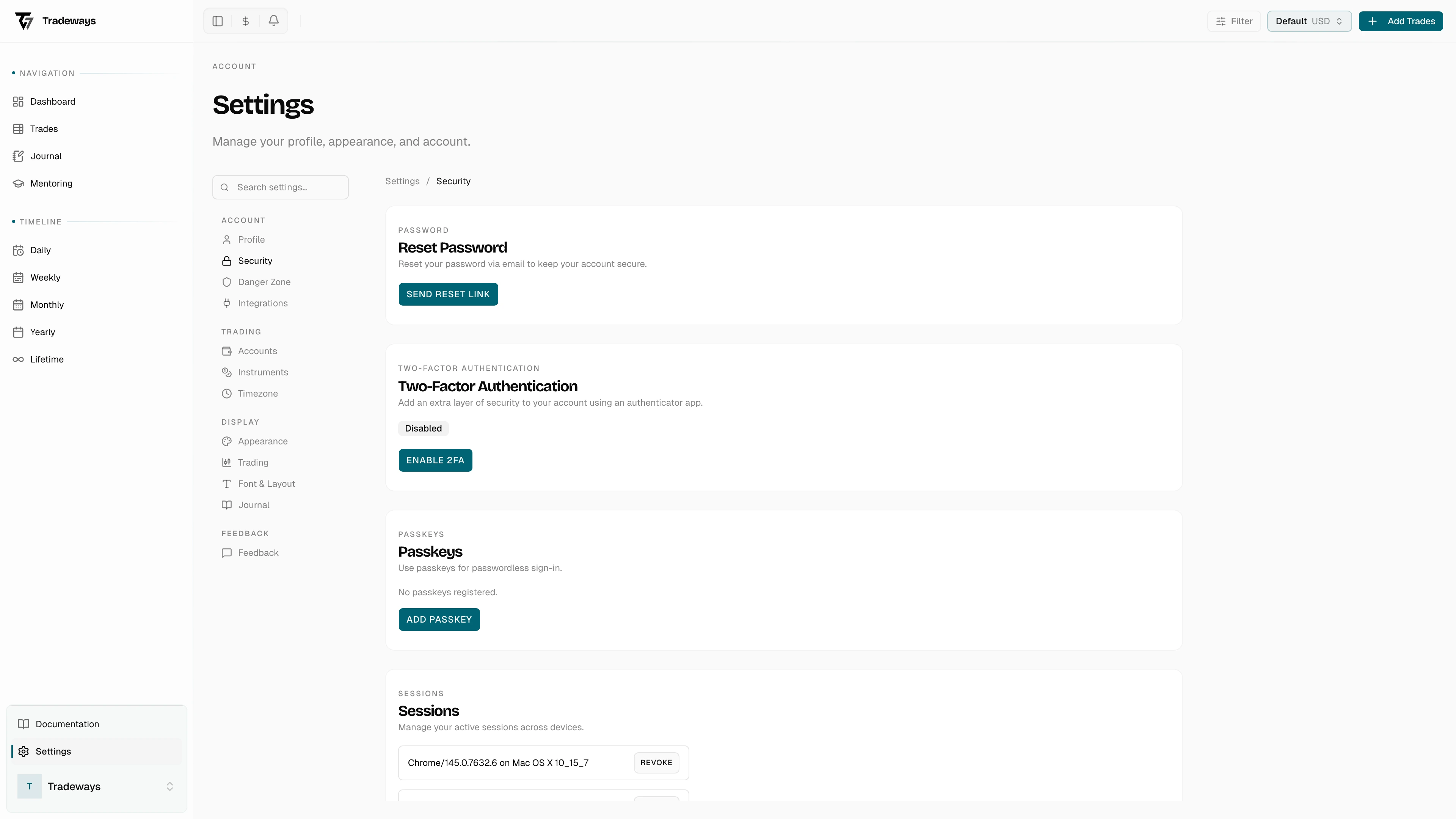
Manage authentication and session security. Access these settings in Settings → Security.
Password
Click Send Reset Link. Tradeways sends a password reset link to the email address on your account.
Open the link, enter and confirm your new password, then click Reset Password. The link uses the same flow and password requirements as a forgotten-password reset.
Two-Factor Authentication (2FA)
Add a second layer of security using an authenticator app (Google Authenticator, Authy, 1Password, etc.).
Enable 2FA
- Click Enable 2FA.
- Enter your current password and click Enable.
- Scan the QR code with your authenticator app. A manual key is also provided if scanning is not possible.
- Enter the 6-digit verification code from your authenticator app.
- Download or print the backup codes displayed on screen and store them securely. You can use a backup code if you lose access to your authenticator app.
After setup, all other sessions are revoked for security.
Backup Codes
Backup codes are shown once during 2FA setup. Each code can only be used once. If you need new codes, click Regenerate Backup Codes and enter your password.
Disable 2FA
Click Disable and enter your password to turn off two-factor authentication.
Passkeys
Passkeys allow passwordless sign-in using your device's biometrics (fingerprint, face recognition) or a hardware security key.
Add a Passkey
- Click Add Passkey.
- Optionally enter a name (e.g., "MacBook Touch ID" or "YubiKey").
- Click Add Passkey and follow your browser's prompt to register the credential.
Remove a Passkey
Click Remove next to the passkey you want to delete. The passkey's creation date is shown for identification.
Sessions
View all active sessions for your account. Each entry shows the browser and OS, with a Current badge on the session you are using now.
- Revoke a single session — click Revoke next to it. That device will be signed out.
- Revoke all other sessions — click Revoke All Other Sessions to sign out every device except the one you are currently using.
See Also
- Two-Factor Authentication — how 2FA verification works during sign-in
- Passkeys — passwordless sign-in using biometrics or a hardware key