

Topstep
I-export ang trades mula sa TopstepX at i-import ang mga ito sa Tradeways.
Topstep
Mag-import ng futures trades mula sa TopstepX trades export.
I-export mula sa TopstepX
- Mag-sign in sa TopstepX at buksan ang tab na Trades.
- Piliin ang Export sa kanang sulok sa ibaba.
- Piliin ang date range na gusto mong i-export at kumpirmahin.
- I-save ang CSV file.
I-upload sa Tradeways
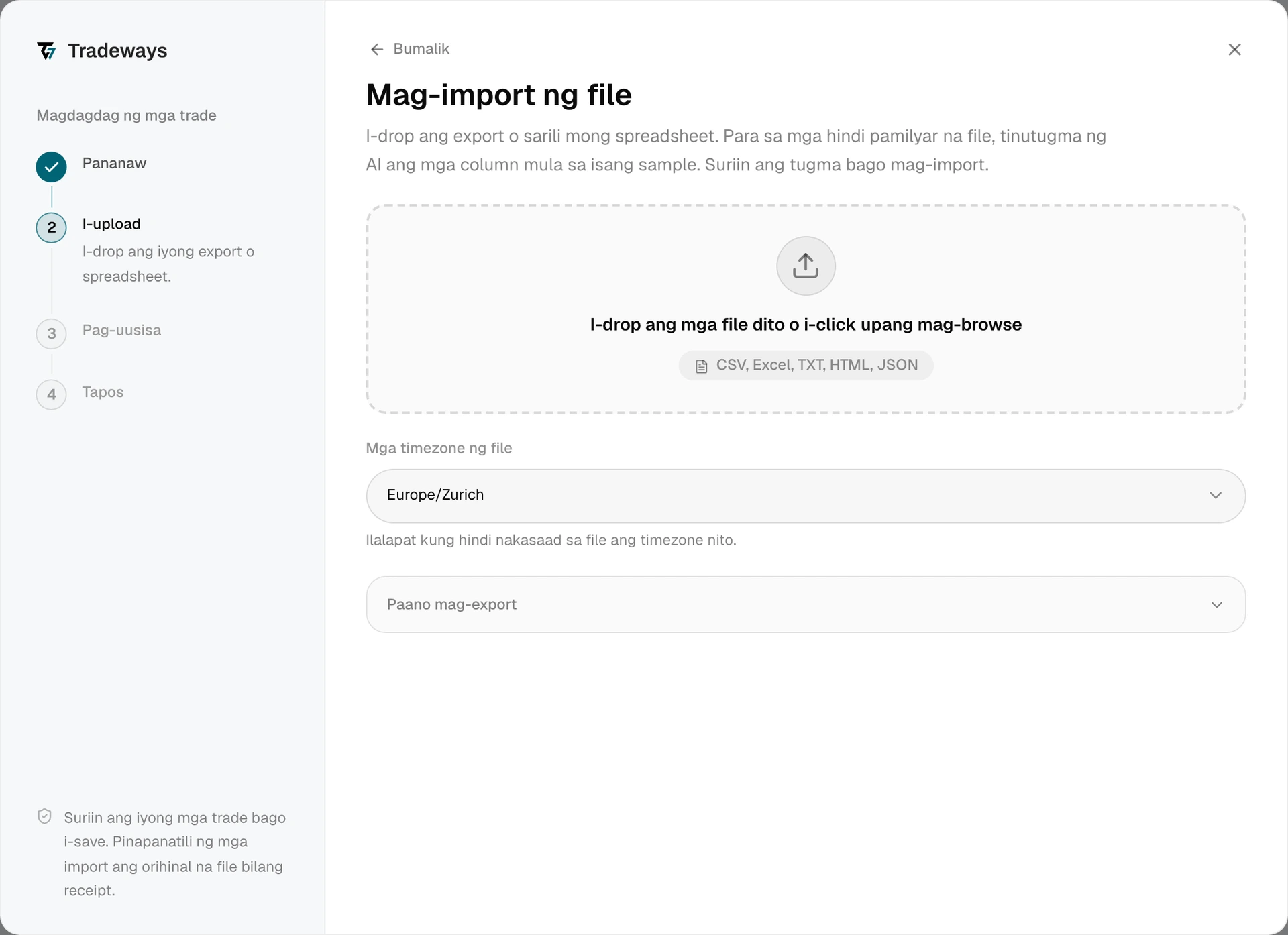
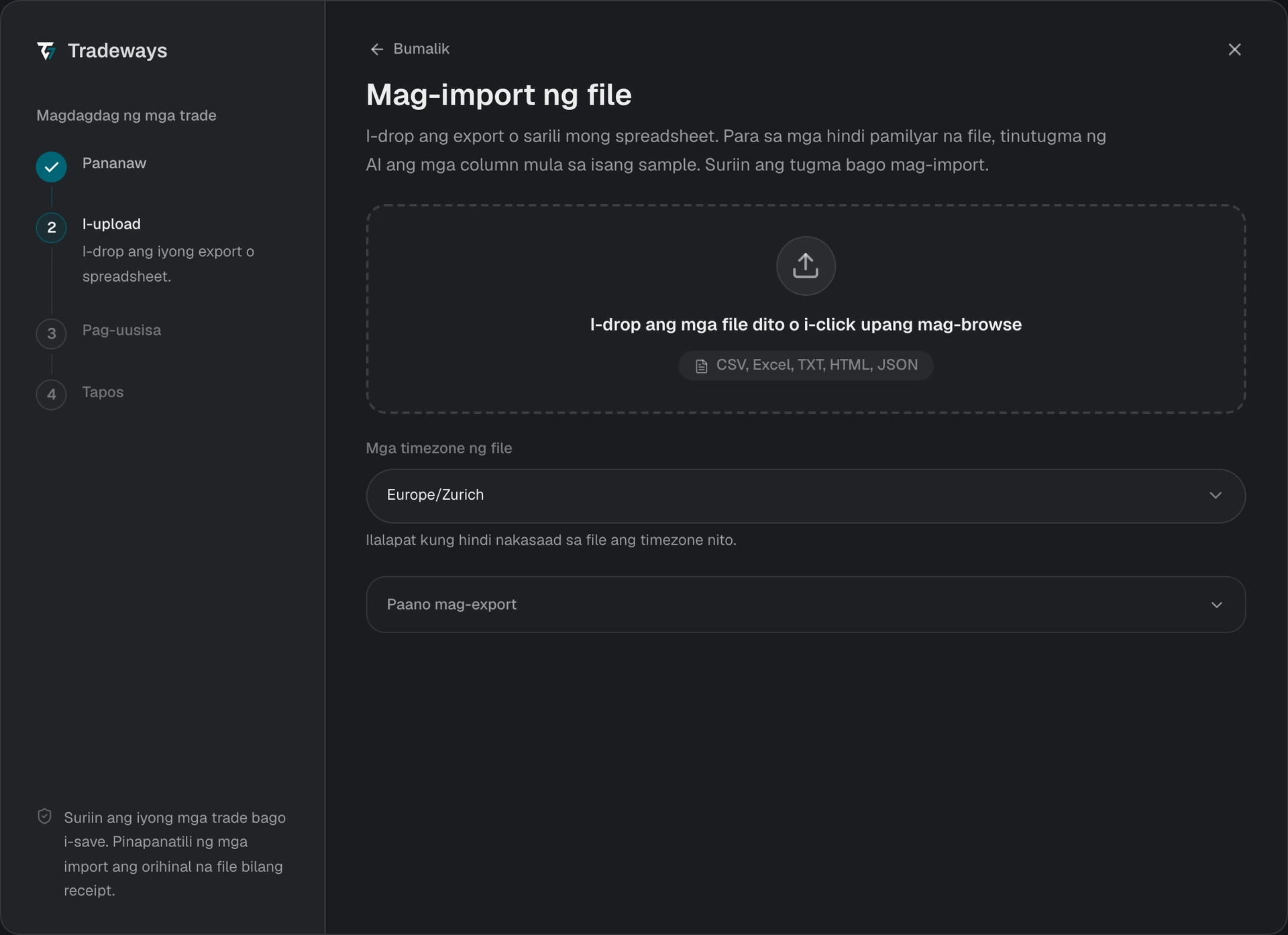
- Sa Trade Log, piliin ang Magdagdag ng mga trade, pagkatapos ay piliin ang Pag-upload ng file.
- I-drop ang CSV file sa upload area o piliin ito mula sa device mo.
- Suriin ang preview at tingnan ang execution count, contract symbols, at commissions.
- Kumpirmahin ang import.
Hindi nalalapat sa export na ito ang pagpili sa Mga timezone ng file. May sariling UTC offset ang bawat timestamp, kaya direkta itong kino-convert ng Tradeways.
Kinikilala ng Tradeways ang export na ito mula sa layout nito at binabasa ito gamit ang mga panuntunan sa page na ito. Ang file na walang ganitong layout ay binabasa bilang hindi kilalang layout: tinutugma ng Tradeways ang mga column nito, at hindi nalalapat ang mga panuntunang ito. Tingnan ang Mag-import ng trades.
Ang Topstep trade ID ang duplicate key. Ligtas na i-upload muli ang isang nag-o-overlap na export.
Mga kinakailangan sa file
- Gamitin ang
trades_exportCSV mula sa TopstepX. - Kailangan ng file ang mga column na ito:
Id,ContractName,EnteredAt,ExitedAt,EntryPrice,ExitPrice,Fees,PnL,Size, atType. Kinikilala ng Tradeways ang export mula saContractName,EnteredAt,ExitedAt,EntryPrice, atExitPrice. Ang kinikilalang file na walang isa sa iba pang column ay bina-block bago ang preview, at pinangangalanan ng error ang mga nawawalang column. - Maaaring mayroon ang
TradeDay,TradeDuration, atCommissions. Hindi ginagamit ng Tradeways ang mga ito. - Binabasa ang mga halaga bilang US dollars.
Sinusuportahang data
Ang bawat row ay isang round trip at nagiging isang entry execution at isang exit execution. Pinapanatili nang eksakto ang mga futures contract symbol at itinutugma ang mga ito sa kanilang root instrument, kaya ini-import ang MNQZ5 bilang dated MNQ contract. Ang Fees ang round-trip cost at kino-convert ito sa per-contract commission rate. Pinapanatili ang PnL para maikumpara sa iyong statement.
Mga limitasyon
- Mga round trip lang. Walang individual fills ang export, kaya lumalabas ang scaled entry bilang isang execution sa average price.
- Wala sa export ang mga bukas na trade. Walang exit row ang position na bukas pa at hindi ito umaabot sa Tradeways.
- Isang layout. Ang layout na ito lang ang binabasa ng mga panuntunan ng Topstep. I-export muli ang trades list sa halip na i-edit ang header.