

Sierra Chart
Export trade activity from Sierra Chart and import it into Tradeways.
Sierra Chart
Import trade fills from Sierra Chart's Trade Activity Log.
Export from Sierra Chart
- Open Sierra Chart and click Trade → Trade Activity Log.
- Go to the Trade Activity tab.
- Select Fills from the dropdown (or leave as All to include stop loss and take profit levels), then click Apply.
- Use the filtering controls to display the trades you want to import.
- Click File → Save Log As and save as a text file.
Upload to Tradeways
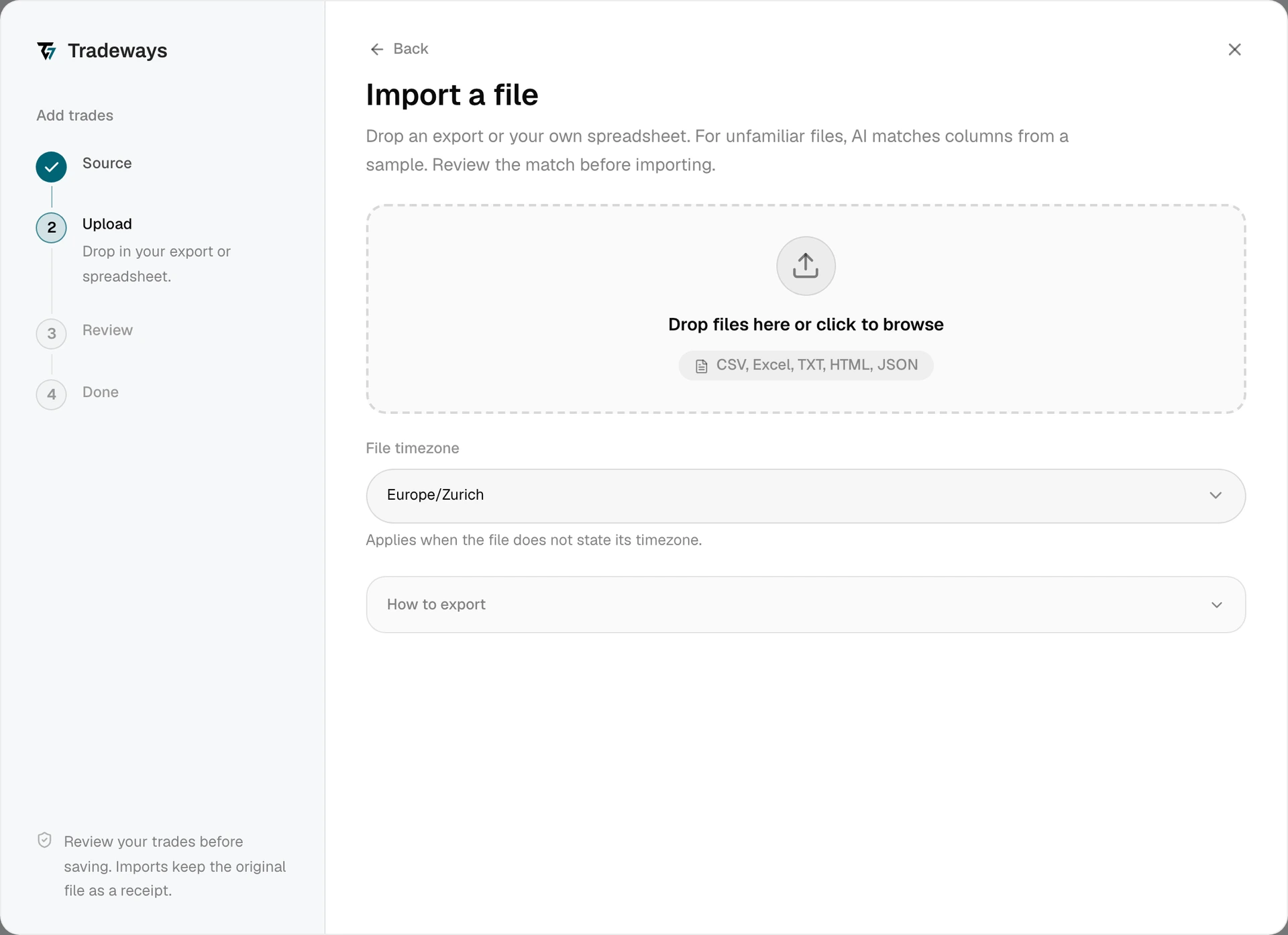
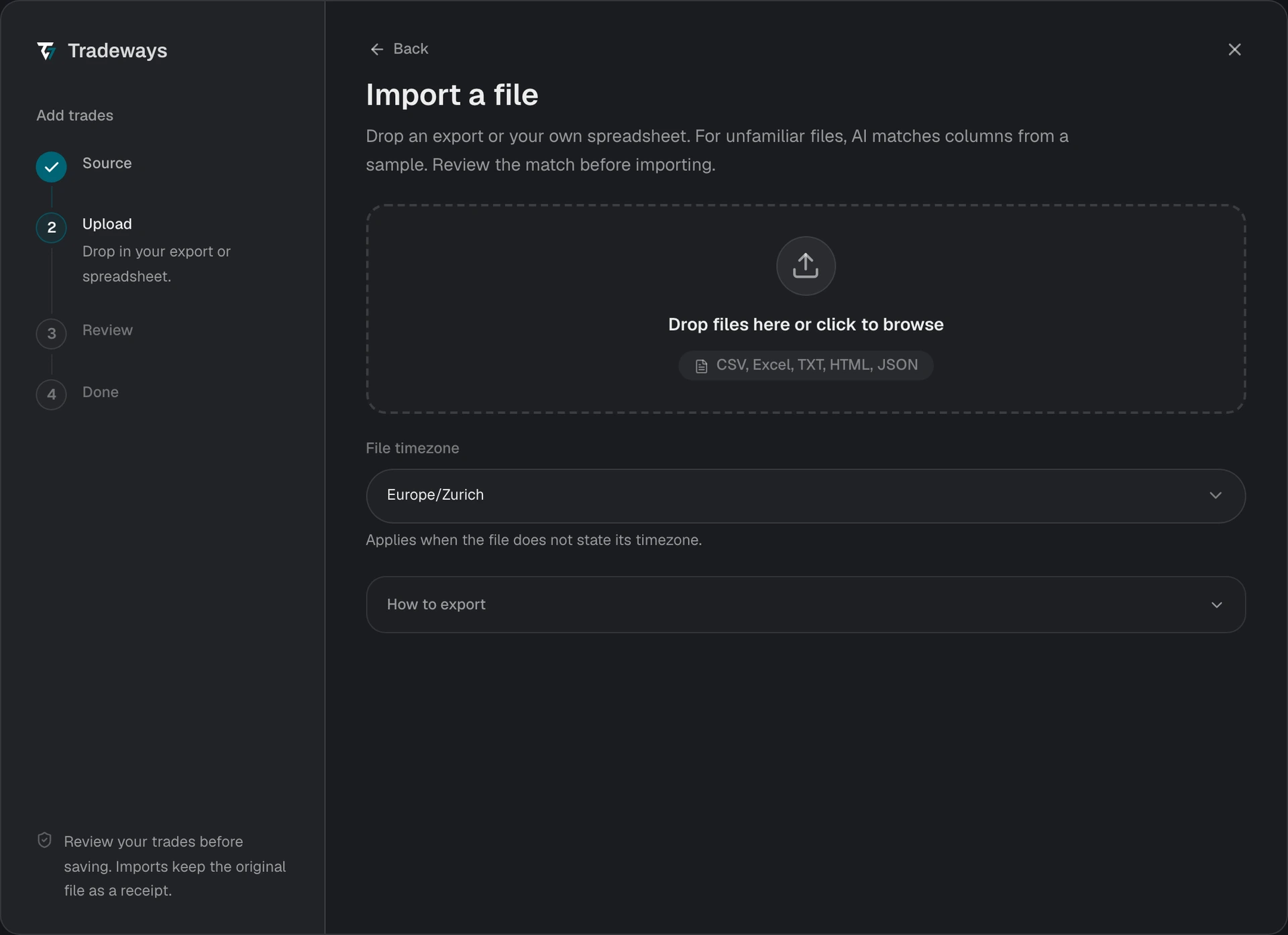
- In the Trade Log, click Add trades → File upload.
- Under File timezone, select the timezone of the computer running Sierra Chart. This is the timezone of the machine itself, not the chart time zone setting. Correct timezone selection ensures timestamps are converted to UTC accurately.
- Drag and drop the exported text file onto the upload zone, or click to browse.
- Review the preview — check the execution count and grouped trades.
- Click Import to confirm.
Tradeways recognizes this export from its layout and reads it with the rules on this page. A file without this layout is read as an unknown layout: Tradeways matches its columns, and these rules do not apply. See Import Trades.
Each fill in the activity log carries a fill execution ID that Tradeways uses as the dedupe key, so re-uploading an overlapping export will not duplicate trades.
File Requirements
- Use the tab-separated
.txtfile that Save Log As produces. Sierra Chart chart data and settings files are not supported. - The file needs the
ActivityTypecolumn withFillsrows, plusBuySell,Quantity,FillPrice,Symbol,DateTime, andFillExecutionServiceID. Ordersrows are optional. When they are present, Tradeways reads stop loss and take profit levels from them and attaches them to the matching trade.- Rows with an activity type other than
Fills,Orders,Account Balance,Positions, orInfoare reported as skipped.
Limitations
- Futures only. Every Sierra Chart fill is imported as a futures fill. Exchange suffixes are removed and the dated contract is preserved, so
MESM25_FUT_CMEimports as a datedMEScontract. - The Export file ignores your timezone selection. A file produced by Export instead of Save Log As stores exchange-native prices and UTC timestamps. Tradeways detects that layout, divides the prices by 100, and reads the timestamps as UTC. Use Save Log As when you want the selected timezone to apply.
- Symbol settings changed mid-period. A Save Log As file can still hold exchange-native rows when the symbol settings changed inside the exported period. Tradeways corrects those prices row by row. Check the preview against your statement when prices look scaled.