

Import Trades
Import any broker export or spreadsheet into Tradeways. Drop the file, check how its columns are read, configure instruments, and review trades, warnings, and duplicates before confirming.
Import trades
Select Add trades at the top of the sidebar. Then select File upload.
The import uses four phases: source, upload, review, and done. You can go back while Tradeways is not parsing or saving data.
You do not select a broker or platform. Tradeways works out the format from the file. When the account has imported a file before, Add trades opens on the upload step. Select Back to see the other options.
Use Auto sync for a supported connection. Use manual entry for one trade that you want to enter from its fills.
Drop the file
Drop the file in the upload area or select it from your device. The file can be an export from a broker, a trading platform, or another journal, or a spreadsheet that you keep yourself.
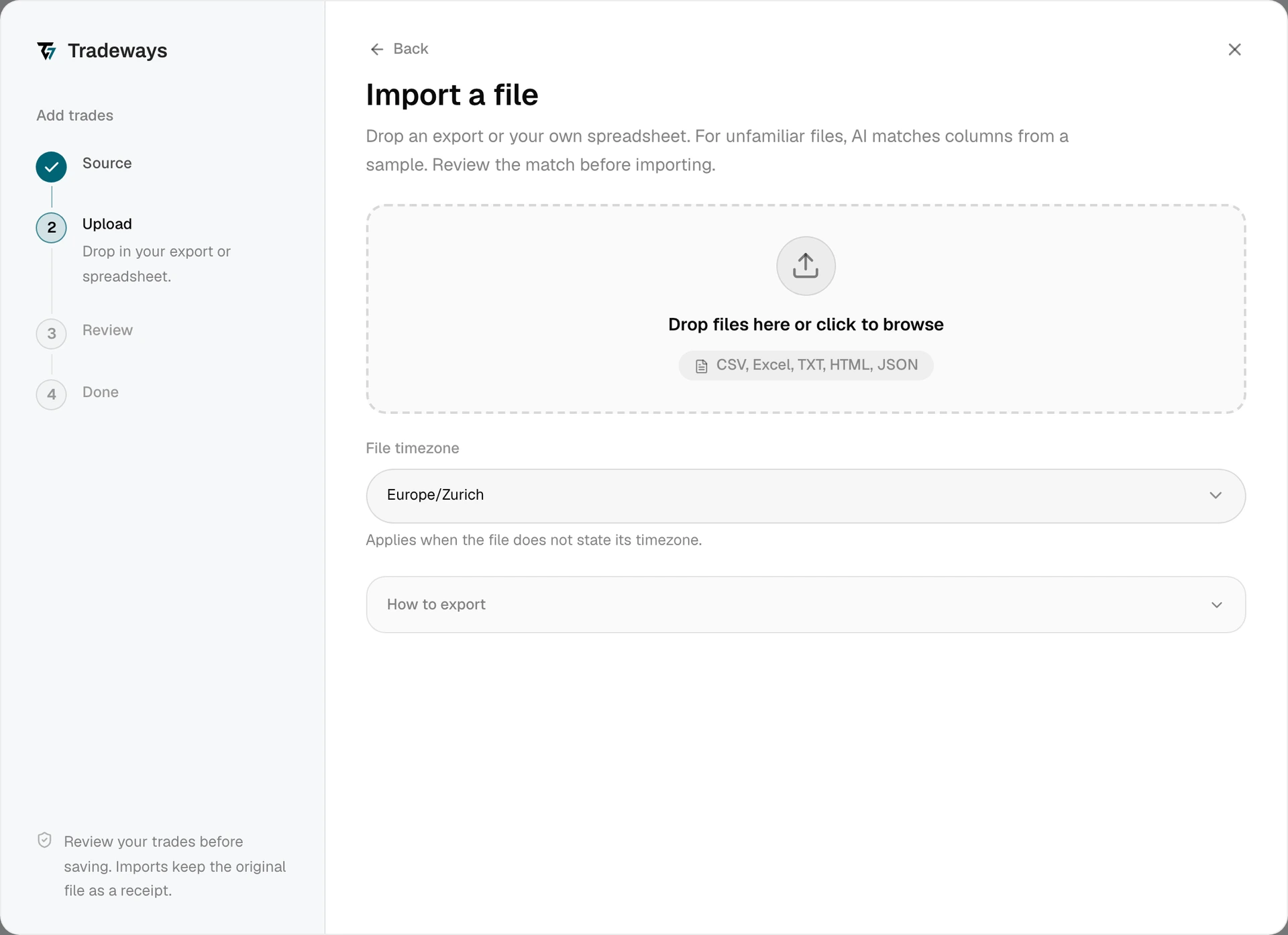
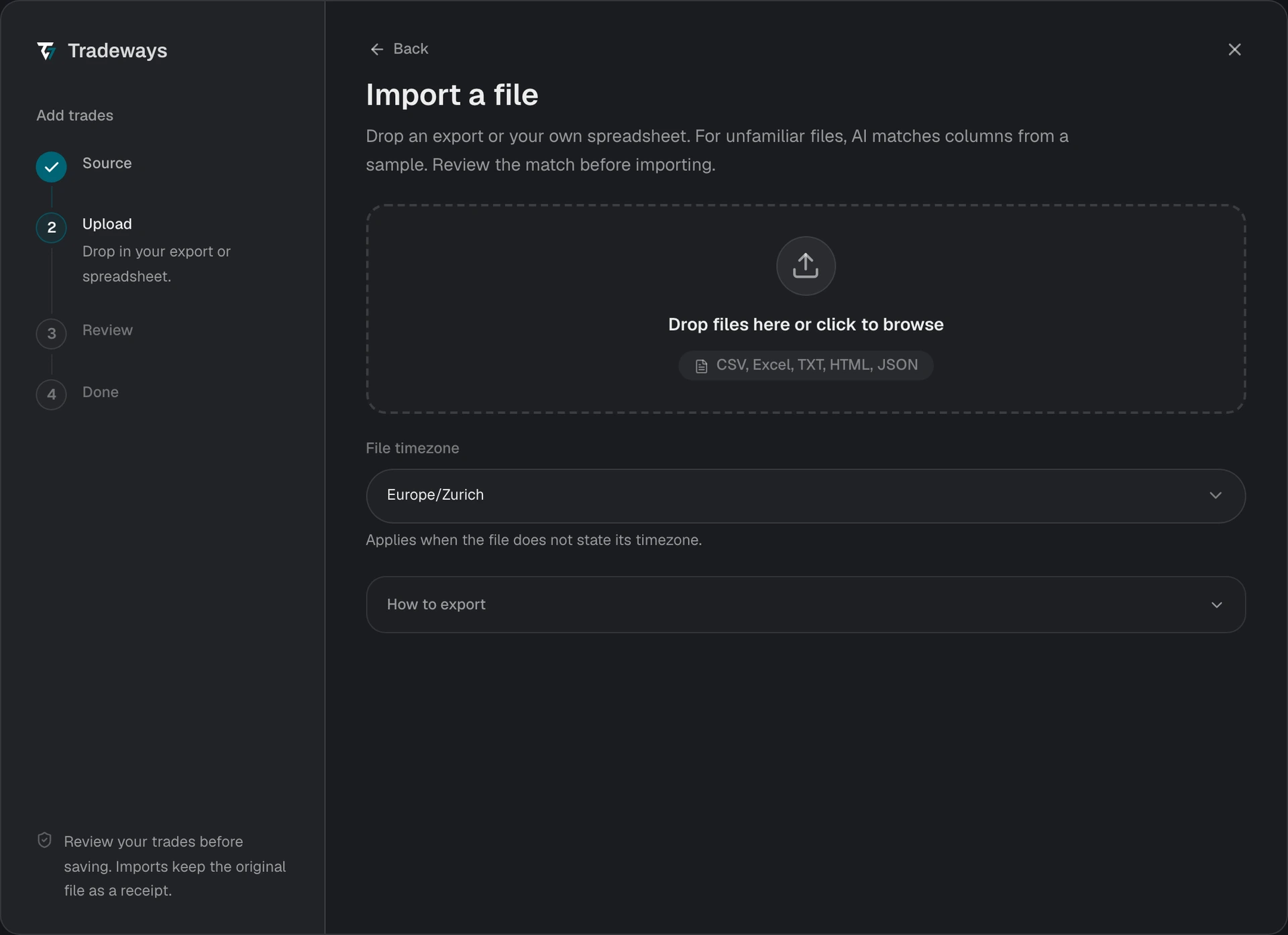
Tradeways reads the file and checks the executions. While it matches the columns of an unknown layout, the upload step shows Matching columns.... You can cancel a background check. A reader that runs directly on the page can only stop after its current work finishes.
Above the file list, the upload step shows how the file is read. Recognized with a name, for example Recognized: NinjaTrader, means that Tradeways reads the file with the rules of that source. Columns matched means that Tradeways matched the columns of the file. The label adds the name of the product when the layout is known.
Tradeways reads one file per import. Interactive Brokers is the exception: select all yearly files together.
Recognized exports
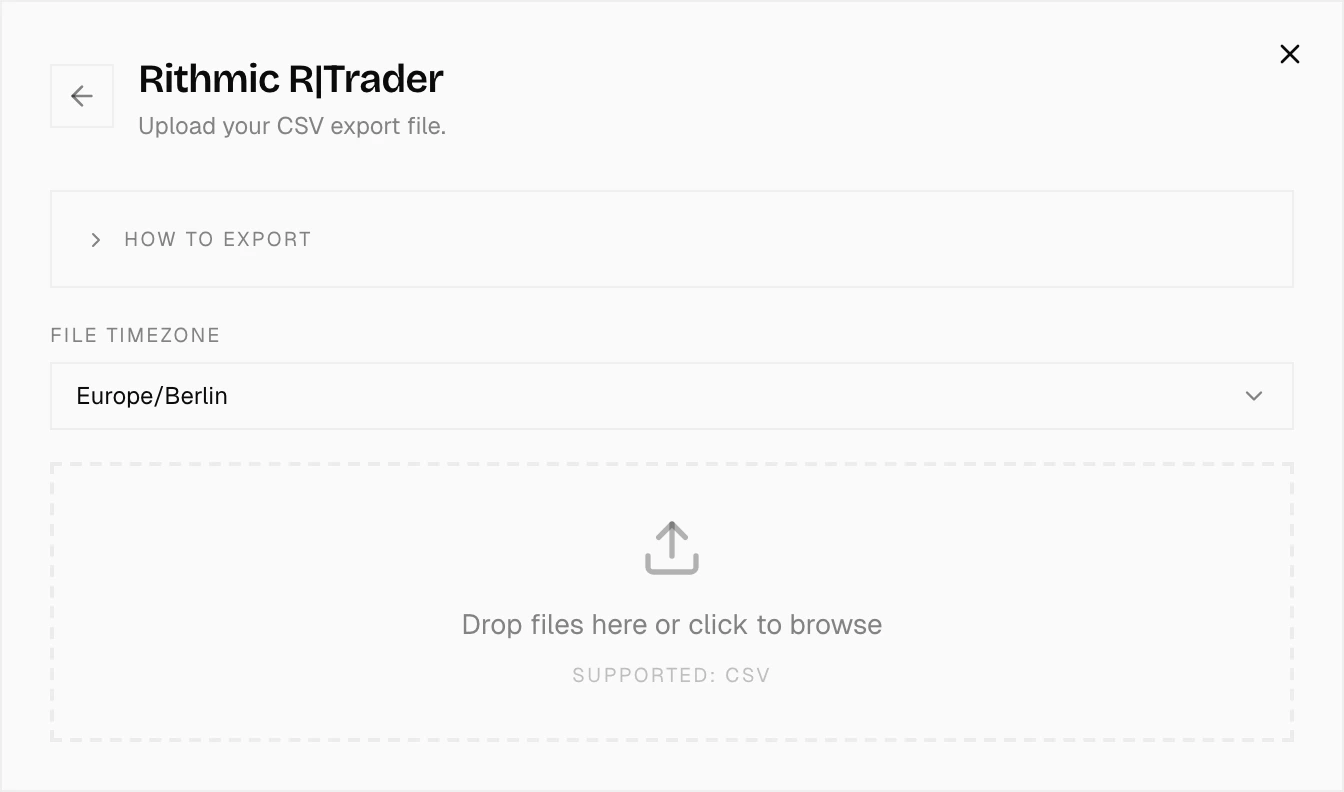
Tradeways recognizes the exports of these sources from their layout and reads each one with rules made for it: Interactive Brokers, MetaTrader 4, MetaTrader 5, NinjaTrader, Rithmic R|Trader, ATAS Journal, Sierra Chart, Topstep, TradeTracer, Tradezella, and Edgewonk. Each page describes the export steps, the file requirements, and the limits of that source.
How to export on the upload step shows the export steps for each of these sources.
A recognized export is read only with the rules of its source. When these rules cannot read the file, Tradeways shows the error and stops. It does not read the file another way.
Any other file
For a file that is not a recognized export, Tradeways matches the columns of the table to trade fields such as symbol, side, quantity, time, price, fees, and P&L.
An AI model does the matching. It receives the file name, the header row with a few rows below it, and for each column what its values are (dates, numbers, tick marks, a few labels) together with the distinct values, or a sample when a column has many. Columns of sentences are shown by two samples only; their other cells stay in your file. It also receives the names of your custom fields with their options, your tags, and your strategies, so that it can match columns to them. The model answers with the meaning of every column, including the ones it leaves out. Tradeways then reads every row with fixed rules. The model does not create or change trades.
Column matching is part of the import. It does not depend on the Oscar setting.
A row can be one fill, one trade with its entry and exit, or one trade given as a buy and a sell. A file can mix trades with other rows, such as deposits, dividends, or cancelled orders. Tradeways imports the executed trades only. A file that holds no executed trades, such as a deposit list, a holdings report, or a balance history, has nothing to import, and Tradeways says so.
Tradeways remembers how a layout is read. The next file with the same header row is read the same way, in every account. This keeps duplicate detection reliable, because the same row gets the same identity on every upload.
File types
The selected files together can be at most 10 MiB. An Excel workbook must also fit the expanded-file limit of 64 MiB and 2,000 archive entries; export just the trade sheet as CSV or split an oversized workbook. The file name must end in one of these extensions. Tradeways checks the name before it reads the file, and the file picker offers the same types.
| File | Extension | Notes |
|---|---|---|
| Delimited text | .csv, .tsv, .txt | Any delimiter and the common text encodings. |
| Excel workbook | .xlsx | In a workbook with several sheets, the sheet that holds the trades. |
| HTML report | .html, .htm | The table that holds the trades. |
| JSON | .json | A list of records, at the top level or under one key. |
The older binary Excel format .xls is not read. Open the file in a spreadsheet program, save it as .xlsx, and select it again. A file with any other extension is not read. Export the data in one of the listed types instead of renaming the file.
PDF statements and screenshots are not supported. A table needs one header row and one row per fill or trade. Tradeways reads one table per import. It cannot import a file that writes the symbol, quantity, and price together in one text cell, or a ledger that writes each side of a trade as its own row.
Set the file timezone
File timezone applies to times in the file that do not state their own timezone. It starts with your Tradeways timezone. Select the timezone that the broker or platform used before you drop the file. A wrong timezone can move executions to another session or trading day.
Times that carry their own UTC offset or timezone are converted directly. The selection does not change them, and once Tradeways knows that a file states its own zone, the upload step no longer asks for one and the preview shows Each time states its zone. Topstep and Tradezella exports are read this way. A file whose times are in UTC shows UTC.
For a file that is not a recognized export, Tradeways selects the timezone when the file states it, for example in a column header such as Time (UTC). Check the trade times in the preview.
To change the timezone after you dropped the file, select another one under File timezone on the upload step, or in the Times row of the preview. Tradeways reads the file again in that zone. Read again on the upload step reads the selected files again without a change.
Tradezella exports do not state their currency. After Tradeways recognizes the file, select the Export currency used for P&L and costs. Tradeways reads the trades after you select it.
Check the columns
Columns shows how each column of the file is read. It is available for every file that Tradeways read through matched columns:
- It opens by itself when the file could be read but gave no trades, or when automatic column matching is unavailable. You can assign columns manually.
- In the preview, select Edit columns in the Source row to open it.
Each row is sets what a row holds: one fill, one trade with entry and exit, or one trade as a buy and a sell. Below it, every column of the file shows its header, its first values, and the field that it fills. Change what does not fit:
- Select another field, such as Entry time or Fees.
- Select Not imported to leave a column out.
- Select one of your custom fields, or New field to create one named after the column.
Check Quantity unit when a forex file records base units or standard lots. A quantity of 500 base units is different from 500 lots.
Select Apply to read the file again with your changes. Apply stays unavailable while a required field has no column; the message names the fields. Select Match again to discard the current assignment and have the columns matched from the start.
Tradeways remembers a layout that you corrected. Your correction replaces the earlier one for the next file with the same header row. Layouts whose headers exceed the matching limits cannot be remembered.
Correct the columns before you confirm the first import of a layout. A row is identified by the values in its symbol, side, quantity, time, price, amount, and ID columns. If you assign other columns to these fields later, Tradeways cannot recognize rows from that layout that are already in your journal, and they can import a second time.
Notes, tags, and custom fields
A file can carry what you recorded for each trade. Tradeways imports it with the trade:
- Note becomes the note of the trade. Only columns named as notes, such as Notes, Comments, or Review, go there. Several note columns are joined into one note, each under its column name.
- Tags are added to the trade. A tag that you do not have yet is created.
- Strategy links a strategy that you already have under the same name. Names outside the destination account’s demo scope, locked strategies, and other names are ignored. The import does not create strategies.
- Custom fields receive the values of matching columns. A column is matched to an existing custom field with the same meaning, also when it has another name or language. A column without a matching field can become a new custom field. A text column about one topic, such as Chart story or Lessons, becomes its own text field; your own ratings and checks, such as an entry grade, a checklist tick, or a what-if check, become fields too. Columns of dates, times, prices, sizes, row numbers, and the trade's own result as win or loss never become custom fields. A new value of a select field is added to its options.
Stop loss and Take profit columns become the levels of the trade. A column that holds the distance from the entry in ticks, pips, or points is converted to a price. A distance in ticks needs an instrument with a known tick size, and a distance in pips a forex pair; otherwise the level is left out.
New tags and custom fields are created for all accounts. Select Edit columns in the preview to see which columns are imported this way before you confirm, and set a column to Not imported to leave it out.
Journal data is applied to the trades that the import creates. A trade that is already in your journal keeps its note, tags, and field values.
Long values are shortened and do not stop the import: a note or a text value at 5,000 characters, a tag at 50 characters. One trade takes at most 50 tags, 20 strategies, and 50 custom field values from a file. The preview warns when these limits shorten or omit journal data. The original file remains in the import receipt.
Resolve file errors
| Message or result | Cause | Action |
|---|---|---|
| Tradeways reads .csv, .tsv, .txt, .xlsx, .html, and .json files | The file name ends in another extension. | Export the data in one of these file types. |
| Tradeways cannot open this workbook format | The file is a binary .xls workbook. | Save it as .xlsx and select it again. |
| The file contains an unreadable table | Quoted values cannot be read consistently. | Export the file again or repair the quoted cells before importing. |
| No table found in this file | The file holds no table that Tradeways can read. | Export the data as CSV or Excel. |
| This file does not list trades | The file holds no executed trades. | Export the trade or execution history instead of a balance, deposit, or holdings report. |
| The columns could not be matched right now | Column matching was not available. | Assign the columns manually, or select Match again to retry. |
| Columns opens with a message | The file was read, but the assigned columns gave no trades. | Correct the columns and select Apply. |
| A recognized export reports an error | The rules of its source cannot read the file, for example because a required column is missing. | Export the file again as the page of that source describes. |
| The duplicate and symbol check did not finish | The preview check failed after the file was read. | Select Retry. You do not need to select the file again. |
Check the label above the file list when a file is read in a way that you did not expect. An export of a recognized source that shows Columns matched does not have the layout that its source page describes, so the rules of that source were not used.
Configure instruments
Tradeways can stop before the preview when a symbol has no complete instrument setup. Review the detected asset class, tick size or contract settings, P&L currency, and other required fields. Save each instrument before you continue.
Do not guess these values. Use the contract specification from the broker or exchange. Instrument settings affect P&L for every matching trade.
Futures exports can also require a contract match. A contract code in the symbol column or in a column of its own, such as MESM25, is read from the file. Select the correct dated contract for each root symbol that remains unresolved. Return to the upload step when the file does not contain enough information to choose safely.
Review the preview
The preview groups executions into trades. It is a check of the file before anything is saved. Review the trade count, skipped rows, duplicate executions, warnings, strategies, and detected commissions.
A summary above the trades states how the file is read:
- Source names the recognized export, for example NinjaTrader export. For any other file it names the layout, or shows Your file, with Columns matched by AI or Columns as you set them. Edit columns opens the column assignment.
- Into shows the account that receives the trades and its currency.
- Times shows the timezone that the times were read in, or that each time states its zone. Change the timezone here when it is wrong.
- P&L check compares the P&L that Tradeways calculates from the prices, quantity, and fees with the P&L the file states. It shows how many trades match, or how many differ. When trades differ, check the price, quantity, and fee columns and the instrument settings before you import.
- Also imports lists the notes, tags, strategies, and custom fields that the import adds. A tag or custom field that does not exist yet is marked (new). A strategy that is not found is marked (not found, skipped).
Each trade has one row with when it opened, its direction and symbol, the quantity, the average entry and exit price, and the P&L. An open trade is marked, and a trade that continues an open position in your journal says that it updates an existing trade. P&L is calculated as the import calculates it, from prices plus the costs the file lists in the same currency; a row shows a dash when it cannot be calculated. When the file states a different P&L, the row shows it as File: with a warning. Select a row to see its executions.
Already imported executions are excluded. An overlapping export is safe to upload again. If every execution is a duplicate, there is nothing to import.
An unresolved warning remains data that needs your decision. Correct the source file, the columns, or the instrument setup when the preview does not match the broker statement.
Complete the import
Confirm the import only after the preview matches the statement. Keep the page open while Tradeways saves the trades.
A small import can close after completion. A larger import opens a report. The report separates created, skipped, duplicate, and failed records.
If part of an import fails, the trades already reported as created remain saved. Retry the failed work from the report when that action is available. You can also upload the same file again. Duplicate detection prevents saved executions from being created twice.
Duplicate detection needs an identifier on each execution. A recognized export uses the identifier that its source page describes. For any other file, Tradeways derives the identifier from the row itself. Tradeways warns in the preview when the file contains executions without one. Retrying such a file after a partial import can create duplicates for those executions.
Do not delete successful trades to repeat a failed import. First use the report and duplicate-safe retry path.