

Manual Trade Entry
Record a trade manually in Tradeways with entry and exit fills, risk levels, fees, tags, and screenshots. Review validation errors and recover failed uploads.
Manual trade entry
Select Add trades at the top of the sidebar. Then select Manual entry.
The flow has four phases: trade, risk, context, and done. You can create the trade from any editing phase after the required trade fields are valid.
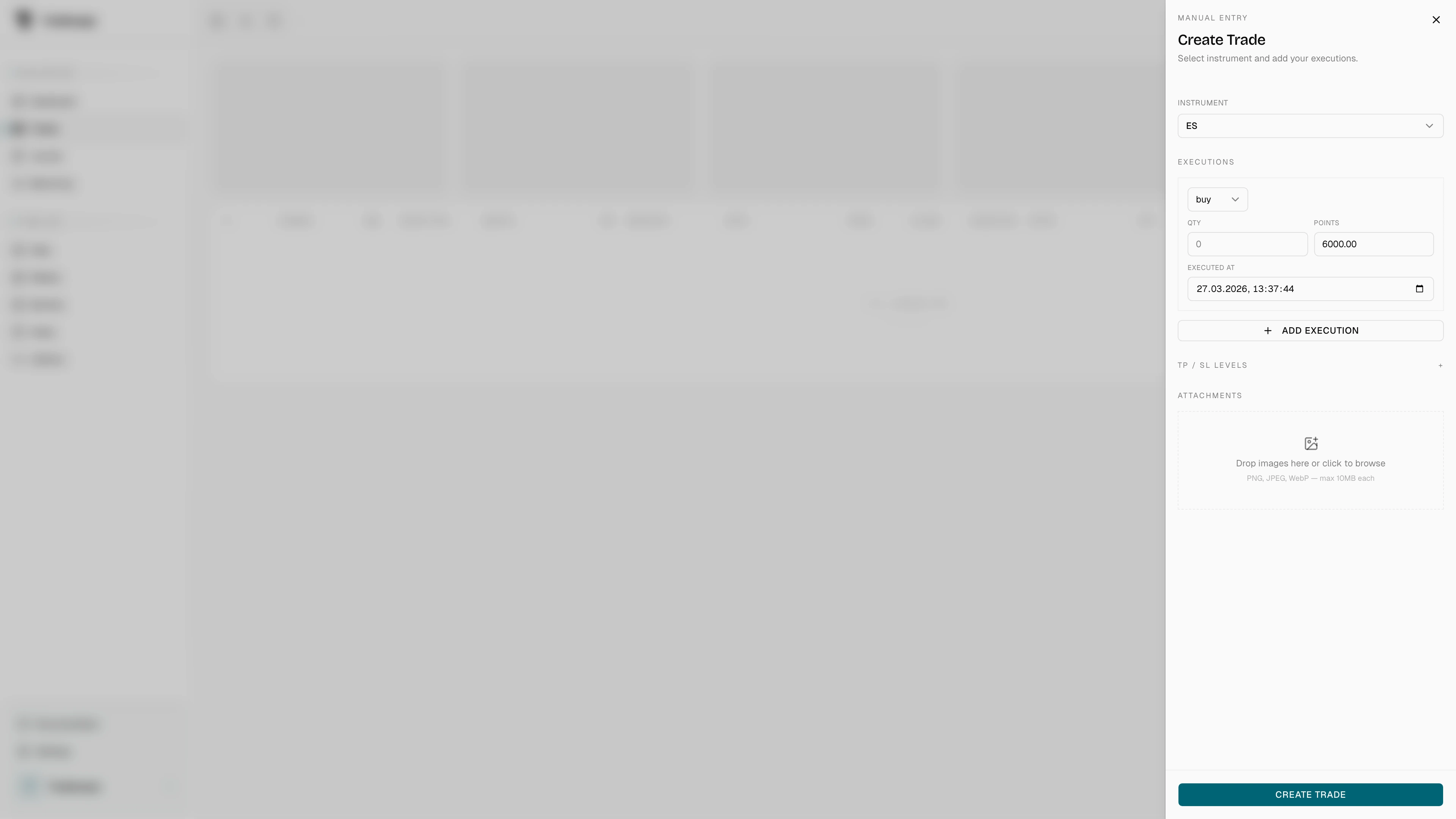
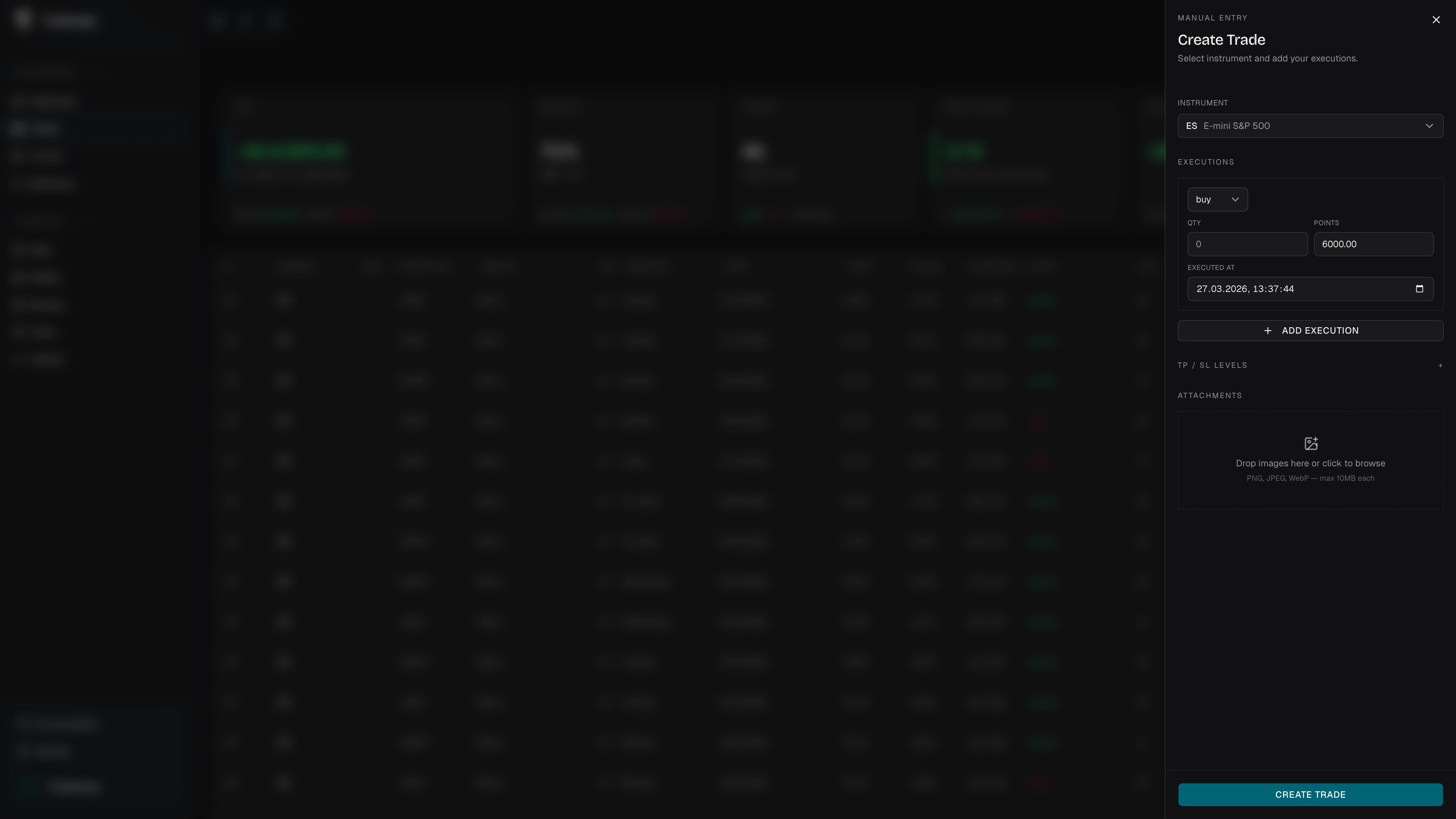
Trade
Select the instrument. Create its instrument setup when it is not available. A futures instrument also needs the correct dated contract.
Select the account when you have more than one. Then enter the direction, quantity, entry price, and entry time. Exit price and exit time are optional for an open trade.
Use Add partial fills when the trade has several entries or exits. Each fill needs a side, quantity, price, and time. Tradeways derives the direction, position size, average prices, and open or closed state from the ordered fills.
The fill sequence cannot cross through a flat position and reopen as the opposite direction in one trade. Create another trade for the new position. Correct a missing or out-of-order time before you continue.
Risk
Add take-profit and stop-loss levels when you want to record the plan. A level can use a price or the supported distance unit for the instrument. You can also enter the quantity assigned to a level.
A selected strategy can supply default levels. The page identifies that source. Editing the values makes them specific to this trade.
Tradeways shows the calculated risk, reward, and planned ratio when the required levels are available. These values are calculated from the fills, levels, account currency, and instrument setup. They are not a quality judgment.
Context
Add strategies, tags, commission, and screenshots. These fields are optional.
The commission field identifies a prefilled source when the value comes from a symbol, exchange, or default rate. Enter a value when the broker statement differs.
Wait for screenshot uploads to finish. Remove or retry a failed file before you rely on it as part of the record.
Create and recover
Select Create trade. A field error returns you to the phase that owns the invalid field and focuses that field. Correct it and submit again.
A service error keeps the current draft open. Do not start another entry until you know whether the trade was created.
The done phase confirms the trade number, symbol, direction, size, average entry, and result or open state. Screenshot linking happens after the trade is created. A failed link does not remove the trade. Use Retry for the failed screenshots.
You can add a trade note on the done page. Tradeways saves the note before it closes the flow, starts another entry, or opens the trade. The note can use rich text or one PDF up to 20 MB as its body. Drop a PDF onto an empty note or use the PDF control. Upload progress and record status remain visible, and a failed action has Retry.
Select Add another to reset the form. Select Open trade to review the saved record.