

Interactive Brokers
Connect Interactive Brokers once with a Flex Web Service token and two Flex Queries. Tradeways imports new stock, ETF, and forex executions on a schedule.
Interactive Brokers
Connect Interactive Brokers once and Tradeways imports your executions automatically. There is nothing to install and your computer does not need to be on: Tradeways downloads the Flex reports you set up from Interactive Brokers on a schedule.
The connection is read-only. A Flex Web Service token can only download the Flex reports you configured. It cannot place orders or move money.
Setup takes about ten minutes. You create three things in Interactive Brokers and paste them into Tradeways:
| What | Looks like | Used for |
|---|---|---|
| Flex Web Service token | A long number, about 25 digits | Lets Tradeways download your reports |
| Activity Flex Query ID | A short number, about 7 digits | Daily report: corrections, commissions, open positions |
| Trade Confirmation Flex Query ID | A short number, about 7 digits | Same-day report: new executions |
All of it lives in Interactive Brokers under Performance & Reports → Flex Queries. The pictures below come from the Interactive Brokers mobile app, where this page is called Trade Reports. Client Portal on the desktop shows the same fields.
To bring in history from before the connection, or to import without a token, see Interactive Brokers file import.
Set up Interactive Brokers
1. Turn on the Flex Web Service and create a token
Open Flex Queries and select the gear icon next to Flex Web Service Configuration.
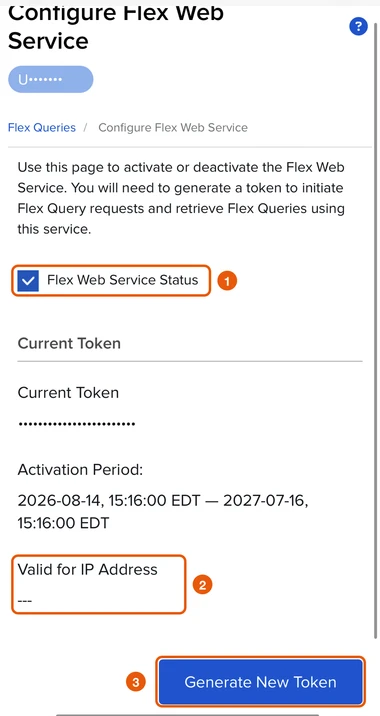
- Turn on Flex Web Service Status.
- Leave Valid for IP Address empty. Tradeways does not connect from a fixed address, so a token restricted to an IP address is rejected.
- Select Generate New Token and choose how long it stays valid. The longest period saves you from replacing it soon.
Copy the token. Generating another token later invalidates this one; when you do, replace the credentials in Tradeways.
2. Create the two Flex Queries
On the Flex Queries page, each query type has its own + button.
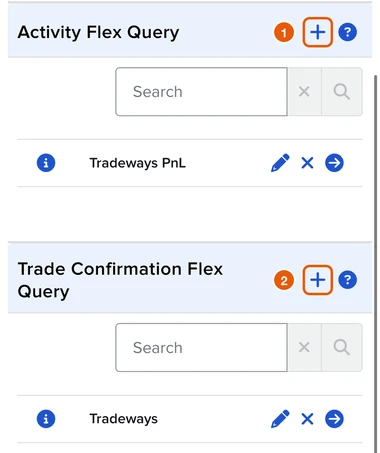
Activity Flex Query (1). In the German portal this is the Kontoumsatz-Flex-Query.
- Give it a name, for example
Tradeways. - Add the Trades section. Choose Executions as the level of detail and select all fields.
- Add the Open Positions section. Choose Summary as the level of detail and select all fields.
- Set the format to XML. The period does not matter: Tradeways sets the dates on every request.
- Set the general configuration as shown in step 3, then save.
Trade Confirmation Flex Query (2). In the German portal this is the Handelsbestätigungs-Flex-Query.
- Give it a name, for example
Tradeways. - Add the Trade Confirmation section. Choose Execution as the level of detail and select all fields.
- Set the format to XML.
- Set the general configuration as shown in step 3, then save.
Each query can include several Interactive Brokers accounts. You do not need one query per account; Tradeways asks where each account goes when it first sees it.
3. Set the general configuration in both queries
Both queries have a General Configuration block. Set the same four values in each.
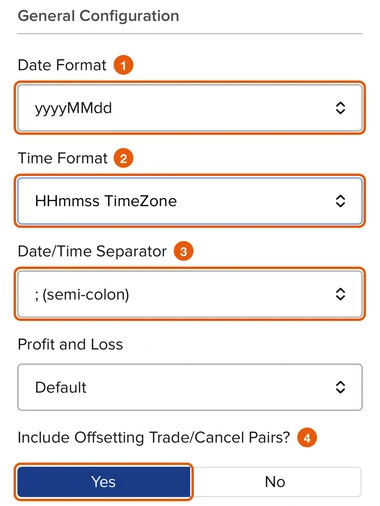
- Date Format:
yyyyMMdd. - Time Format:
HHmmss TimeZone. This is the setting that is easiest to miss. Without it, execution times carry no time zone, and Tradeways does not import a report whose times it would have to guess. - Date/Time Separator:
; (semi-colon). - Include Offsetting Trade/Cancel Pairs?: Yes. An execution that Interactive Brokers cancels is then removed from your journal too.
Leave Profit and Loss on Default. The other options can stay as they are.
4. Copy both query IDs
Open each query. Its Query ID is shown at the top of the details.
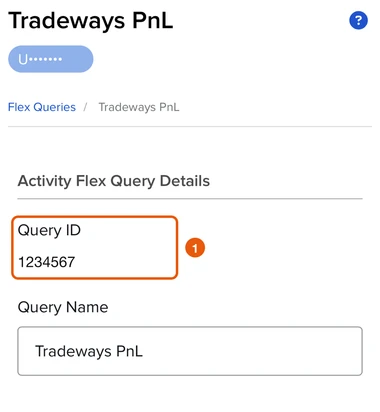
The two query IDs must be different. The token is much longer than a query ID, which makes the three values easy to tell apart.
Connect in Tradeways
- Go to Settings → Integrations and find Interactive Brokers.
- Select Connect Interactive Brokers.
- Paste the token into Flex Web Service token, the Activity query ID into Activity query ID, and the Trade Confirmation query ID into Trade Confirmation query ID. Select Connect.
- Tradeways checks the token and both queries. Interactive Brokers can take a few minutes to generate the reports. You can close the window; the status updates in Settings.
- When the reports contain Interactive Brokers accounts, map each one to its own Tradeways account, or choose Don't import. Nothing is imported for an account until it is mapped.
The token is stored encrypted and never shown again. Interactive Brokers account numbers are shown masked.
After the first sync imports anything, a mapped account keeps its destination. You can exclude it and include it again later, but only into the same Tradeways account. Moving it would import the same history into a second account.
How syncing works
Automatic sync is not a real-time feed. Interactive Brokers publishes Flex reports with a delay, and Tradeways reads them on a schedule:
- New executions: the Trade Confirmation query is checked about every 15 minutes. Expect new fills in your journal within roughly 10 to 20 minutes.
- Corrections and open positions: the Activity query is checked once a day. It picks up late executions, corrected commissions, and the day's closing prices for open positions.
- First sync: covers the last 365 calendar days. Older history comes from a file import.
Select Sync now to request an early check. Requests are limited to one every 15 minutes.
Executions are matched by their Interactive Brokers execution ID. A fill that is already in your journal, from an earlier report or from a file import, is not imported twice. A trade you delete stays deleted when a later report contains its fills again.
What is imported
- Stock and ETF executions, and
CASHforex executions that Interactive Brokers marks as opening or closing. Other asset classes are counted as unsupported and skipped. - Partial fills, position reversals, and commissions as reported by Interactive Brokers, including commission rebates.
- Cancellations: a cancelled execution is removed from the trade it belonged to.
- Running P&L on open stock and ETF positions, from the daily closing price (
MarkPrice) in the Activity report. It is not a live quote.
Excursion metrics and other price-based analysis appear only for instruments with supported price history. Other trades import without them; Tradeways does not estimate them.
History gaps
A closing execution needs its opening execution. When the opening execution is older than the synced period and not already in your journal, Tradeways skips the closing execution and counts it as a history gap. It does not create a substitute opening fill. To close the gap, import a file that covers both executions into the same account.
Status and counts
Each connection in Settings shows its status, the last check, the last successful check, and the next scheduled check, in your timezone.
| Status | Meaning |
|---|---|
| Checking | A report is being requested or processed. |
| Choose accounts | New Interactive Brokers accounts were found. Map or exclude them to continue. |
| Active | The last check succeeded. |
| Active, rows skipped | The last report was imported, but some rows need review and were skipped. Syncing continues. |
| Delayed, retrying | Interactive Brokers was unavailable. Tradeways retries automatically. |
| Action required | The token, a query, or the report format needs attention. Syncing is stopped until you fix it. The message says which. |
The counts describe the last report: executions imported, skipped as duplicates, removed as cancelled, skipped as unsupported, and skipped as history gaps. Because the daily Activity report overlaps the previous days, most of its executions count as duplicates. That is expected.
Troubleshooting
| Message or symptom | What to do |
|---|---|
| The Flex token has expired | Generate a new token in step 1, then select Replace credentials. |
| The Flex token is restricted to certain IP addresses | Generate a token with Valid for IP Address left empty. |
| A Flex query ID is invalid | Check that each ID is in the right field and that the Activity and Trade Confirmation queries are not swapped. |
| The report could not be read | Set the format of both queries to XML. |
| Some rows in this report could not be read | Set the time format of both queries to HHmmss TimeZone and select all fields in each section. Execution times must carry the US Eastern suffix, EST or EDT. |
| New fills only appear the next day | The Trade Confirmation query is not returning them. Check its section and general configuration. |
| An account is already connected through another Flex token | Remove the account from one of the queries, or disconnect the other connection. |
| The report is too large | Import older history from a file. If new executions stop arriving, contact support. |
After you fix the token or a query in Interactive Brokers, select Replace credentials to check again. When a destination account is unavailable, select Map accounts. Disconnect stops all checks and deletes the token; trades already imported stay in your accounts.