

NinjaTrader Setup
Install the Tradeways NinjaTrader add-on, connect in your browser, and choose the accounts to sync.
Requirements
Use NinjaTrader 8 Desktop on Windows. NinjaTrader Web and Mobile cannot run the add-on. To sync NinjaTrader Web, use the browser extension.
1. Install
- In Tradeways, open Add trades, choose NinjaTrader and download the add-on ZIP. Don't extract it. The same setup opens from Settings → Integrations.
- In NinjaTrader's Control Center, open Tools → Import → NinjaScript Add-On and select the ZIP.
- Accept NinjaTrader's warning about third-party add-ons. When updating, confirm that the existing version may be replaced.
- Restart NinjaTrader when asked, and accept the Tradeways add-on prompt.
To update later, repeat these steps with the new ZIP. Your connection and accounts stay as they are.
2. Connect Tradeways
In NinjaTrader's Control Center, open New → Tradeways Sync and select Connect Tradeways.
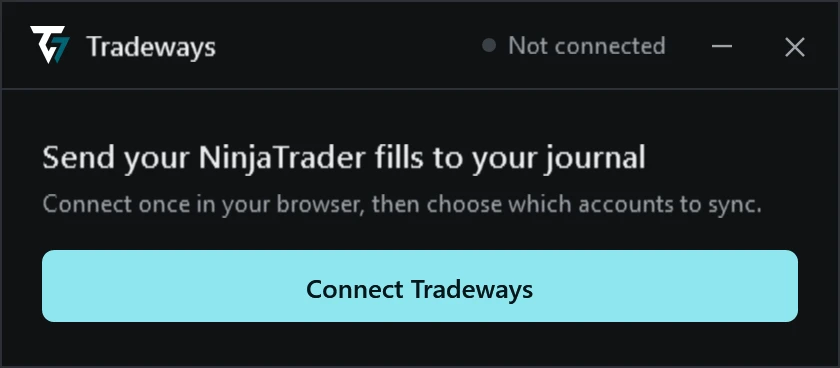
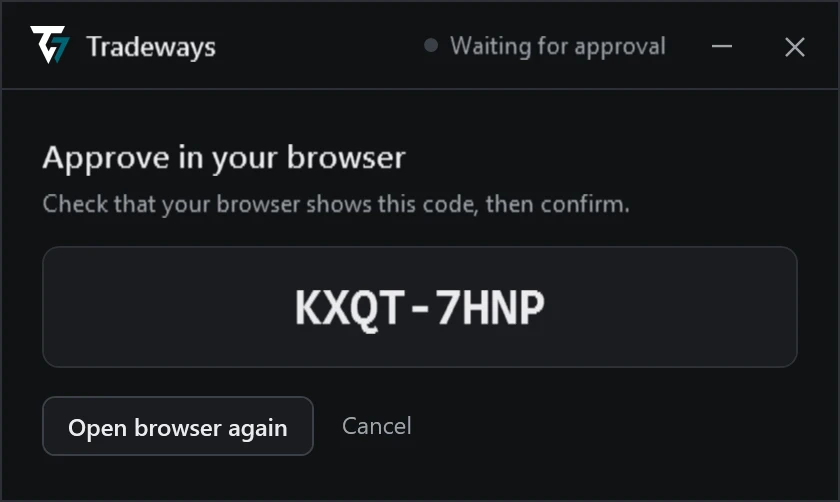
Your browser opens. Check that you are signed in to the intended Tradeways account and that the code matches the window, then confirm the connection. Return to NinjaTrader. If needed, select Open browser again.
3. Choose accounts
Switch on each NinjaTrader account you want to sync. Leave Automatic journal (match or create) selected to let Tradeways match or create the journal account, or pick an existing journal before switching on the account.
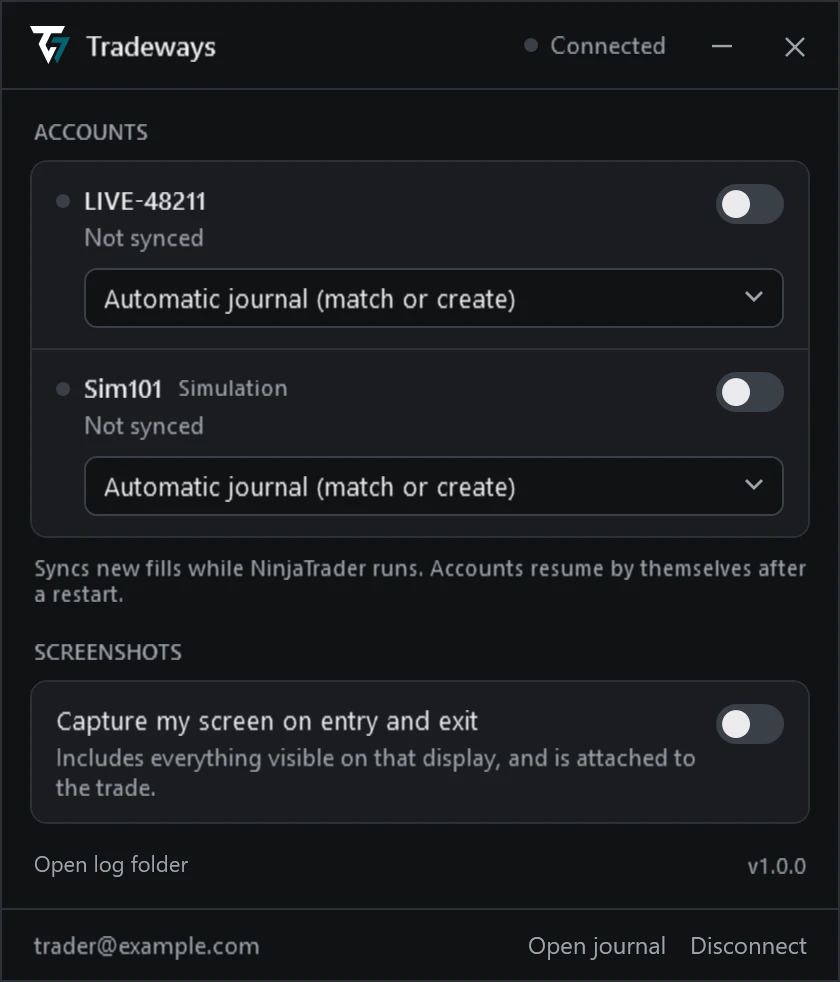
An account with an existing open position waits until that position is closed. Its status reads Starts once … is closed or Starts once the account is flat. If the account is not connected in NinjaTrader, connect it from the Control Center first.
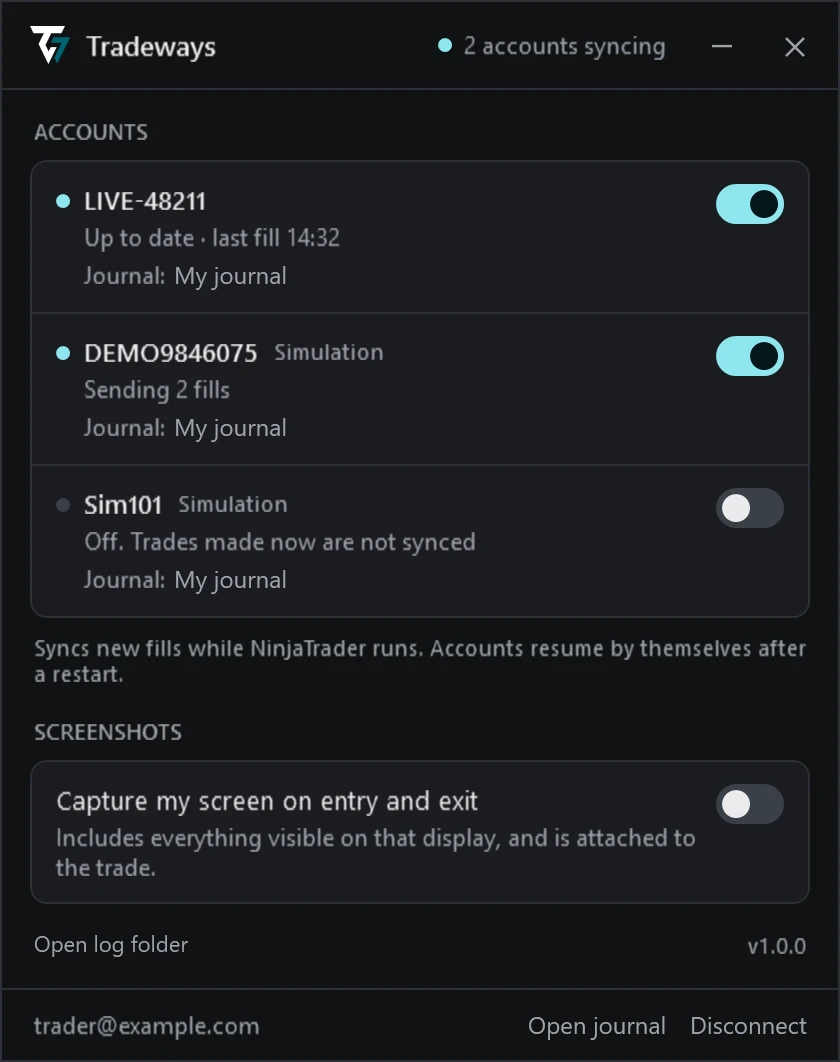
Up to date confirms that the account's fills have been sent. Closing the Tradeways Sync window does not stop syncing. Accounts resume by themselves when NinjaTrader restarts; you do not need to reopen this window. Switching an account off leaves trades made during that time unsynced.
Screenshots are optional
Switch on Capture my screen on entry and exit to attach screenshots to trades. With multiple displays, choose the display to capture. Screenshots include everything visible on that display. You can change this setting at any time; it applies to the next fill.
What syncs
The add-on sends new manual and strategy fills while NinjaTrader runs, stop-loss and take-profit changes, and trade analysis. Commissions follow your Tradeways commission settings.
Earlier trades and trades outside NinjaTrader's retained session need a NinjaTrader file import. File imports and live sync use execution IDs to avoid duplicates.
Troubleshooting
| What you see | What to do |
|---|---|
| Can't reach Tradeways | Check your internet connection. Fills stay queued and send automatically when the connection returns. |
| Account limit reached | Select Open settings and resolve the account limit in Tradeways. The add-on retries automatically; use Retry now after fixing it. |
| A fill is refused | Read the reason and correct it, then select Retry now. Skip this fill leaves that fill unsent so the rest of the queue can continue; review the missing fill separately. |
| Some fills are missing from Tradeways | Follow the file import guide to add missing fills. Dismiss accepts NinjaTrader's current position; it does not import the missing fills. |
| You need the log | Select Open log folder. The log is tradeways.log under %LOCALAPPDATA%\Tradeways\NinjaTrader\tradeways.app\. The folder also holds credentials and trading data; do not share the whole folder. |