

Oscar
Manage Oscar AI in Tradeways. Enable or hide its features, review the usage disclaimer, control trade screenshot analysis, and inspect Oscar's activity.
Oscar
The Oscar page controls whether Oscar-powered features are visible in your account and tracks your acceptance of the Oscar usage disclaimer. Open Settings → Oscar.
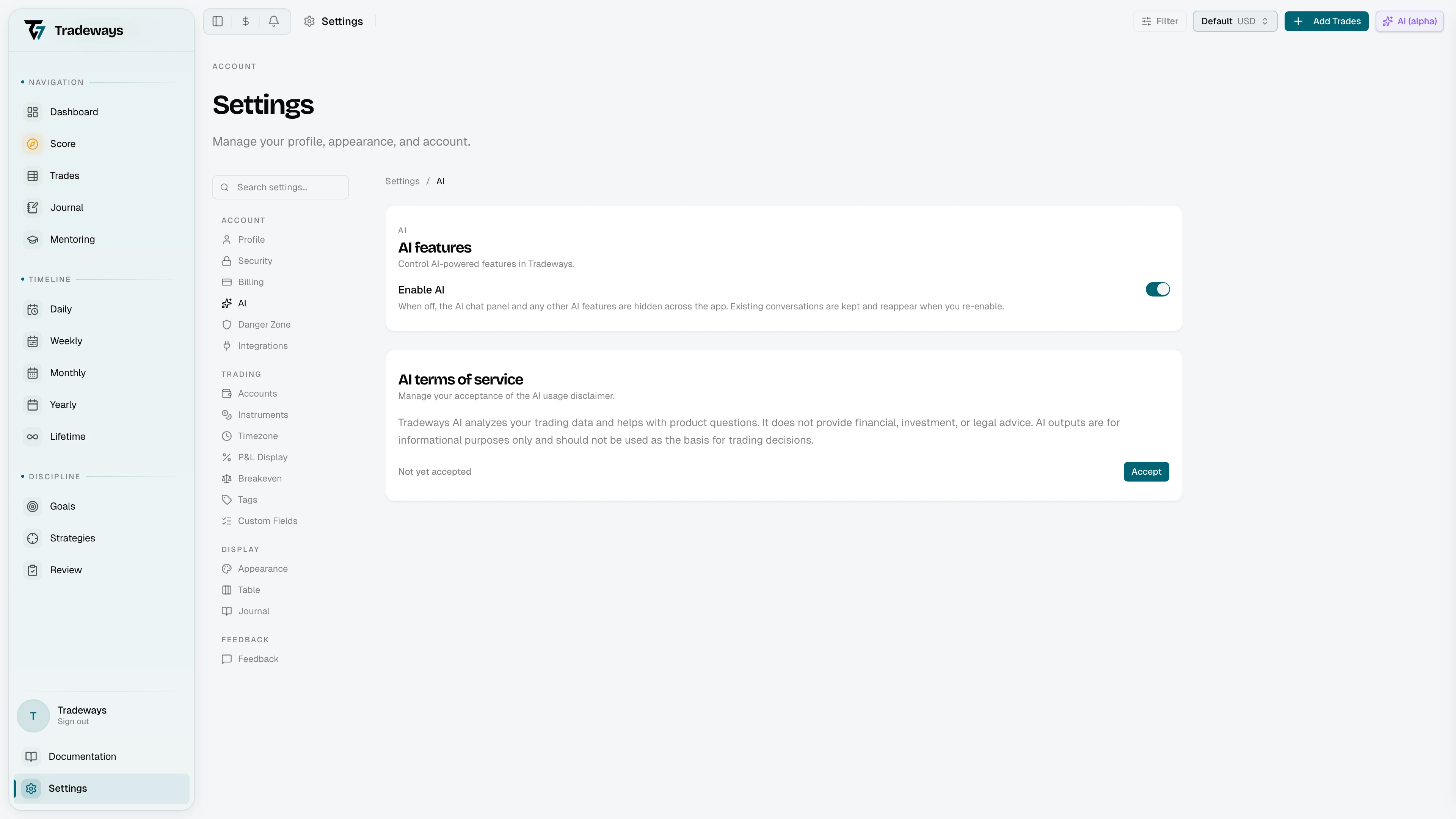
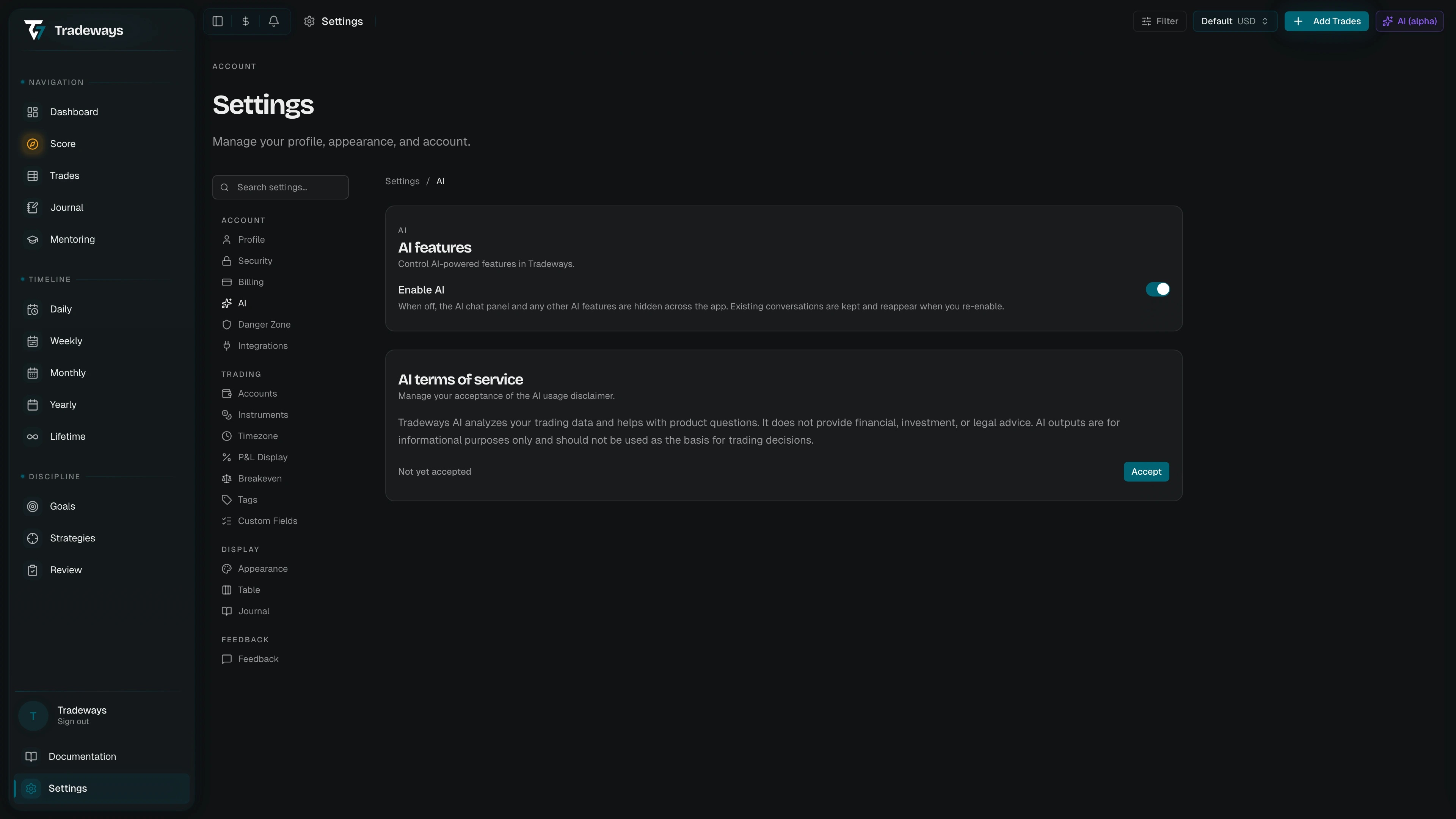
Oscar Features
The first section is a single switch labeled Enable Oscar.
- On (default): the Oscar chat panel and any other Oscar-powered features are available across the app.
- Off: Oscar features are hidden everywhere. Existing conversations are kept on your account — turning Oscar back on later reveals them again exactly where you left off.
Turning Oscar off does not delete data; it only hides the entry points. Use it if you prefer a clean interface without Oscar, or if you want to confirm a feature still works without Oscar in the picture.
Oscar Terms of Service
The second section is only shown while Oscar features are enabled. It tracks your acceptance of the Oscar usage disclaimer.
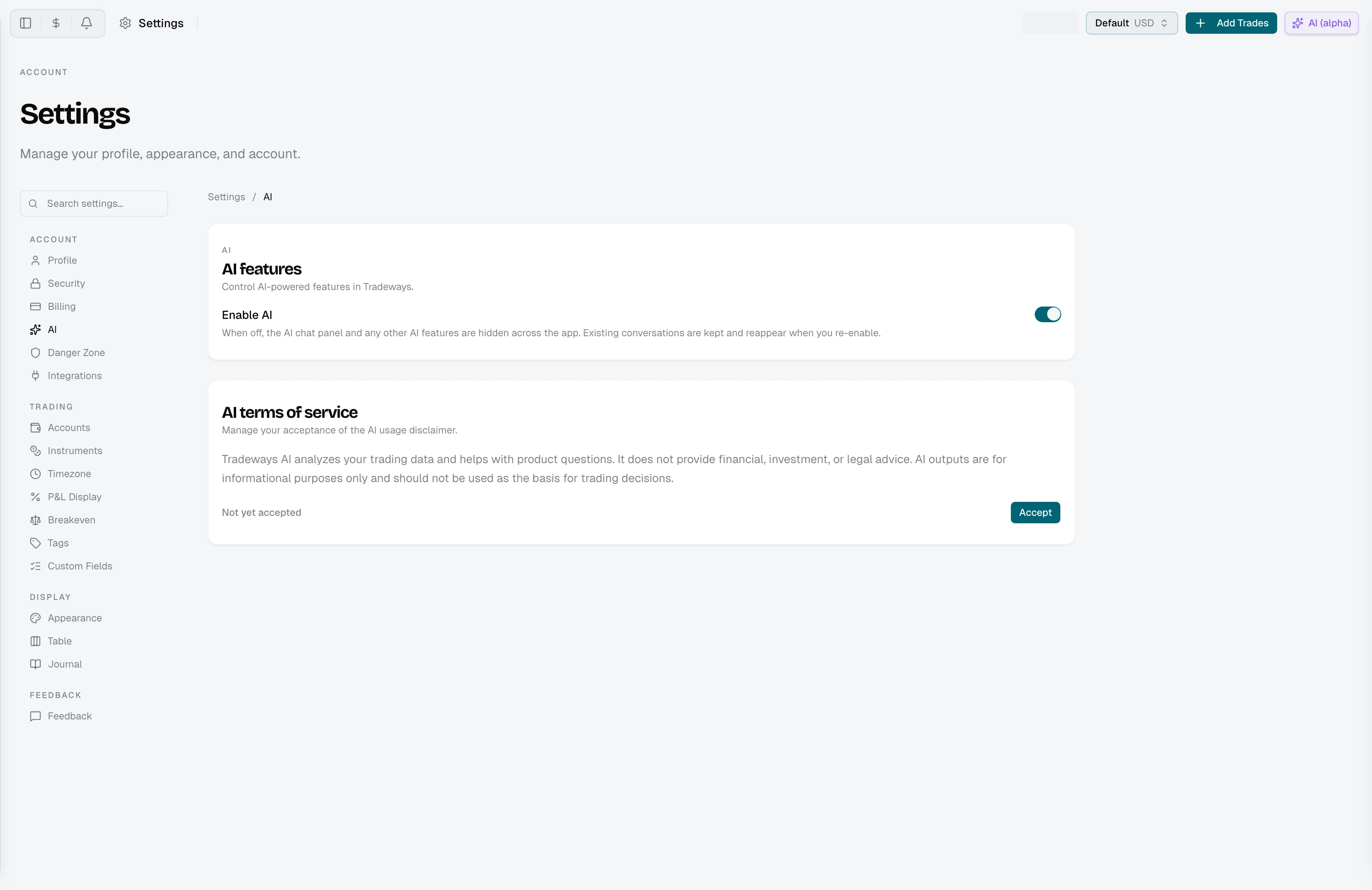
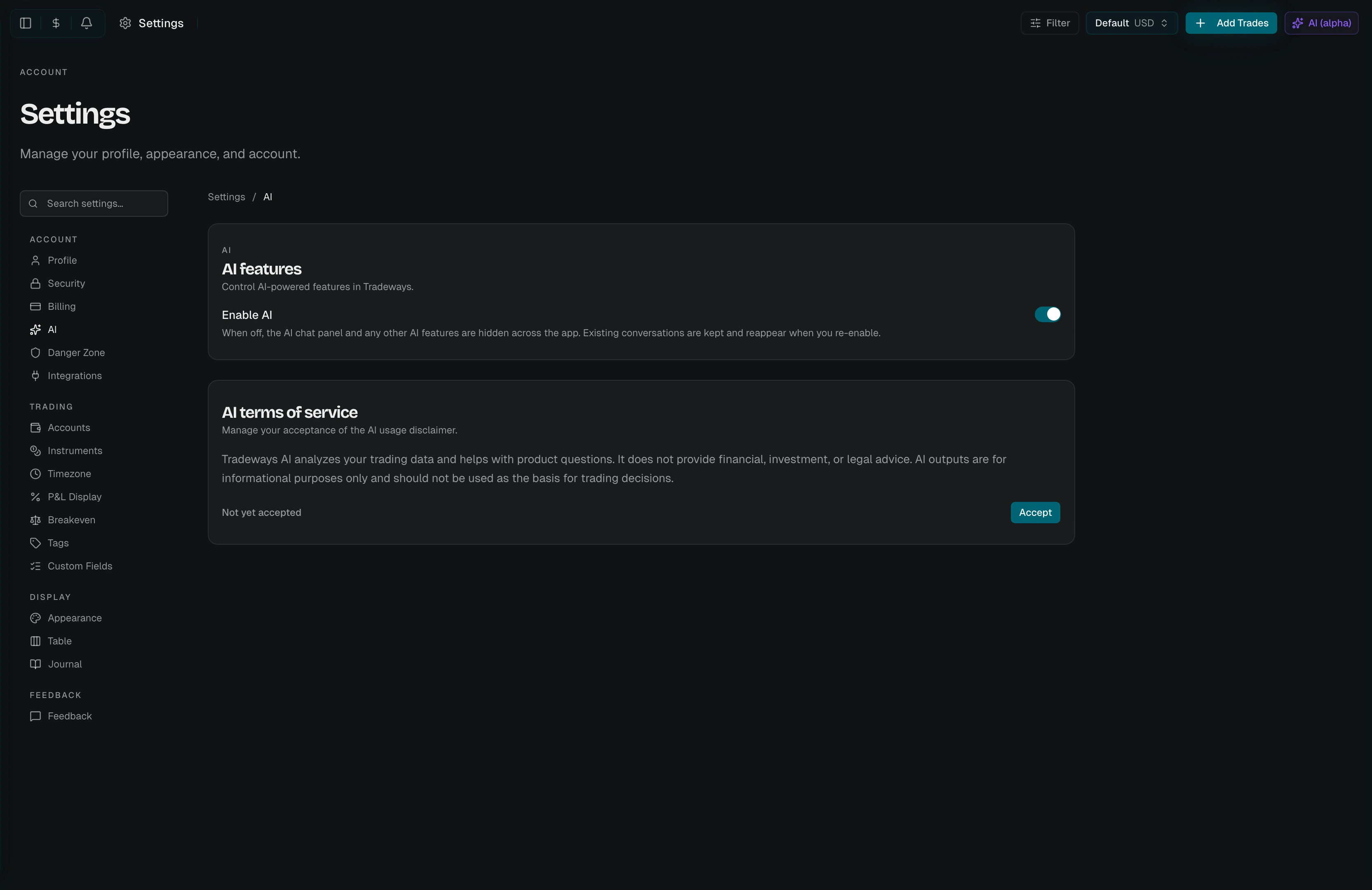
The notice explains that Tradeways sends your prompts and relevant trading and journal context to external AI providers. Uploaded images are also shared when image analysis is enabled. It also states that AI output can be inaccurate and is not financial, investment, or legal advice.
Accepting
If you have not yet accepted, the section shows Not yet accepted with an Accept button. Click it to record your acceptance — your acceptance timestamp and the browser user-agent are saved.
You must accept the disclaimer before Oscar will reply to messages.
Revoking
After acceptance, the section shows the date and time you accepted (in your configured timezone). Click Revoke to withdraw your acceptance. Oscar remains enabled but will refuse to operate until you accept the disclaimer again.
Trade Image Analysis
When Oscar is enabled, the page shows an Analyze uploaded chart screenshots switch. You must accept the disclaimer before you can turn it on.
- On: Tradeways analyzes valid trade screenshots in the background and extracts manually added chart context such as text labels, drawn zones, levels, and notes.
- Off: no new screenshot analysis is queued. Existing uploaded screenshots and completed analysis remain attached to the trade.
This feature is off by default. It only analyzes valid trade images attached to trades; it does not extract broker/platform data, prices, P&L, symbols, or timestamps from the screenshot.
Open a trade image in the lightbox to view completed analysis. Images that are queued or still processing show an analyzing state until the background job finishes.
Oscar Activity
Select Open activity to review every record that Oscar created or changed. Each entry shows the result and links to the source conversation when one is available.