

Billing
Manage your subscription plan, monitor resource usage, and access invoices from the billing settings page.
Billing
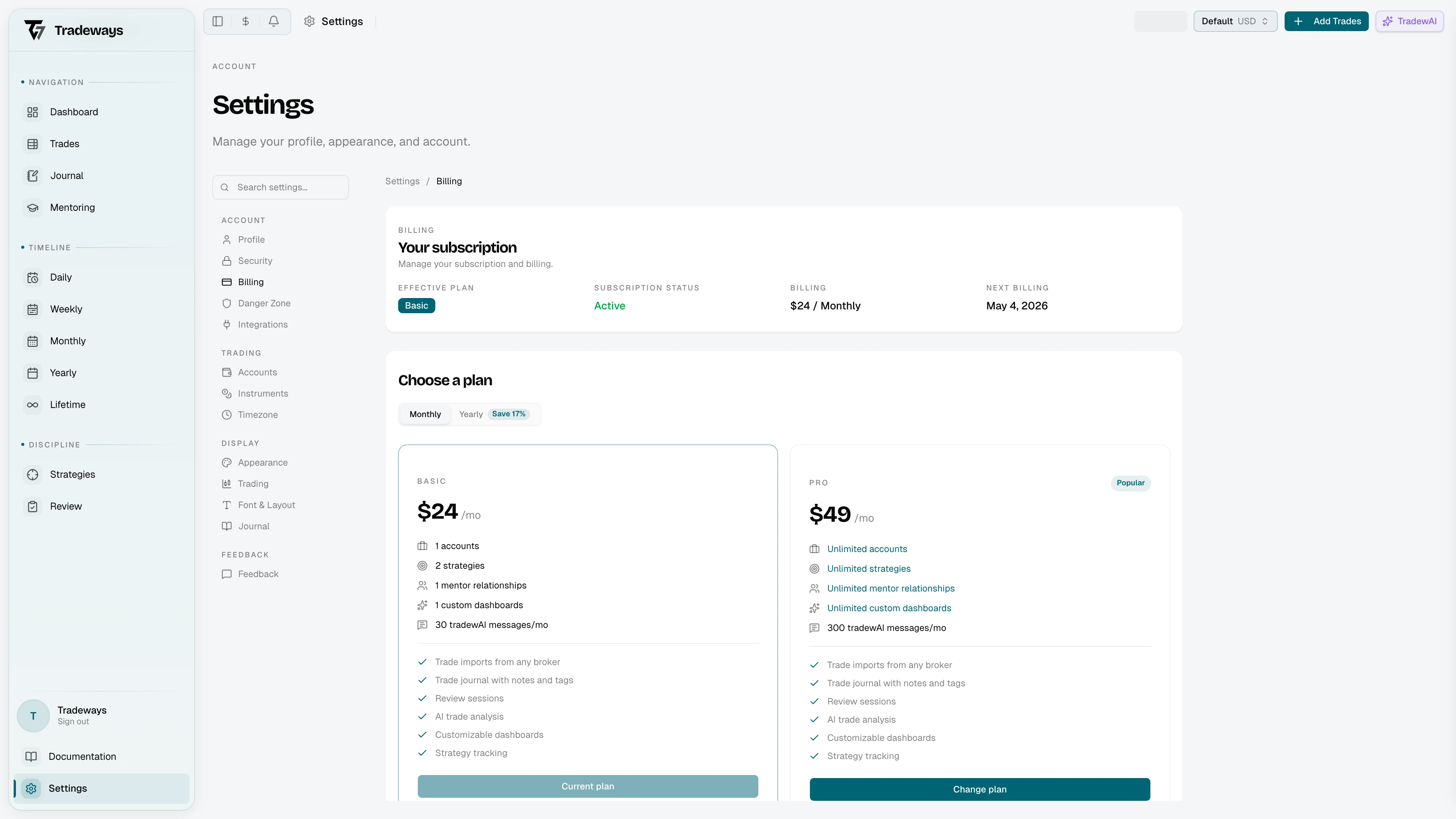
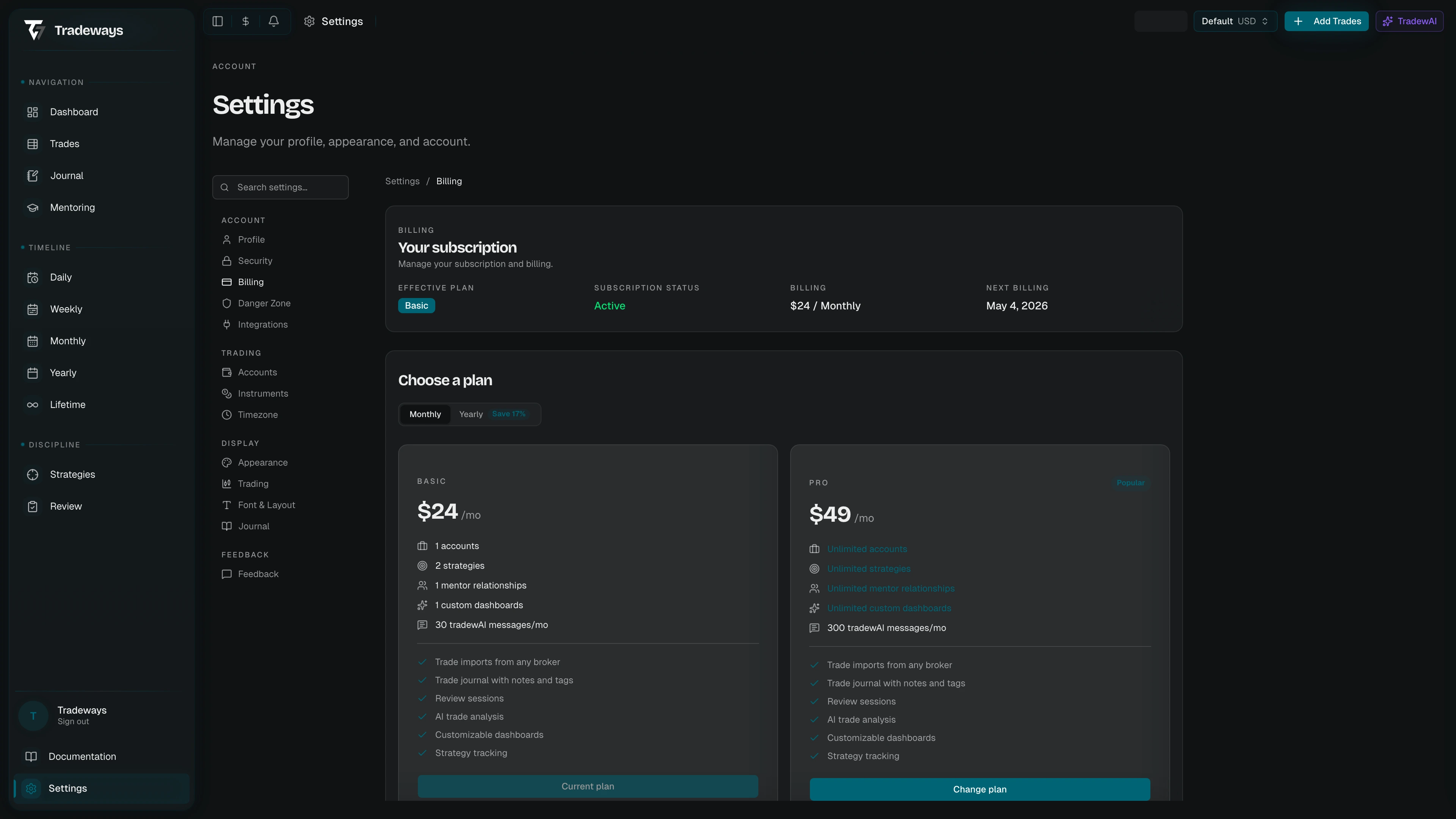
The billing page at /settings/billing lets you manage your subscription, compare plans, and monitor resource usage. Access it from Settings → Billing.
Plans
Tradeways offers two plans. Both include the same feature set; they differ only in capacity limits.
| Feature | Basic | Pro |
|---|---|---|
| Price (monthly) | $29 / month | $49 / month |
| Price (annual) | $290 / year | $490 / year |
| Accounts | 1 | Unlimited |
| Strategies | 2 | Unlimited |
| Mentor relationships | 1 | Unlimited |
| Custom dashboards | 1 | Unlimited |
| Oscar credits per month | 30 | 90 |
| Communities joined | 1 | Unlimited |
Annual billing saves approximately 17% compared to paying monthly. Official Tradeways communities do not count against the community limit.
Subscriptions are billed in US dollars through Stripe. In some regions the plan cards and the status card also show an approximate amount in local currency, marked with an approximation sign. That figure is informational. The charge is the US dollar amount, and your bank sets the exchange rate it applies.
If you took part in the referral program, your earned discount is applied to the invoice automatically. See Refer a Friend.
Subscription Status
The status card shows your effective plan, the Stripe subscription status, the amount and interval you are billed, and the date of the next billing. When your effective plan differs from the plan you pay for — for example under a partner benefit — a Billed as field states the plan on the invoice.
Status Values
| Status | Meaning |
|---|---|
| Active | The subscription is current and payment is up to date. |
| Trialing | A trial period is running. Access is active until the trial ends. |
| Past due | A payment attempt failed. Access stops until payment succeeds. |
| Unpaid | Repeated payment attempts failed. Access stops. |
| Canceled | The subscription has ended and access has stopped. |
| Paused | The subscription is paused. Access stops while it is paused. |
| Incomplete | The first payment is not confirmed yet. Access starts once it succeeds. |
| Incomplete expired | The first payment was never confirmed. Start a new checkout to subscribe. |
Only Active and Trialing grant access to the app. In every other state Tradeways shows the billing screen instead of the app, unless an access grant or a partner benefit still covers you.
A cancellation you schedule yourself does not change the status. The subscription stays Active and shows a pending change until the period ends.
Changing Plans
Upgrades
Upgrading to a higher plan (Basic to Pro), or switching from monthly to annual, applies immediately. Stripe invoices the prorated difference for the remainder of the current billing period. If the payment needs your confirmation, Tradeways sends you to Stripe to update the payment method.
Downgrades
Downgrading to a lower plan (Pro to Basic), or switching from annual to monthly, is scheduled to take effect at the end of the current billing period. You keep your current plan's limits until then.
Pending Changes
When a downgrade, an interval change, or a cancellation is pending, an alert appears on the status card with the type of change and the effective date. Restore pending change removes it, so the subscription continues on the current plan and interval. You can also replace a scheduled plan change by selecting a different plan before the effective date.
While a plan change is scheduled, Stripe cannot modify or cancel the subscription from its portal. The page states this and asks you to restore the scheduled change first.
Cancelling
Tradeways has no cancel button. Cancel in the Stripe billing portal, reached from Open billing portal. The cancellation is scheduled for the end of the paid period, and the status card then shows it as a pending change that you can restore.
Usage
The Current usage section at the top of the page shows counters for Accounts and Strategies against your plan limits. A counter turns red when you reach the limit.
The same counters appear where you manage each resource: the account manager, the strategy manager, the dashboard manager, and the mentoring page. Your remaining Oscar credits and the date they reset are shown in the Oscar chat.
When you reach a limit, existing data stays readable and an Upgrade to Pro prompt appears next to the blocked action. The prompt starts the plan change directly, so you do not have to return to this page.
Where the block appears depends on the resource. For communities, the create and invite actions are disabled up front and state the limit. For strategies and custom dashboards, the create dialog opens as usual and reports the limit when you submit.
Managing Your Subscription
Open billing portal opens the external Stripe billing portal. From there you can:
- Cancel or restore the subscription.
- View and download invoices.
- Update your payment method.
- Review your full billing history.
This section appears when your access comes from a Stripe subscription.
Codes and Offers
Select Have a code? during checkout or on the billing screen when Tradeways asks you to choose a plan. Enter a creator or referral code to attach its offer to your account. Tradeways shows the source and discount before you continue to Stripe Checkout. These discounts apply only to your first subscription.
If an access grant or administrator already covers your account, the same code entry appears below the plan cards on this page. The code applies to the paid subscription that you start for after that access ends.
Guest Passes and Access Grants
A guest-pass link grants temporary Basic or Pro access without payment. The link opens the Tradeways website and shows the plan, access period, Free, and No card required.
If you are signed out, enter your email, verify the six-digit code sent to that address, and accept the current terms. Tradeways redeems the pass before account setup. Create a password for a new account, or sign in if the email already belongs to an account without active access. See Getting Started for the account activation steps.
If you are already signed in and eligible, select Redeem on the guest pass. Tradeways asks you to accept current terms first when required. An account that already has app access cannot redeem another guest pass.
A guest pass cannot be redeemed when it has expired, was revoked, was already used, or is not yet active. The page states the reason. If the pass becomes unavailable after you enter your email, the account remains available and you can subscribe normally.
If your access comes from a guest pass or another grant, the billing page shows Your access with the plan and its expiry date, followed by the plan cards so you can subscribe before that date. If you subscribe while a grant is still running, the page states that the grant continues to its end date and that billing takes over automatically afterwards. See Refer a Friend for how invitation links work.
Unfinished Checkout
If you leave Stripe Checkout without paying, Tradeways can send you a recovery link. It opens a page stating that checkout was not completed and offers Retry checkout, which reopens the same plan selection. If the link is missing or expired, the page instead links to the pricing page so you can start again.