

Accounts
Create and manage trading accounts in Tradeways. Set currencies and starting balances, record transactions, switch accounts, and archive or duplicate an account.
Accounts
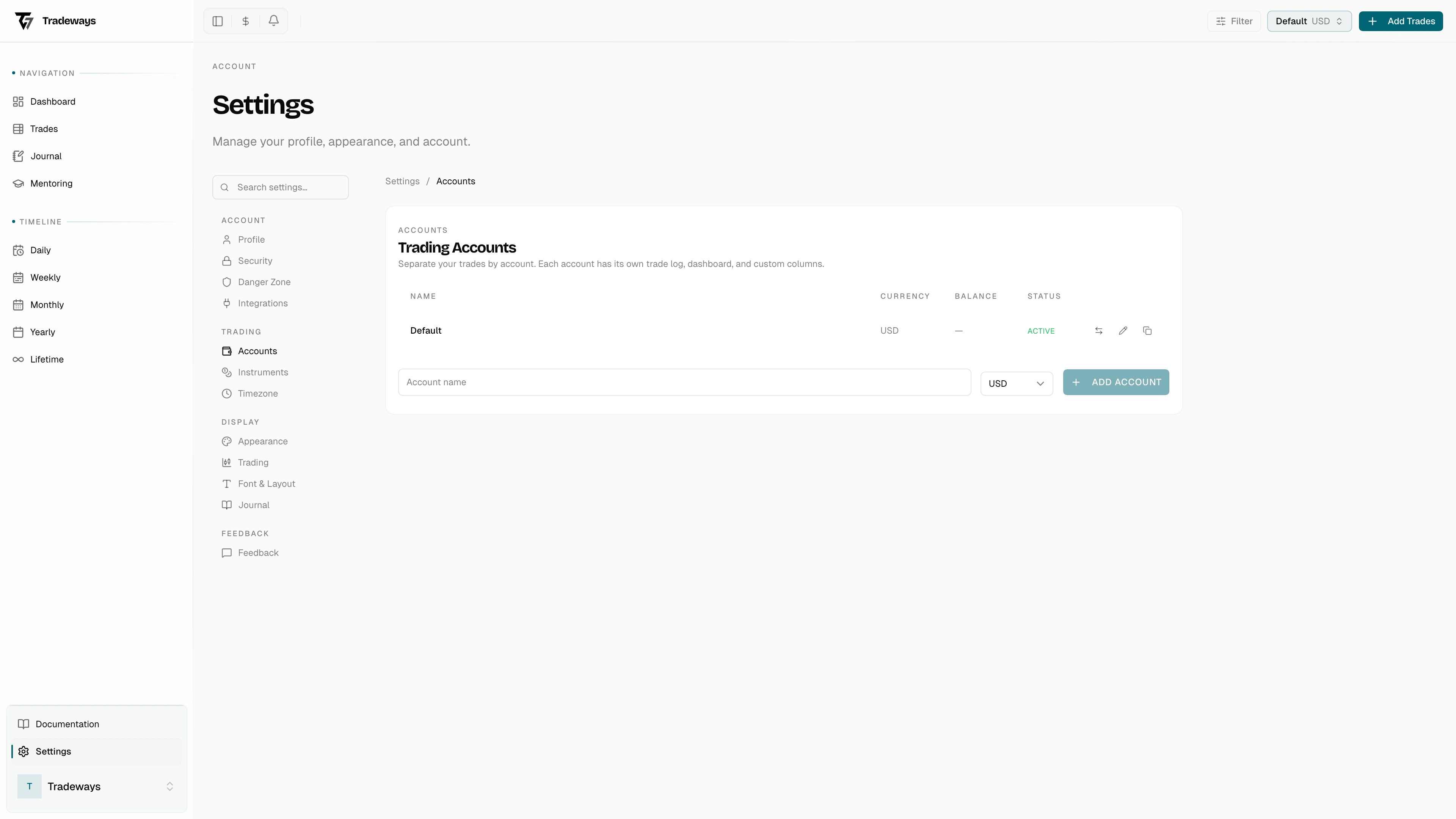
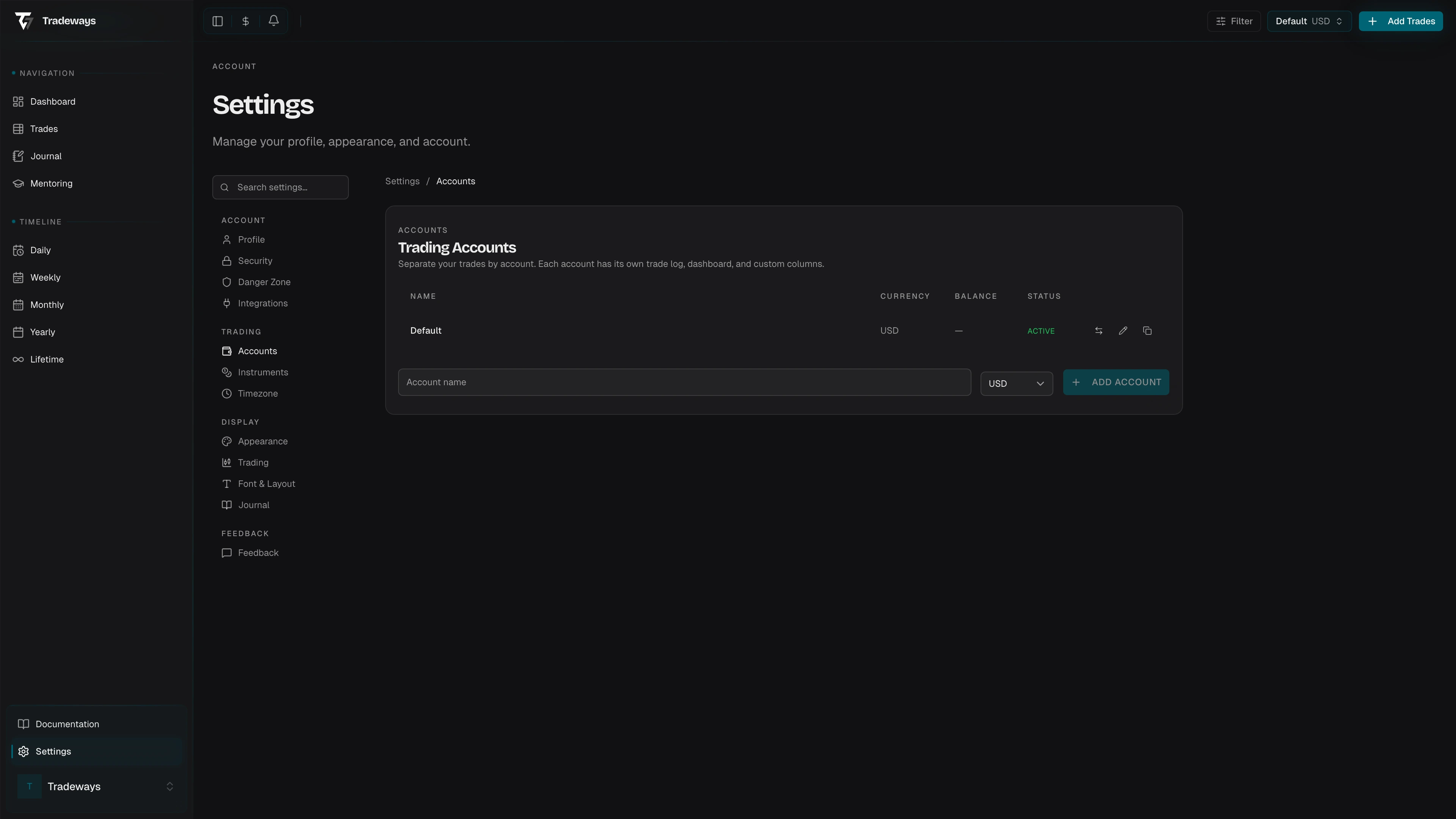
Each trading account keeps its own trades, settlement currency, balance history, instrument settings, and display preferences. Open Settings, then select Accounts.
Main currency
The main currency is the reporting currency for All Accounts. Tradeways converts combined money values to this currency. Changing it does not change the settlement currency or original values of an account.
Create an account
Select Add account. Enter a name and settlement currency. Then create the account.
Tradeways selects the new account after creation. The settlement currency controls its money values. Review it before you import trades. An account with trading data can restrict currency changes because a new currency would change the meaning of existing values.
Plan limits can lock an account or prevent another account from being created. A locked account remains listed. Upgrade or reduce the number of active accounts before you use it again.
Select and preview an account
Select an account in the list to make it active. The preview shows its recent activity, balance information, and available actions. Hover another account to inspect it without changing the active account.
The list separates favorites, your accounts, demo data, shared accounts, locked accounts, and archived accounts when those sections contain records.
Edit an account
Open the selected account and select Edit. You can change its name and the account-specific options shown in the editor. Account display and breakeven settings can override your global settings.
Use the star action to add an account to Favorites. Favorites appear first in the account manager and account switcher. A shared account can also be a favorite.
Duplicate an account
Use the duplicate action when a new account needs the same configuration. Tradeways copies the account setup. It does not copy trades or transactions.
Review the copy before you import data. Give it a distinct name so filters and All Accounts results show the correct source.
Archive or delete an account
Archive an account when you need to keep its records but remove it from normal account selection. Archiving also removes it from Favorites. Open the Archived section to restore it.
When an account is shared through mentoring, the archive or delete confirmation names mentors who will lose access. Removing the last account from a selected-account relationship ends that relationship. An All accounts relationship remains active when other eligible accounts are available.
Delete an account only when you no longer need its data. The confirmation states what will be removed. You cannot delete the last account. Deletion is different from the 30-day trade trash.
Transactions and balance
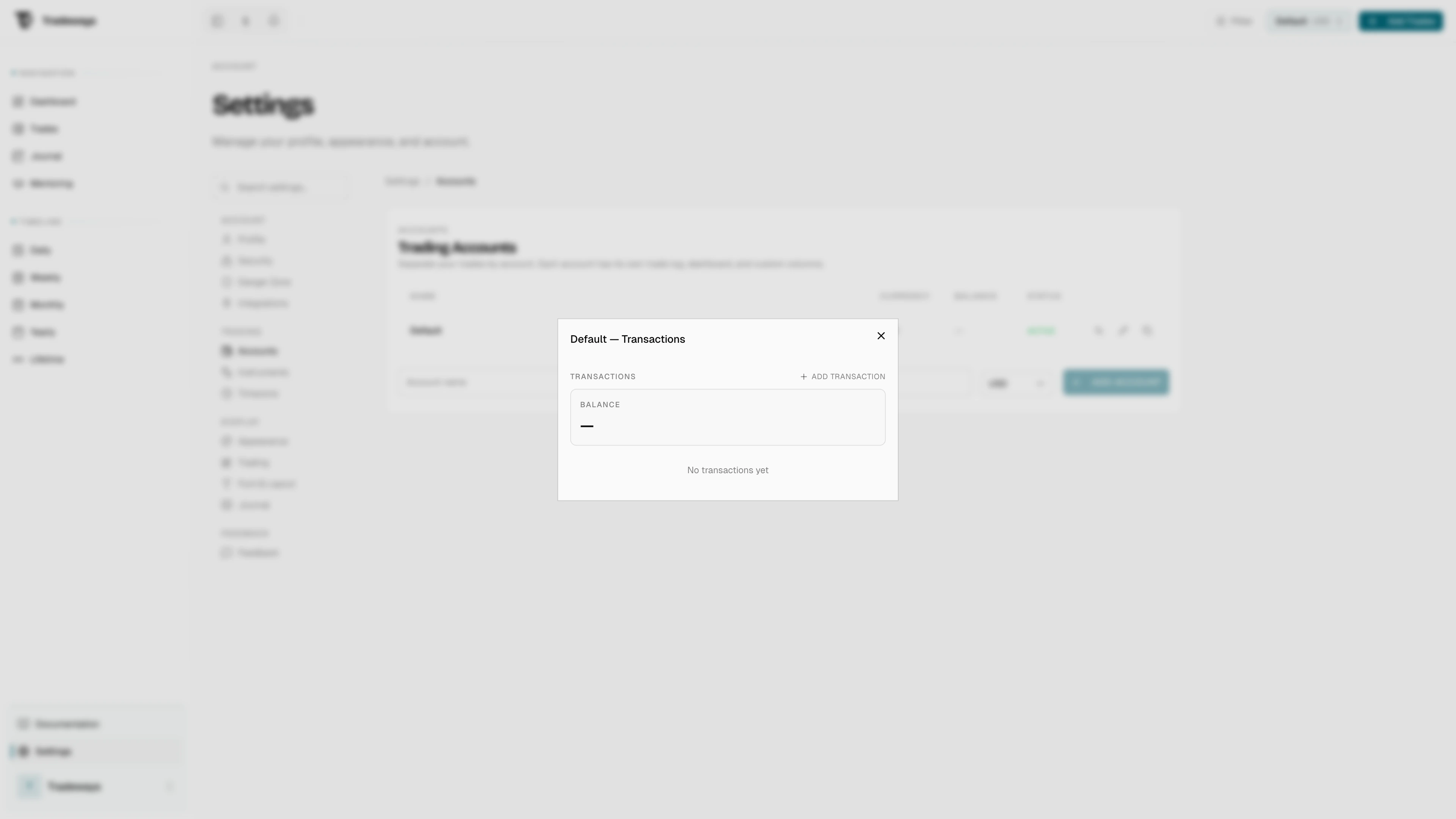
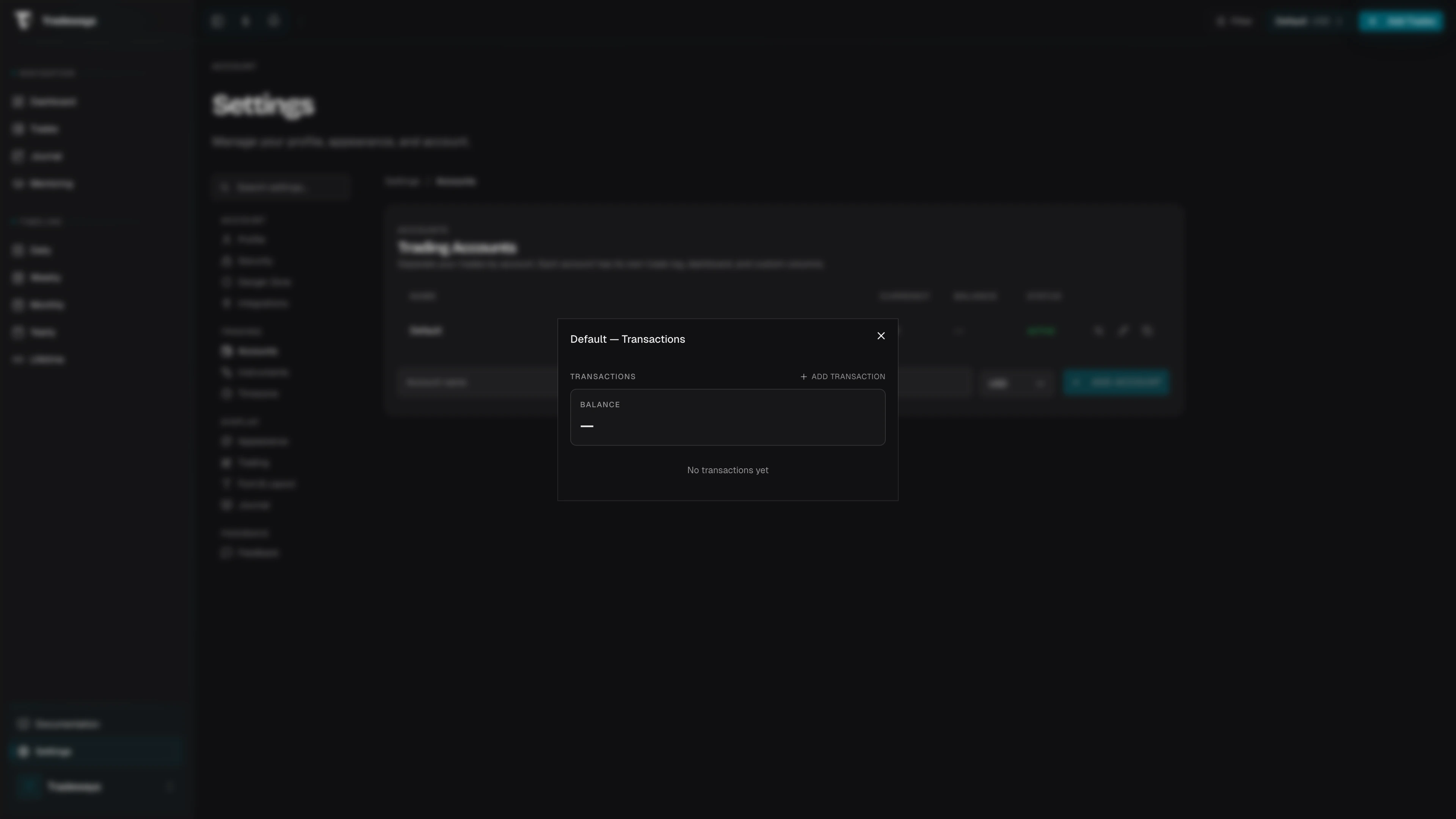
Transactions record money movements that are not trade P&L. Open an account. Then use its transaction section.
| Type | Effect on balance |
|---|---|
| Deposit | Adds money. |
| Withdrawal | Removes money. |
| Fee | Removes money. |
| Interest | Adds money. |
The first transaction is the starting balance. It can be zero. If trades already exist, choose the day of the first execution or an earlier day in your configured timezone. This keeps equity and percentage returns in the correct order.
The displayed account balance includes transactions, realized trade P&L, and the last available running P&L for marked open positions. When running P&L is included, the account preview says so. Open positions without a mark do not contribute running P&L.
A transaction can use another currency. Tradeways obtains or requests the conversion rate needed for the account balance. A partial balance state means one or more transactions or trade values lack a valid rate. Resolve the missing rates before you rely on the total.
Edit a transaction to correct its type, amount, currency, date, or comment. Delete it only after you check how the change affects percentage returns and equity.