
Privacy
Control your online status and manage blocked users.
Privacy
Control your online status and manage blocked users. Access this page in Settings → Privacy.
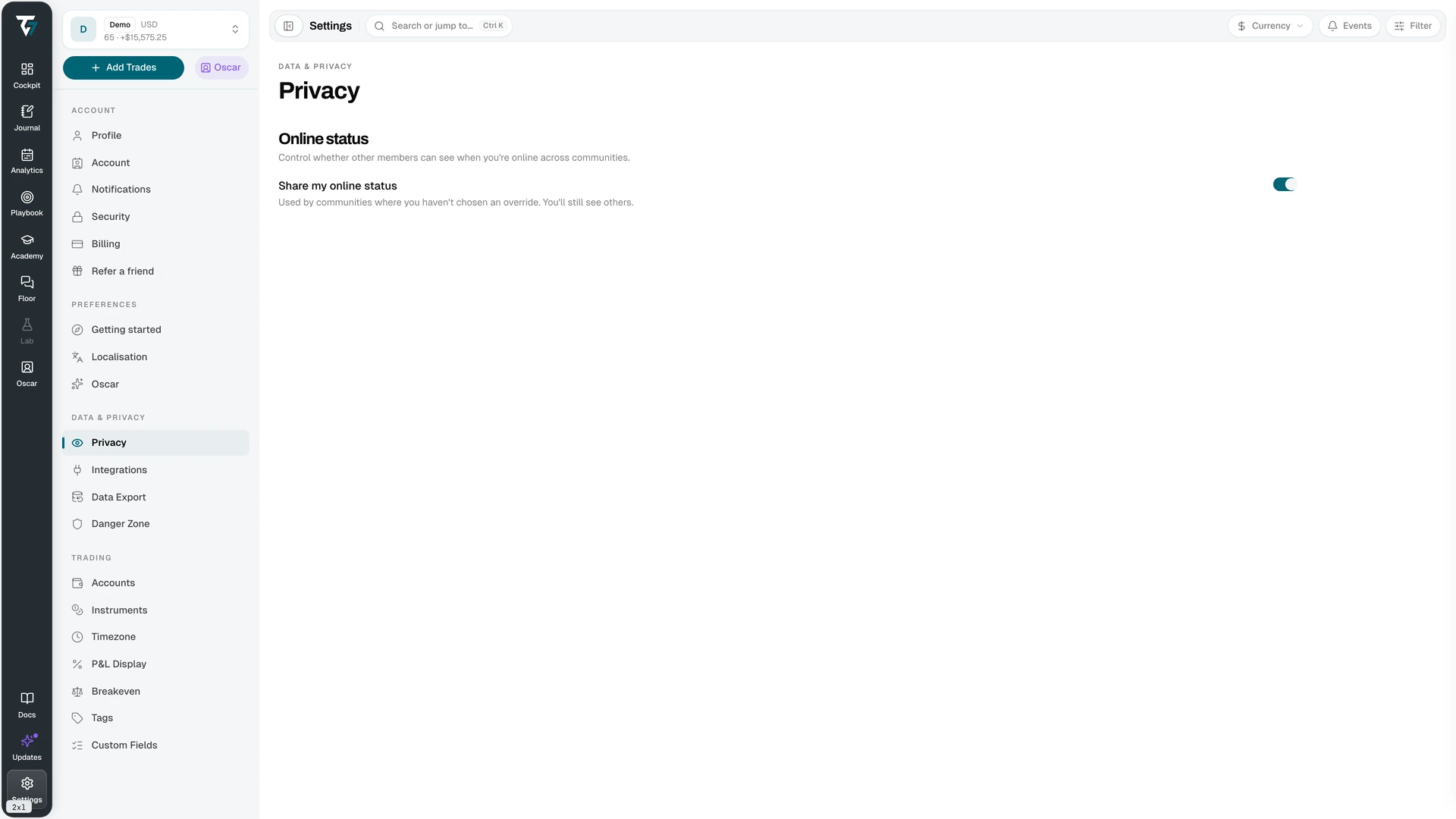
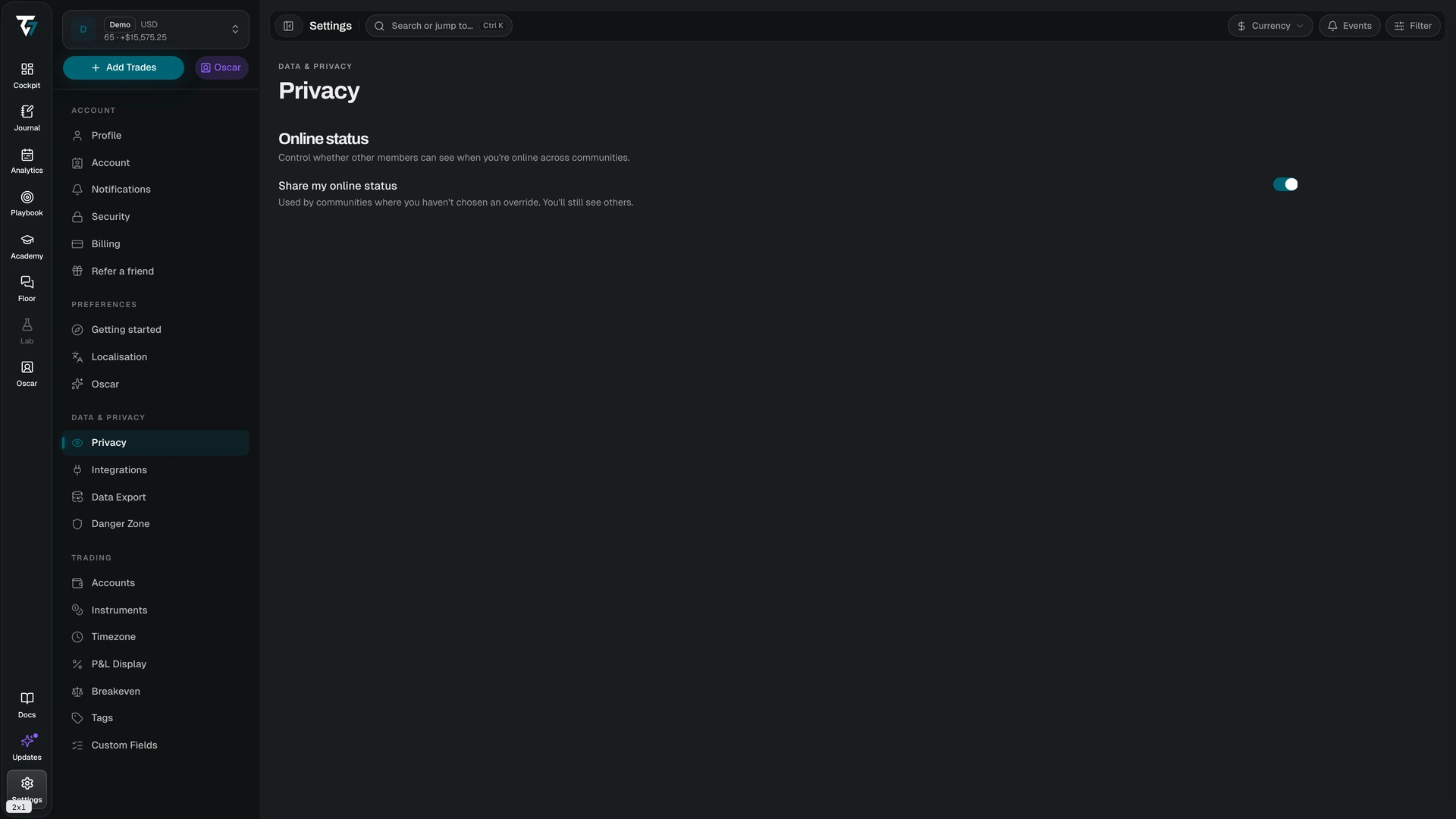
Online Status
Share my online status decides whether other members see you as online across communities.
When the toggle is off, you are removed from every community member roster. You still see who else is online — the setting controls what others see about you, not what you see about them.
Per-Community Overrides
This toggle is the account-wide default. A community where you set your own visibility uses that choice instead, and the override wins over the default here. Set an override on the notification settings page of the community itself.
Blocked Users
Users you block appear in the Blocked users section. Each entry shows the user and the date when you blocked them.
Select Unblock to remove the block. Visibility returns only if the other user has not blocked you. Blocking hides messages, online status, and profiles between you. It also ends any mentoring share between you.
Select Load more when the list contains more users. A load error has a retry action.
Related Settings
- Profile — controls what your public profile shows
- Support — controls temporary support access to your account data
- Danger Zone — deletes your account and its data