

Shared Components
How the sidebar, account switcher, toolbar, command palette, event bell, and P&L mode switcher behave across Tradeways.
Shared Components
A few UI elements travel with you on every page: the workspace rail, the sidebar, and the toolbar above the page. This page explains what they do beyond what is obvious from looking at them.
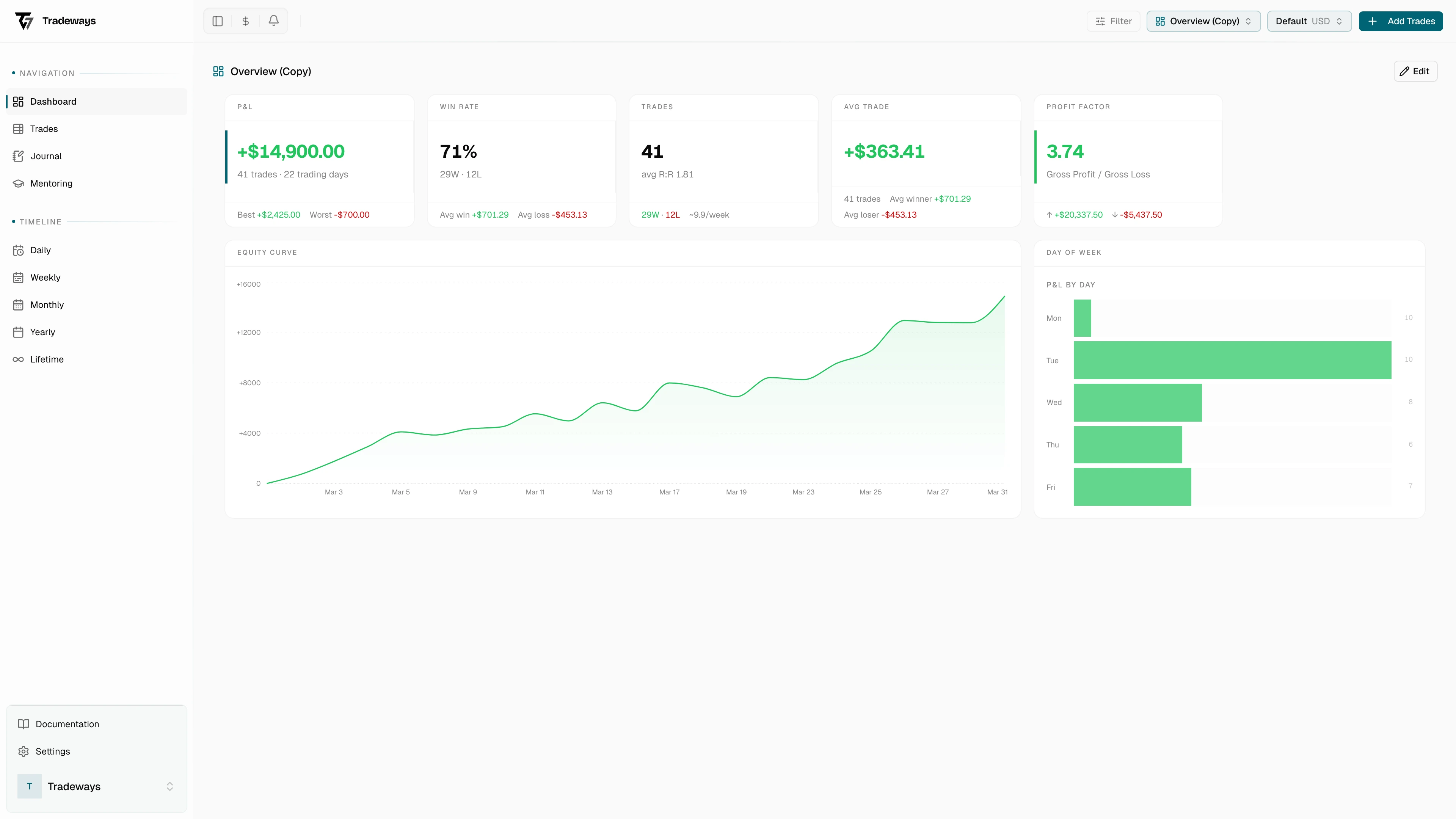
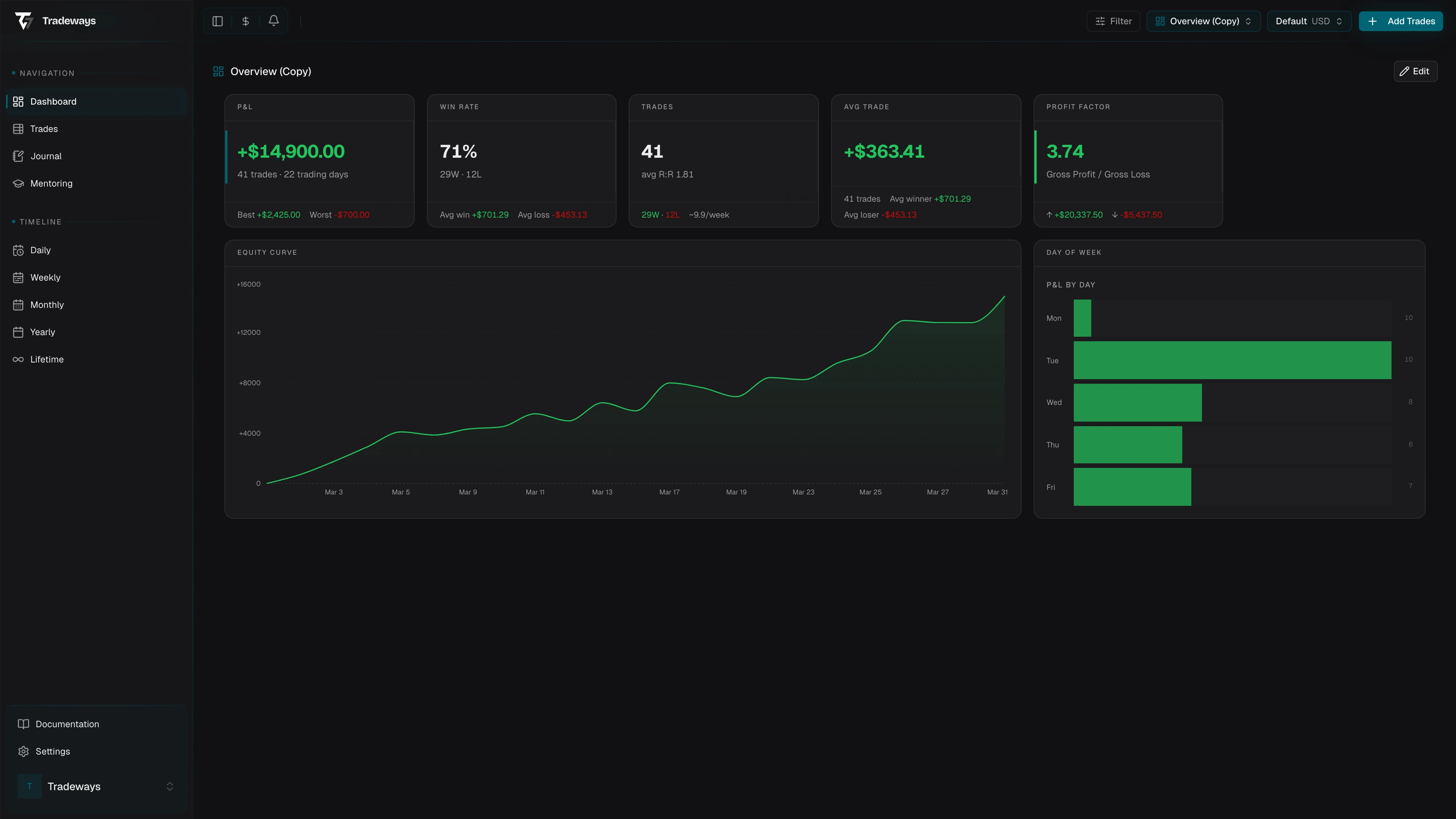
Sidebar
The sidebar is the second layer of the shell. The workspace rail on its left selects the workspace; the sidebar lists the pages of that workspace. It reads top to bottom as account, action, navigation, identity:
- The account switcher.
- Add trades and the Oscar button on one line. A page can replace the Oscar button with its own action.
- The page list, in labeled groups. Some workspaces replace this with their own panel.
- Your user menu.
Two behaviors are worth calling out. The Journal pages disappear when you do not have journal access. This happens on a mentored account that was shared without journal permissions: you still see the trades, but the journal entry would belong to the account owner. Strategies and Review disappear the same way when strategy access was not shared.
When you open a mentored account, Add trades is disabled and the account switcher carries a read-only label with the account owner's name, so it is always clear whose account you are looking at.
The Floor workspace hides the account switcher and the action line. Its channel list uses the whole column.
Toolbar
The toolbar is the single chrome row inside the page card. On the left it holds the sidebar toggle (Cmd+B or Ctrl+B) and the title of the current page. A dashboard or strategy page shows the name of the open dashboard or strategy instead.
On the right sit the search trigger and three controls that apply everywhere: P&L Mode, Events, and Filter. Filter opens the global filter panel and shows how many filters are active; see Filter. Below the medium breakpoint the labels drop and only the icons remain. Pages that carry widgets add one more control on the left of that group: Add Widget on a page without widgets, Widgets on a page that has them, and Edit on a dashboard. Someone viewing a shared dashboard or a page without widgets sees none of these.
Command Palette
The search field in the toolbar opens the command palette. Cmd+K or Ctrl+K does the same from anywhere in the app. Arrow keys move, Enter runs the selected row, Esc closes.
With an empty query the palette lists jump targets: Actions (add a trade manually), Navigate (every page of every workspace you can reach), Dashboards, Strategies, and Settings pages. Typing narrows those, adds matching Trades, Notes, and settings sections, and can offer Filter trades suggestions based on what you typed.
Note search covers daily, weekly, monthly, yearly, session, trade, and page entries, each with its type shown. It includes text extracted from PDF note bodies. A PDF badge identifies those results. Extraction can be incomplete or unavailable, so the original PDF remains the source.
Navigation from the palette keeps the active account. In a mentored account the Actions, Dashboards, and Strategies groups are hidden, since they belong to your own account and not the one you are viewing.
Account Switcher
The control at the top of the sidebar lists your trading accounts and shows the active one with its settlement currency, its closed trade count, and its P&L for the current filter. By default it only lists accounts you have starred as favorites. If nothing is starred, all of your own accounts show up instead. The favorites list is opt-in, not a forced filter.
All Accounts appears at the top once you have at least two accounts that are not demo accounts.
Mentored accounts you have favorited appear in their own section below your own accounts so that switching contexts is intentional. While you are in a mentored account the menu also holds an Exit entry that returns you to Mentoring.
Switching accounts keeps you on the same page with the new account selected, with one exception. When you are on a specific dashboard at /dashboard/<ref>, switching redirects you to /dashboard. Custom dashboards are scoped to one account, so the destination would not exist on the new account.
Manage Accounts opens a modal for creating, editing, archiving, and deleting accounts. See Accounts for the full management UI.
Event Bell
The Events control in the toolbar is a feed of things that happened on your accounts. The badge shows how many entries you have not read yet, up to "9+". Click an entry to jump to the trade, dashboard, mentoring page, or channel it refers to.
Events cover trade lifecycle (imported, created, closed, deleted), uploads (images attached to a trade), account and dashboard changes (created, deleted, archived, unarchived), the full mentor workflow (invitations sent and answered, permission changes, accounts shared or revoked, and feedback exchanges in both directions), and community activity (mentions, replies to your messages, and community invitations).
Timestamps are relative: "Just now", "5m ago", "2h ago", "3d ago". When you enter, scroll, or focus the panel, Tradeways marks the visible unread events as read after a short delay. Opening the panel by moving over the toolbar does not clear them until you interact with the panel. Hovering an unread entry exposes a checkmark to mark just that one as read; Mark all as read in the panel header marks the whole list at once.
Events are realtime. Anything happening on your accounts shows up without a refresh, including activity from imports running in the background and feedback your mentor or student just sent. See Event Notifications for the full list and the retention period.
P&L Mode Switcher
The P&L Mode control in the toolbar decides how every P&L value in the app is rendered. It is a display setting only; your underlying trade data does not change. The setting is stored per account.
| Mode | Icon | Shows P&L as |
|---|---|---|
| Ticks (1-lot) | # | ticks normalized to a single standard lot |
| Ticks (sized) | chart | ticks scaled by the actual position size |
| Currency | $ | the account's settlement currency, commission deducted |
| Percentage | % | a percent of account equity (time-weighted return) |
| R multiple | ÷ | P&L divided by your average realized loss |
On the toolbar control the label of the tick modes adapts to the dominant asset class on the active account. Futures show Ticks, forex shows Pips, CFD and crypto show Points, stocks show Cents.
Two modes have a precondition. Percentage requires a starting balance: the first transaction on the account defines that baseline and is allowed to be zero, but it has to exist. If you have not added one yet, the option is shown with a hint and a link straight to the account settings. R multiple requires at least one closed losing trade, since the average realized loss is the denominator. Until then the option is shown with a hint and cannot be selected.
In All Accounts, the switcher offers both tick modes, Currency, and R multiple. Percentage is not available because account equity differs between accounts. The All Accounts selection is stored separately from each account's mode.
See P&L Display Modes for the conversion math and where each mode is honored versus where currency values are forced (for example, cross-currency aggregations).
Form Controls
A few inputs appear in more than one place. Their behavior is the same everywhere they show up.
The currency select lists ISO 4217 currency codes. It has a compact variant (code only, e.g. "USD") used in tight UI and a detailed variant (code, symbol, and name, e.g. "USD $, US Dollar") used in settings forms. Decimal handling is currency-aware: JPY shows no decimals, BHD shows three, most show two.
The date picker is a popover calendar with month and year dropdowns for fast jumps. It accepts an explicit earliest and latest selectable month so trade entry forms cannot point at dates before your account exists.
The instrument form is shared between the Instruments page and the import flow. The fields shown depend on the asset class. Futures, forex, and CFD work in ticks (Tick Size, Point Value, P&L Currency, plus Exchange for futures). Stocks and crypto work in account currency (Contract Multiplier, Lot Size, P&L Currency). For forex and crypto pairs the P&L currency is derived from the symbol, so EURUSD resolves to USD. A warning shows up when the instrument's P&L currency differs from the account's settlement currency, since that means every trade on it will go through an FX conversion.
The segment toggle is the row of buttons used for mode switches, view toggles, and quick filter selectors throughout the app. It always shows the selected option highlighted and supports keyboard navigation.
Asset Class Badge
A small outlined pill that labels an instrument by asset class: Futures, Forex, Stocks, Crypto, or CFD. You see it in trade lists, instrument configuration, and trade detail. The label is localized; the asset class set is fixed and shared between import, P&L calculation, and display.
Save Status
The journal editor and a few other auto-saving forms show a colored dot with a label so you always know whether your work is persisted:
| Status | Dot | Label |
|---|---|---|
| No note yet | gray | No note |
| Saved | green | Saved |
| Being created | blue (pulse) | Creating... |
| Unsaved changes | amber | Unsaved changes |
| Saving | blue (pulse) | Saving... |
If the indicator stays amber for more than a few seconds while you are not typing, the save failed, usually a connectivity issue. The next keystroke or a page reload triggers another attempt.